SharePoint Conference 2012 in Las Vegas report part6


Hi friends.

Thursday, fourth Session day! Today is the last session day and the final day of the conference…

I had only two sessions scheduled out of three possible slots, one on Reporting Services and one Customer Case on Search.
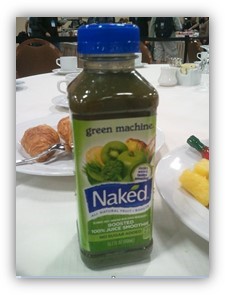
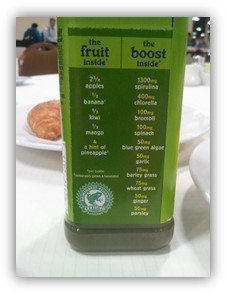
The day started as usual with breakfast, this was different though…no bacon. Who can live without a good stack of bacon at breakfast? 😉 Today they also offered a drink that was new to me, a green juice…see for yourself..

Spinache and broccoli? Grass??

It was ok I guess…but one was enough. After breakfast I had as the first session for the day a session on SSRS:

Running Reporting Services in SharePoint Integrated Mode: How and Why
(Spc199) Riccardo Mutti

Very good walkthru of setting up Reporting services in Integrated mode, both on SHarePoint 2010 and SQL 2008 R2 and on SharePoint 20103 with SQL 2012.
We also got to know what is good with using integrated mode instead of native, and what makes Microsofts integrated mode real, not compared to aothers that claim to have SharePoint integration. Tings like using built in security and that existing features can be utilized.

It was a very good walkthru and I will probably use the session recording as a good guide, but it could have been better as well, Riccardo used a demo Environment with Everything on the same box, meaning no kerberos and no permissions, which really are the things that make SSRS hard…
We did get to see the new 2013 Service Application model, whach will make SSRS easier to comprehend.

I got a good explanation as to what using a trusted account means, that was good. I Think that many customers and users can make do with a trusted account and thus not have to go thru all of the painstaking issues of setting up the environemnt to support kerberos.

The differnces:

The 2010 with 2008R2 model.

The 2013 with 2012 model.

Interensting stuff.

Next session, a customer session.

Customer Showcase: Telenor and Search with SharePoint
(SPC050) Andreas Hogberg, Denis Heliszkowski, Marius Pedersen

Andreas Högberg from Telenor, a Norwegian telecom Company explained how they quickly moved to use SharePoint 2013 search to get a better result even from their existing 2007 environment.
The end goal was to move completely to 2013 and do that without any ciustomizations, something which 2013 offered as a possibility.

The current global SharePoint 2007 environment had 171 customizations, the new SharePoint 2013 farm had 0(zero).

The plan was to have the two Environments coexist, then step by step move data from 2007 to 2013.

One interesting thing was the use of IaaS, Azure and Infrastructure as a service, they put all of their test and demo Environments there to save Money and time, and the environemnt did at its peak use 300+ cores in the cloud model.

Interesting session, nice to hear from a ‘real’ customer.

With on the session were two Consultants from MCS. Since most of the Project was done under the RDP program, they had MCS in on it to get the knowledge and inside help only MCS could offer.

That was it, last session for me.

I spent some time after that at the Exibit hall, talking to partners and perticipating in the raffles…
I did actually win a Windows 8 phone! Thanks Nintex!! I really love what you do! (Really, they do great workflows!)

I did not win the Ducati Monster motorbike that AvePoint gave away today…that Went to Another happy gentleman…

A few hours of shopping at the Premier Outlet North and I’m ready to go home. I’m flying home on the early bird tomorrow!

This is Thomas Balkeståhl signing out from the 2012 edition of the SharePoin t Conference for the last time. It has been great! I recommend going to everyone who havent been here and that works Close with SharePoint. It’s a uniqe opportunity to get knowledge and insight that you can’t really get anywhere else in the world.

The Mandalay Bay Hotel

Part 1 of this report
Part 2 of this report
Part 3 of this report
Part 4 of this report
Part 5 of this report


_________________________________________________________

Enjoy!

Regards

Twitter | Technet Profile | LinkedIn

SharePoint Conference 2012 in Las Vegas report part5


Hi friends.

Wednesday, third Session day! Today is the first Spencer Harbar day…

Another day with all sessions, then after that Ask the Experts Night. Nice…

I started out with the obvious selection this day. Spencer Harbar on UPS. For those of you who don’t know that name. He is the GOD on UPS, he has probably saved more UPS installations than anyone else.

User Profile Synchronization Best Practises in SharePoint Server 2013
(SPC245) Spencer Harbar

Spencer talked about the new and improved UPS in SharePoint 2013, what really is new (because a lot isn’t) is the 3 modes you can choose between.
-AD Import (That was available in SharePoint 2007 has been reintroduced and improved)
-UPS
-Custom

The reintroduced AD Import probably does what the majority of all customers want, a simple synch of user profile data to SharePoint.
It is import only and simpler than UPS, but it gets you the basics and more.
The Profile data is even entered into the Managed metadata Term store. Really nice.
Simple to configure and really a nice new option.

UPS, same as before, the real deal.

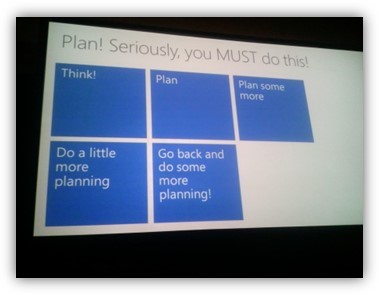
Planning!

All in all, a really great session that gave a lot of good info and most of all, hope, that UPS will be better this time.
And, Spencer Harbar is the man, no question!
See his blog here: http://www.harbar.net/

Migrating to SharePoint online in office 365 – strategy and best practices
(SPC152) Phil Cohen, Kimmo Fors

Again, a very good session. Things to think about from two Consultants from Microsoft Consulting Services. Really valuable content, experiences from real migrations that is hard to come by.

Key, same as with UPS and Everything else, planning!

Planning and Creating well designed Intranet Sites in SharePoint online
(SPC015) Randy Drisgill, john Ross

This was not really what I was hoping for, but still a very good session. What to Think about before setting up your Intranet in the cloud. How to make it useable and to look good. Again…plan plan plan…:-)

They started of with a few numbers:
Of all Projects setting up SharePoint the following is actually true:
62% over time
49% over budget
28% do not fit requirements

Proper planning could have made them all 100% successfull.

Deep dive to plan and Prepare for your users to interact with SharePoint from their Mobile devices.
(SPC164)

A very good Eye-opener on what can be done to make the Smartphone users experience better or even good. The new default Mobile view in SharePoint teamsites is really good. Try it out. No more basic text…
With apps coming out, like the Office hub and the SharePoint news reader, it will be a good offering to SmartPhone users.

Customizing the way SharePoint 2013 looks.
(SPC065)

A session on theme’ing and branding in SharePoint 2013. A really good session that showed us how to build your own themes and theme colors and also masterpages and css. The story on branding in 2013 just got a lot better.

Ask the experts.
The traditional ask the experts evening shared it with the exibit, all partners were in Place and showeed their solutions and companies to all that were interested. I spent some time today here at lunch as well and by now, it feels like I have seen most and talked to the ones I am interested in.
I got to talk to the creator of passphrases in SharePoint (Sean Livingston) and ask him if they were needed…(See privious post)
He unfortunately took it the wrong way and got almost upset…I still believe though, even after talking to the father of the Farm PassPhrase, that it is not really needed…it is more for percieved security, not security in itself…
And yes, do get me right, it is used!, to encrypt data in the db, but what I’m saying is that we don’t really need to see it or even know about it. It could just as well be hidden behind the scenes and be 200 chars long…in my opinion(until someone really proves me wrong…)

Ok, that was it. More fun tomorrow. That is the last day of the Conference and sessions are only planned for half the day. We’ll see what happens then.

I’ll try to keep reporting to all off you directly each and every day during the conference in order to share some parts of the great experience…

Stay tuned, this me, signing out, from day two of my SharePoint conference experience.

Part 1 of this report
Part 2 of this report
Part 3 of this report
Part 4 of this report


_________________________________________________________

Enjoy!

Regards

Twitter | Technet Profile | LinkedIn

SharePoint Conference 2012 in Las Vegas report part4


Hi friends.

Tuesday, second Session day! This is the first full day with only sessions, not counting the party in the evening.

Today I had a full Schedule, I guess that I am one of the few who really wants to make tis stay Count and go to all the sessions I can.
Since it is really late when I’m Writing this and I want to get some rest until tomorrow, I’ll keep this rather short but effective….

Overview of the new SharePoint Online
(SPC186)
First session, Mark Kashman talks a bit about SharePoint online.
THis was a really good session, Mark answered a lot of questions from the audience and it was really good. If i just list a few good things mentioned:
Project server in the cloud.
PowerPivot/PowerView
Guest Links
Hybrid Search
NAPA (Visual Studio Light – in the browser)
SkyDrive pro when released, will have 7GB of storage
PowerSHell support in the clound, I ould say it’s just basic support and there is a lot to wish for, but better than nothing. (I emailed Mark asking for when PowerShell will be fully supported)

Wish I’d have known that sooner! SharePoint 2013 demystified
(SPC266) Dan Holme and Jeremy Thake
Second session, a lot of good stuff on the things lots of people ask for but that is not really in the documentation…kind of…
The best part of this session was about RBS and Shredded Storage, read up on it…RNS can allow you to take advantage of the new WIndows Server 2012 features such as Deduplicated Data. Thus saving on storage space, that and a lot more has been done on saving data and data across the network.
Unfortunately they spent a lot of time on apps, even though it was a IT PRO session. Well, most of it was good and I gave them straight 5s in the survey.

We had a normal Conference lunch with meat, Ceasar sallad and a potatosdallad that was actually really god. We finnished it all off with selected pastries and coffee…

Overview of search driven Web Sites and Cross Site Publishing.
(SPC180) Daniel Cogan.
This session was about how to use search to get the content that you show in a page, making it dynamic and content driven.
Really good stuff, if you can get your ands on the slide/presentation, Watch it.

Claims based authentication – migrating to the new SharePoint 2013 Identity model.
(SPC039) Israel Vega jr och Nathan Miller
This was al about upgrading and what to do with Authentication.
One big thing I have learned here in Vegas, is that CLassic auth is more or less unsupported now with 2013. It can still work, it can be created using PowerShell but that is only for temporary use.
A lot more is to be said in this, but this is the key:
Use Windows Claims authentication if you can!

Last session for today:

SharePoint 2013 Identity and Authenticat ion Smackdown.
(SPC209)
This was supposed to be held by Steve Paschke who was sick. Israel Vega jr and one more great speaker jumped in to save the day.
Much was the same as the previous…a lot about upgrading Classic and Windows auth to claims.
This session was interupted by a false fire alarm, but it stopped eventually efter about 180 times…then they told us 30 times that there was no danger…

Last topic of the day, Jon Bon Jovi party at Mandalay Bech resort…! Need I say more..? Free good food, free beer, free wine and free drinks even.
Unfortunately it was a cold november day and we ended up thinking it was cold, we left the party Before it was over and headed back to our rooms.

A gret day all in all, but jesus, I am tired…

I’ll try to keep reporting to all off you directly each and every day during the conference in order to share some parts of the great experience…

Stay tuned, this me, signing out, from day two of my SharePoint conference experience.

Part 1 of this report
Part 2 of this report
Part 3 of this report


_________________________________________________________

Enjoy!

Regards

Twitter | Technet Profile | LinkedIn

SharePoint Conference 2012 in Las Vegas report part3


Hi friends.

Monday, first Session day!

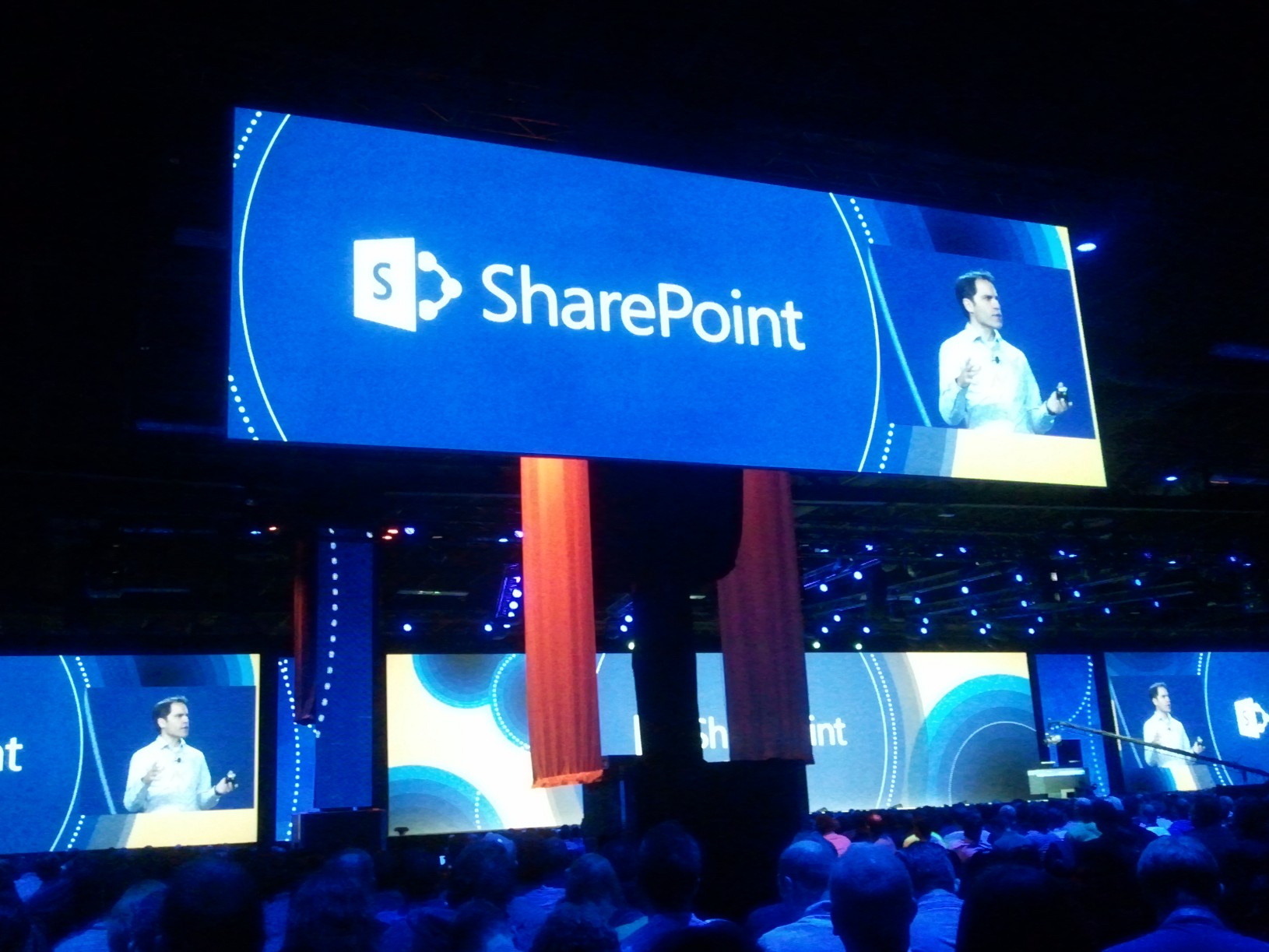
First out efter we had breakfast was the Keynote, this time same as last year with Jared Spataro (Senior Director Product Management) and Jeff Teper (Corporate Vice President of Microsoft’s Office Business Platform)
One of the first things that Jared said during his talk, was this: ’It’s not just a product, it’s a way of life’…I agree, to a certain degree you have to be ‘special’ to like this Product…
Next he told us that we were over 10.000 participants from over 85 different countries…the event has over 200 sponsors and it is getting to be a big deal. Similar event are held in smaller scale all over the globe, but there is only one ‘real’ SharePoint Conference…
It was a bit of a prep talk and that is Always nice…next Jared presented the next speaker, Jeff Teper, the ‘Father of SharePoint’ who has been with the product since the very beginning.
Jeff talked a bit about the 3 legs, or layers that they had in mind during the development of the Product.
– Experiences
– Innovation
– Ecosystem
The thought behind this was that this was what was needed in order to really take Another step from SharePoint 2010 without changing it all.
– Experiences is all about the user experience, this has gitten a huge lift, in terms of gui but also performance and usability.
The SHarePoint interface can now more than ever be percieved as a windows application, this since SHarePoint now dont repload the entire page whatever you click at, but only reloads the parts of the screen that is needed. This improves performance but also enhances the overall user experience a lot. Behind this is a new structure, for instance the image compression is hugely enhanced, the ribbon that Before in 2010 took 400KB to load, now only takes 100KB over the network.
All in all, the page dataload has been decreased with 40%.
Jeff demoed a lot in SHarePoint Online, and Everything Went as smooth as an onprem solution, later he told us that he was running SharePoint online against the datacenter in Europé, Amsterdam, this to show all of us that performance would not be an issue. If the performance when fully released is what it was today, I will never again complain about it, but we will have to see if that will be true when generally available.
One ore thing is that you only load delta data from content that has been changed. A Word file of 10MB does not have to be loaded again over the net because 1MB of content has been added, it only loads the new 1MB and that is also all that is saved to the database.

He also showed us drag and drop of files into the browser, this is also supported on all supported browsers, no more Active X controles…
You can now easily see exactly who has access to your site or document.
Search has been thry a major improvement, this time, FAST has been integrated into SharePoint search and that gives us a lot of new features.
Preview of documents in search results is something that will be easily liked by customers.
One less fantastic thing during Jeffs session was that they spent about one hour on Yammer. As I see it, Yammer is still not part of SharePoint and should not have a Place at the SharePoint Conference keynote. I can see why Microsoft would want to promote it, but as long as it is its own Product, I’m having a hard time seeing why we should spend a lot of time on it. That can be done by the Yammer Techs…

Scott Guthrie came out and showed a lot about the Ecosystem, thats the new CLoud app model and that was really interesting. He showed us how easy it was to develop an application in VS, test it locally and then deploy it to SharePoint. You could also easily put the code parts in Azure and same thing, deploy directly from Visual Studio. Neat!

After the Keynote I got to see Three different session, all were very good and held a high quality.

SPC219 SharePoint 2013, Whats new for IT professional
Bill Baer, Product Manager SharePoint, told us at a very high pace about the news in 2013.
A lot has happened after all and the biggest applause was for the promise, that this time, the UPS will work configured from the Central Administration GUI as it should 🙂

SPC083 Deployment wizard: SharePoint 2013 Installation, tips, tricks ans scripts
MVP Dan Holme talked about deployment in 2013 compared to 2010. He showed the small differences and what is missing.
The main takeaway that I allready knew, setup is pretty much the same as in 2010…

SPC119 Designing your SharePoint 2013 Enterprise deployment
Based on SharePoint online experiences, they showed how a Enterprise farm Environment should be designed.

We finnished the day with some snacks and a few beers, compliments of Microsoft Sweden that was so kind to treat all of us Swedes here to a pre-evening at the ‘Something’ Grill. Very nice and Amazing how many Swedish participents there are! I would guess over 200.


I met a few old collegues from Microsoft Sweden and when the free beer stopped coming, we Went on, to the House of Blues one more and then the day was over for me.

After a very interesting and inspiring day, I have to do some work and then rest, a new day will come tomorrow, with even more Technical sessions…

I’ll try to keep reporting to all off you directly each and every day during the conference in order to share some parts of the great experience…

Stay tuned, this me, signing out, from day two of my SharePoint conference experience.

Part 1 of this report
Part 2 of this report


_________________________________________________________

Enjoy!

Regards

Twitter | Technet Profile | LinkedIn

SharePoint Conference 2012 in Las Vegas report part2


Hi friends.

Last ‘free’ day Before the real action starts.
http://www.mssharepointconference.com (adding Pictures later on when I get them uploaded)
Today was registration day, after saying hello to a few extremely relaxed ‘guards’ that were positioned to show us all the way forward…we found the registration boths, new this year was the selfservice checkin, using your ID used to register, you printed your own badge and then simply picked it up. We all got a backpack complements of HP and with it a lot of information and the most important thing of all, the wristband for the Bon Jovi party later in the week.

Me and my Conference buddy from back home had planned to rent a car, then go to Grand Canyon and the Hoover dam, then spend the rest of the day at one of the large Outlets in Vegas. The plan however had flaws…
After having a good US breakfast at the Luxor Pramid cafe, we ran into some hurdles…getting a car was not that easy, especially when youre on a budget, we ended up beeing 2 hours late and paying more than we planned to. If we only had made reservations from back home…
.Then, once on the road we noticed that it was farther away then we forst had thought. I would say about 60 miles and 10 of them on gravel. But, we got there…West Grand Canyon. We had not expected the admission fee (including a lot of Native Indian perks) of $44…

At least the 44 included a hop on/hop off bus tour that took us to Three different view sites, the Grand Canyon was spectacular!! If you ever come to Vegas, see it!

When we got going again it was getting late, the sun were setting and we started to worry about making the Welcome reception.

Since my buddy had not seen the Hoover Dam Before, we had to make a Quick stop there as well on the way back, it was dark when we got there but it was still a good experience. Perhaps even better in the dark, you tell me?

Next this was that we had to fill the car up with gas and, the difficult thing, we had to wash the car from driving on the gravel, if you did not, you got a fine of $40…it took us more than an hour driving all across Las Vegas looking for the carwash Place…when we finally found it, got he car cleaned up and parked back at Mandalay Bay, it was too late for the Welcome Reception…I got to drive a lot of car though…

A quick fast food dinner and we diceded to skip the chance of getting 5 minutes at the reception and instead, gather our strength for tomorrow instead, breakfast at 7:30 and then its time for the first starting keynote. I can’t wait.

I’ll try to keep reporting to all off you directly each and every day during the conference in order to share some parts of the great experience…

Stay tuned, this me, signing out, from day two of my SharePoint conference experience.

Part 1 of this report
Part 3 of this report


_________________________________________________________

Enjoy!

Regards

Twitter | Technet Profile | LinkedIn

SharePoint Conference 2012 in Las Vegas report part1


Hi friends.

Next week is Sharepoint conference week, it starts Monday, not a big deal for most of you, but for us going…what a great time to look forward to.
http://www.mssharepointconference.com

This is my second consecutive SharePoint Conference and this year we have a new version out, which means it will be a little bit extra. All the new features, the new ways of doing things, the new experiences and even the new ways to license…its all new and that has got t be exciting!

I have been to quite a few of these Microsoft events in the US, perhaps around 10 over the years, internal and external like this time, and I have to tell you, Microsoft are good at throwing these things.
I have heard that Microsoft this year expects around 10.000 attendees to show up, and the simple challenge of managing all of them is no small feat. However, I feel certain that it will all be world class as usual.

Last year was great, it was in Anaheim California and it was all about the experiences people had had with 2010, this time its a little bit different, its Las Vegas and its going to be all about the news in 2013…
What can we do now that we couldn’t before, what has been removed and what has been learned from 2010 and incorporated into this version 2013?

Vegas will require some attention to be sure, but the Conferences Sessions will be winning my attention. Call me a geek but I’m so looking forward to the learning part, to the part where I get new ideas, where i discover new things in SharePont. No offense LasVegas, but what you have to offer doesn’t stand a chance…(to me, but I’m guessing a lot of the 10.000 will think and act differently) I’ve been to Vegas once before, 15 years ago, same time as the premiere of Star Wars I…same time as the Matrix came out…

We came to Vegas a friend and I, in a rented Mustang convertable from San Fransisco…we came at night and Vegas was all open 24/7…after spending 5 nights during which we tried most of what Vegas had to offer (thats legal), I never thought I would want to come back, or that I would ever find a reason good enough…but trust me, right now while writing this post, sitting on a plane, 4 hours into a 20 hour trip, I cant wait to see Vegas once again and more specifically, to go to the conference!

I’ll report to all off you directly each and every day during the conference, for those of you who can’t be with us onsite, i’ll try to share some parts of the great experience…

Stay tuned, this me, signing out, from day one of the SharePoint conference experience.


_________________________________________________________

Enjoy!

Regards

Twitter | Technet Profile | LinkedIn

Anonymous Authentication always on in SharePoint 2013


Hi friends.

Anonymous access is default on in SharePoint 2013, even if you select No?

First, remember, this is all just a reflection made by me and most likely, there is some obvious reason as to why this is, that simply just eludes me at this point. I know that SharePoint does not in itself allow Anonymous access, that has to be configured, but IIS allows it which seems to me like a bad idea.

I noticed this disturbing thing this morning when I created a Quick Web Application in a SharePoint 2013 test farm of mine running on Windows Server 2012. Thing was, I created a web application from the Central Administration GUI and selected all the quickest options, Default Everything but to use an existing Application Pool. This means that we select Windows Authentication, NTLM only and NO Anonymous access.


Let me explain…
On a SharePoint 2013 farm running on Windows Server 2012:
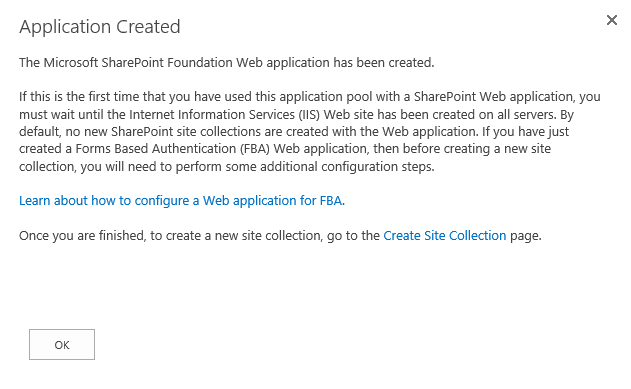
I created a normal Web Application using only the Central Administration GUI. I used port 2013 just to show where it is, then default on all security settings.

Like this:

I seelcted to use an existing Application pool to save time and Resources, but that is not relevant. Ok to create:

Next I checked what was actually done in IIS, from the preview I remebered having some questions on how this was performed…
In IIS 8.0 on Windows Server 2012 it looks like this:

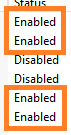
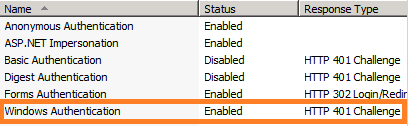
Notice how 4 providers are enabled by SharePoint as default.
Anonymous Authentication
ASP.NET Impersonation
Forms Authentication
Windows Authentication

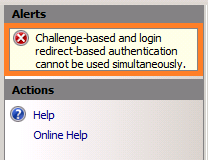
These are all enabled by default, Windows Authentication has only NTLM configured like we selected in CA. We also get a warning from having Forms Based authentication(redirect) and Windows Based(Challenge) enabled at the same time. IIS does not like this but I have managed to find out that this is ok, given certain circumstanses you need it to be this way.


If we do the same thing on a SHarePoint 2010 farm running on Windows Server 2008R2 and IIS 7.5:

We select to use NTLM and to not allow Anonymous, same as in 2013.

The settings in IIS:

And the list of providers look like this:

Like you can see, SharePoint 2010 only enables ASP.NET Impersonation and Windows Authentication.

If we put the two up side by side, it looks like this:

See?

The question is, does this affect security in any way?
Is it still as secure?
Why not simply disable Anonymous Authentication?

If anyone has any good suggestions or explanations, please submit them as a comment and I will update this post to reflect the facts.

References:

A really good link that explains the inner workings of claims based authentication in SharePoint, valid for 2010 and 2013 alike.
(Thnaks nojanaj for the tip)

Multiple Authentication Methods in SharePoint 2010
http://shpt2010.wordpress.com/2011/11/10/multiple-authentication/

_________________________________________________________

Enjoy!

Regards

Twitter | Technet Profile | LinkedIn

SharePoint 2013 is finally here!! Download it now


Hi friends.

I just got the word, SharePoint 2013 has been released for download on MSDN and Technet. This is true also for Office 2013, and a few other products…like Project 2013, Visio 2013, Lync 2013, Exchange 2013. The 15 Wave have hit us…
May the race begin, download…!!

TechNet and MSDN subscribers will find the bits there, Volume Agreement customers will find the bits in the normal Volume Lincensing download location.

RTM Evaluation copies of Server can be downloaded here: Download Microsoft SharePoint Server 2013
RTM copies of Foundation can be downloaded here: Download Microsoft SharePoint Foundation 2013 RTM
RTM copies of SharePoint Designer 2013 can be downloaded here: Download Microsoft SharePoint Designer 2013 RTM

_________________________________________________________

Enjoy!

Regards

Twitter | Technet Profile | LinkedIn

The first Kerberos guide for SharePoint 2013 technicians


Last update: June 5, 2013
Updated 2012-12-08 – New note added to Step 3. Delegation
Updated 2012-12-11 – New note added to Step 4. Authentication Provider
Updated 2012-12-25 – New link added to Skip all the talk and get straight down to business
Updated 2013-02-14 – New update added to Step 4. Authentication Provider – ignore step 4.18, 4.19 and 4.20.
Updated 2013-05-14 – New note added to step 5.6
Updated 2013-06-05 – Added some t-shooting links after step 5.11

This is obviously an extension to ‘The final Kerberos guide for SharePoint technicians‘ published previously. As I was making that post and collecting material and Pictures, verifying the functionality, I was beginning to wonder if such a guide would be applicable in the same way to SharePoint 2013 as it is to SharePoint 2010, after some quick research I found out that it is. Using the SharePoint 2013 preview installed on Windows Server 2008 R2 with a 2008 R2 Active Directory and SQL Server 2008 R2, the steps are the same (almost).

Cerberosx

(Herakles and Kerberos)

I came upon a few ‘snags’ that took me a while to figure out, but part from that, all is similar to how it is in SharePoint 2010. So, good for me, I only have to update Everything, not re-learn the whole thing!
As help in the task of writing this post, I had nothing…its still pretty empty for SharePoint 2013 on the topic of Kerberos and authentication (a few references added at the bottom section of this post), no doubt that will change as we get closer to launch but today, it was a void waiting to be filled. So, take it as is, this is built solely upon the preview bits. Use the 2010: The Whitepaper (242 pages) as reference, most of it is still valid.
Ok, enough talk, lets get down to business:

‘The first Kerberos guide for SharePoint 2013 technicians’

This time, I will try and get back later and add a scenario involving Windows Server 2012 and SQL Server 2012. Not that the SQL server will make much or any difference here, but the server environment will. Perhaps I’ll even have a brand new AD to work with based on 2012.

Scenario 1 – Basic

Kerberos authentication to SharePoint 2013 site on default port 80 with a single SharePoint Web Server(Windows Server 2008 R2) from Windows 7/2008R2, IE 9. (using Basic delegation/Unconstrained delegation)

(This guide assumes that a normal NTLM authentication to the same Web Application with the same user has been verified, by adding this line I’m among other things taking AAM and site permissions out of the equation. These things have to work before attempting to use this guide)

Note: To perform some of these procedures, you must be a member of the Domain Admins group or the Enterprise Admins group in Active Directory and you have to be a member of the Farm Administrators Group in SharePoint, or you must have been delegated the appropriate authorities. As a security best practice, consider using ‘Run as’ when applicable to perform these procedures.

Checklist:

Step Summary
1. Name Resolution An entry for the Web Applications URL must exist in either DNS or in the clients hosts file.
2. Service Principal Names HTTP SPN’s must be created for the Web Application URL(s) and its Application Pool service account.
3. Delegation The SharePoint Web Server must be ‘Trusted for delegation’ in Active Directory. (Note added 2012-12-08)
4. Authentication Provider The Web Applications Authentication provider must be set toAuthentication type: WindowsIIS Authentication setting: Integrated Windows authentication/Negotiate(Kerberos)
5. Verification of functionality(IMPORTANT!) Klist.exe on client must have a HTTP ticket for URL and User accountSecurity log on SharePoint Web Server must have event ID 4624 with user and kerberos.
(If Kerberos fails NTLM authentication will be used! Unless, see links at the end of step 5.)
References and Credits

If you do need assistance on configuring ALternate Access Mappings or https/SSL, use any of these links:
A guide to Alternate Access Mappings Basics in SharePoint 2013
A guide to https and Secure Sockets Layer in SharePoint 2013
The final guide to Alternate Access Mappings (Free Download)

Step 1

Name Resolution

There are two ways to do this, one excellent and one less excellent, the lesser of the two is really only ‘allowed’ for developing or testing purposes, but it exists and should be taken into consideration. Testing is also something that you will want to do here, and the less modifications you must do that requires a service down or a (Service Management) change order at an early stage, the better. Use Hosts for testing, then DNS in production.

DNS

Make sure that the URL of the Web Application has a A-Record in DNS, if not, you need to create it.

A server that is joined to an Active Directory Domain gets a A-record created automatically, but verify that it is there.

Create a A-Record in DNS using the following:

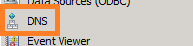
1.1 Open DNS Management in Administrative Tools on a DNS server.
KerbDNS1x

1.2 Expand forward lookup zones container.

KerbDNS6x

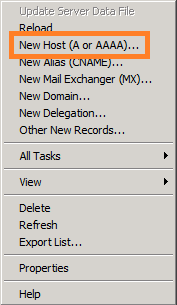
1.3 Right click on the zone (domain name) and click on new host (A or AAAA).
KerbDNS5x

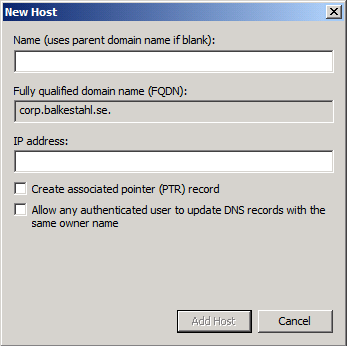
1.4 Type in the name of the record, this is the URL of the Web Application (minus the domain part in a FQDN) and type in the IP address of the SharePoint 2013 Web Server

Kerb2013DNS0x

1.5 Click on ‘Add Host’

1.6 Click on ‘Done’

1.7 You will see this verification dialog:

Kerb2013DNS1x

1.8 Verify that the record has been created in the right pane.

Kerb2013DNS2x

1.8 Just to be sure, do a flush of the DNS cache, to do this, type:
Ipconfig -flushdns (hit enter)

Kerb2013DNS25x

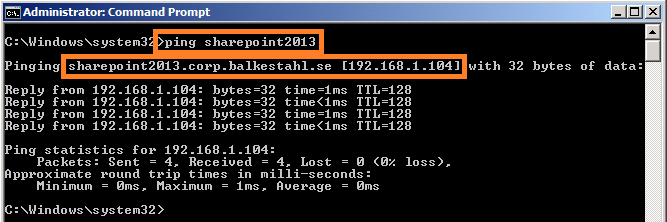
1.9 In a Command Prompt, ping the Web Application URL.

Kerb2013DNS3x

1.10 You are now done with step 1, Name Resolution. Move on to step 2. Service Principal Name(SPN).

Note: A known issue exists with some clients (IE7 and IE8 included) that causes kerberos authentication to fail with the use of DNS alias instead of an A-Record.

Hosts (not recommended method)

1.x1 Locate the hosts file on your client or server if this is what you are using as client. It is located in the following path: C:\Windows\System32\Drivers\etc\hosts. Use Notepad to open it(open notepad using right click and ‘Run as Administrator’ and you will be allowed to save the changes)

1.x2 At the bottom of the file, add a row with the following: IP-Address<tab>hostname/FQDN <enter>

– Example:

192.168.1.104 sharepoint2013

– Also add any FQDN’s needed, like in my example:

192.168.1.104 sharepoint2013.corp.balkestahl.se

Note: Always end the last line with a Linefeed/Enter, else you may experience issues using the hosts file.

KerbHostsx

1.x3 Example of how the file could look above…Save the file using the same filename(hosts only, no extension)

You are now done with step 1, Name Resolution. Move on to step 2. Service Principal Name(SPN).
Back to main menu

Step 2

Service Principal Name(SPN)

Note: To perform these procedures, you must have membership in Domain Admins, Enterprise Admins, or you must have been delegated the appropriate authority. For information on delegating the permissions to modify SPNs, see Delegating Authority to Modify SPNs.
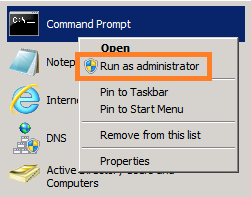
Note: To use setspn, you must run the setspn command from an elevated command prompt. To open an elevated command prompt, click Start, right-click Command Prompt, and then click ‘Run as administrator’.

When creating or setting up your SPN’s, you need some basic information first, as you will be creating HTTP SPN’s you need a URL and a Service account name. If the SharePoint Web Application has both a NetBIOS name and an FQDN, then you need to create separate SPN’s for both.

2.1 Start by opening a Command Prompt ‘Running as administrator’ (See note at the start of this step 2)

KerbSetSPN05x

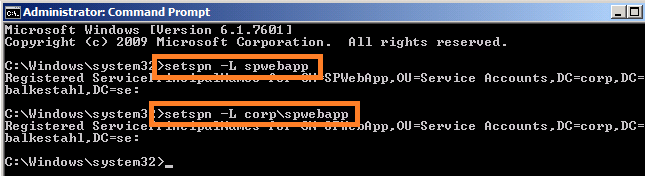
2.2 Next, list all SPN already in Place for the Service Account, type:

setSPN -L domain\serviceaccount (hit enter) or without the domain name setSPN -L serviceaccount (hit enter)

Wait for it…
KerbSetSPN2x

Most likely, you get back nothing. This is ok. If you do get some registered SPN’s back, just make sure that they are not the same as the ones you are about to add, if they aren’t they you can leave them be.

2.3 Next, we create our own SPN’s for the service account paired with the Web Application and SPN type, to create this SPN type:

Note: Do not configure service principal names with https even if the web application uses SSL

setspn -S HTTP/mywebappurl domain\serviceaccount (hit enter) Note: HTTP can be upper or lowercase, does not matter.

KerbSPN1x

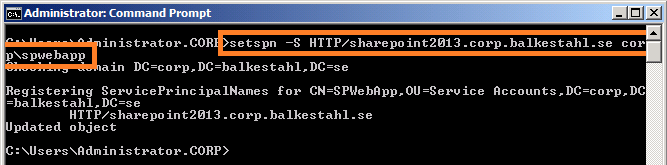
2.5 Now we also have to add an SPN for the FQDN, type:

setspn -S HTTP/mywebappurl.domain.com domain\serviceaccount (hit enter)
KerbSPN3x

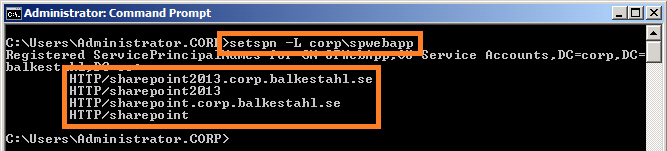
2.6 Listing the SPN’s now should list one additional SPN, type:

setspn -L domain\serviceaccount (hit enter)
KerbSPN4x

If Everything has gone well and you had no previous SPN’s created from this service account, then the result from the command will be:

HTTP/mywebappurl
HTTP/mywebappurl.domain.com

Note: You see in the Picture in addition to the 2013 SPN’s, my SPN’s created for the SharePoint 2010 server, that farm uses the same service account, corp\spwebapp and thus the SPN’s are still registered to it. Those two extra SPN’s do not in any way affect this service. Leave them be and we will be fine.

The necessary SPN’s have now been created successfully and the service will be able to request tickets in your name.

Note: Using the -S parameter with setspn when creating an SPN will check for duplicates before creating a new one, thus eliminating the risk of duplicate SPN’s, which would cause Kerberos to fail.

You are now done with step 2, Service Principal Name(SPN). Move on to step 3. Trust for delegation.
Back to main menu

Step 3

Trust for delegation

Note: To perform this procedure, you must be a member of the Domain Admins group or the Enterprise Admins group in Active Directory, or you must have been delegated the appropriate authority. As a security best practice, consider using Run as to perform this procedure.

By default, no server is trusted for delegation, meaning that a service on a server in the Active Directory, cannot act on a user’s behalf, basically this means that a service if trusted for delegation, can impersonate a user and request a Kerberos ticket in the users name.

(added 2012-12-08)
Note: Step 3 can be skipped if you only want to authenticate your users. Delegation is only needed if you are planning to access external or ‘second hand’ datasources, such as an RSS feed, Reporting Services or any other service external to the SharePoint server, that would require the users authentication to be delegated. Configuring delegation together with Kerberos will allow for ‘double hop’ scenarios.
(Thanks Spencer Harbar for pointing this out)

Change this setting in Active Directory using the following:

3.1 Open Active Directory Users and Computers.

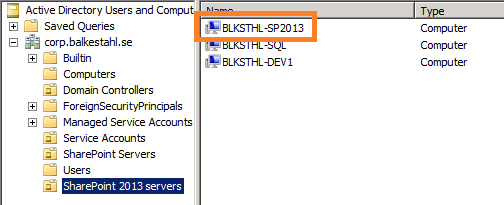
3.2 In the console tree, click Computers. (Or the appropriate OU where your SharePoint Web Server resides)

KerbDelegate1x

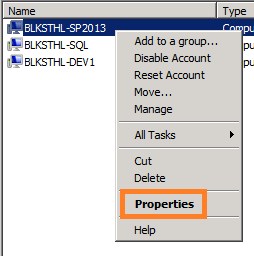
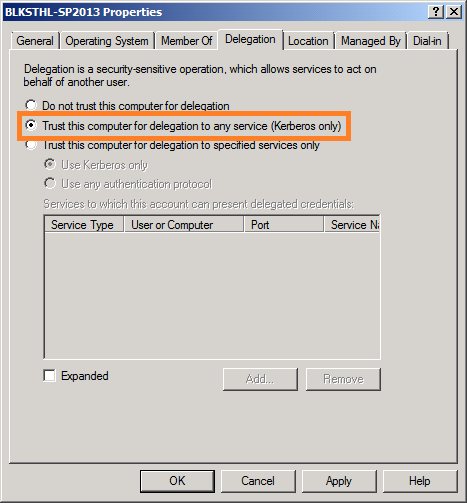
3.3 Right-click the computer you want to be trusted for delegation, and click Properties

KerbDelegate3x

3.4 On the Delegation tab, click ‘Trust this computer for delegation to any service (Kerberos only)’.
KerbDelegate4x

3.5 Click OK.

You are now done with step 3. Trust for delegation. Move on to step 4. Authentication Provider.
Back to main menu

Step 4

Authentication Provider

(Added 2012-12-11) Update: In response to several comments, the steps 4.18, 4.19 and 4.20 can be ignored, these steps are not required and can be disregarded. IIS will show a red warning but this is what SharePoint does and it works even with FBA enabled. So, if it works with FBA enabled, leave it on.
See references section at the end of this post for a link to a really good explanation to how claims based authentication in SharePoint works.
Note: To perform this procedure, you must be a member of the SharePoint Farm Administrators group, or you must have been delegated the appropriate authority.
Note: If you are creating a new Web Application at this Point, simply select ‘Classic Mode Authentication’ as authentication and ‘Negotiate(Kerberos)’ as Authentication provider in the Security Configuration dialog during Web Application creation.

In order for the Web Application and SharePoint to use Kerberos instead of the default NTLM, we have to configure SharePoint to use just that. Unlike what many Think, there is no way to force SharePoint to use only Kerberos, what we have available is the option to use Kerberos if possible, else use NTLM. Don’t ask me why this is so, but this is what we have. However, if all of the Kerberos Components are configured correctly, this is what will be used for authentication at all times.

So…the last configuration Before testing it all out…configure SharePoint to use Kerberos using the following:

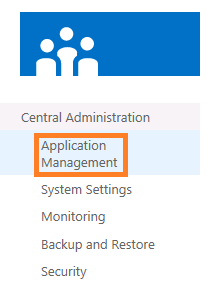
4.1 In the Central Administration, go to ‘Application Management’ – ‘Manage Web Applications’

KerbCA1x

KerbCA2x

KerbCA3x

4.2 Select the Web Application you want to configure, and click on Authentication providers in the top ribbon.

KerbCA4x

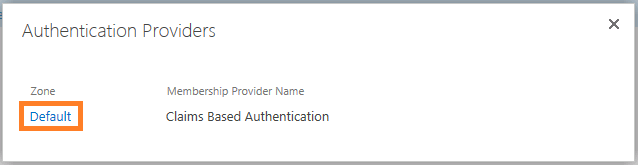
4.3 In the ‘Authentication Providers’ dialog, click on the authentication provider you want to alter, usually its default.
KerbCA5x

4.4 In the ‘Edit Authentication’ dialog, verify that ‘Claims Authentication Type’ is set to: ‘Enable Windows Authentication’ and ‘Integrated Windows authentication’ In the dropdown, select ‘Negotiate (Kerberos)’.

KerbAuthProv1x

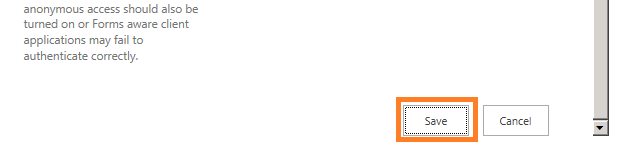
4.5 Scroll down the dialog to ‘Save’ / ‘Close’. Press Save and wait…you will not see any progress…
KerbAuthProv2x

4.6 Sit here until you feel that you have waited long enough and that the save MUST be done.

4.7 Click on Cancel(?!)

You have now made the modifications needed in SharePoint for Kerberos authentication to function, now we have to verify that the Changes has been made to IIS by SharePoint.

To verify the IIS Web Site Authentication settings, follow these steps:

4.8 In Internet Information Services (IIS) Manager, locate the Web Application under ‘Sites’.

KerbIISExtra1x

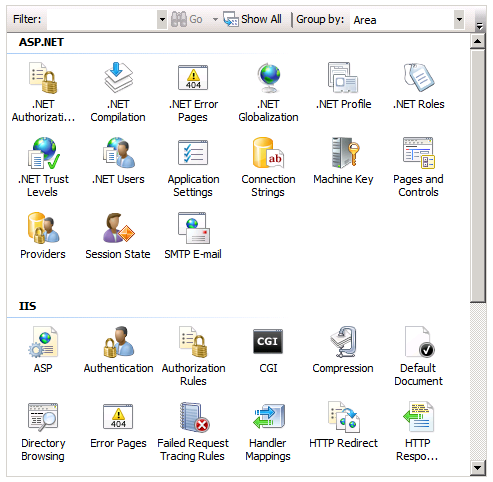
4.9 Select the Web Application and in the middle pane under the heading ‘IIS’, locate ‘Authentication’

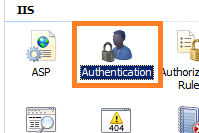
4.10 Select the ‘Authentication’ Icon and in the right ‘Actions’ pane, clikc on ‘Open Feature’.

kerbiis2-2x

4.11 In the Authentication dialog, select Windows Authentication (usually at the bottom).

KerbIIS1-3x

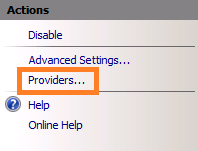
4.12 Click on ‘Providers’ in the right ‘Actions’ pane.
kerbiis5x

4.13 Verify that ‘Negotiate’ and ‘NTLM’ are the only ones listed and that they are listed in that order, ‘Negotiate’ at the top.

kerbiis6x

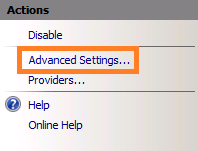
4.14 Click Cancel and then again in the right ‘Actions’ pane click on ‘Advanced Settings’.
kerbiis7x

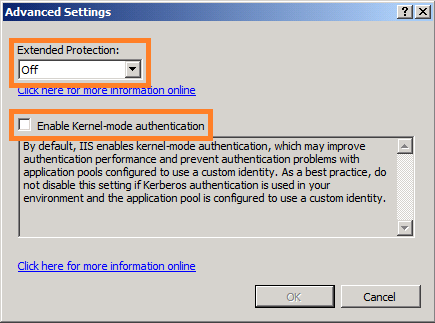
4.15 Verify in the ‘Advanced Settings’ dialog that ‘Extended Protection’ is ‘Off’ and that ‘Enable Kernel-mode authentication’ is unchecked.
kerbiis8x
4.16 Click Cancel.

4.17 IIS will warn you that this is disabled, but SharePoint disables this setting because of a ‘feature’ in IE8 that may prevent them from connecting. Do not follow their advice this time…

KerbIIS4x

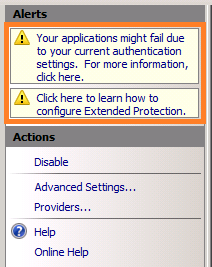
4.18 (DISREGARD THIS STEP – See note at beginning of step 4. added 2012-12-11) I noticed here as well, after some trial and error, that SharePoint 2013 for some reason enabled ‘Forms Authentication’ for the my Web Application in IIS, when both are enabled, you will never be able to access the site.

KerbIIS1x

4.19 (DISREGARD THIS STEP – See note at beginning of step 4. added 2012-12-11) I even got a Little error about it in the top-right pane:

KerbIIS2x

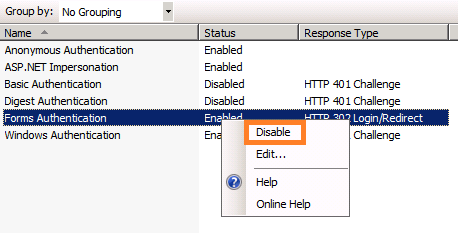
4.20 (DISREGARD THIS STEP – See note at beginning of step 4. added 2012-12-11) Important! Disable the ‘Forms Authentication’ if it is enabled:
KerbIIS3x

4.21 Exit Internet Information Services Manager.

You are now done with step 4. Authentication Provider. Move on to step 5. Verification of functionality.

Note: DO NOT make any Changes using the Internet Information Services Manager, if Changes need to be made, Always use the SharePoint Central Administration interface.
Another way to make changes to SharePoint is PowerShell, which is also a recommended way if you really know what you are doing.

Back to main menu

Step 5

Verification of functionality

Many Tools exist that can be used to verify that Kerberos authentication actually occurs, Tools such as NetMon(Network Monitor), WireShark, Fiddler, KerbTray and many more can be used for this step. I have however focused on two Tools that will be sufficient and that exists already in the Environment. I have chosen to focus on these two:

Klist (Client)

Security Log (Server)

Klist

(Klist is available on Windows server 2008 and later and on Windows 7 and later, for Windows Server 2003, see note at the end of this step)

Before anything, Close down all open Internet Explorers or other browser sessions you have open.

5.1 On the client, start a command prompt as administrator (Right click, ‘Run as administrator’).

KerbSetSPN05x

5.2 Flush the DNS cache, type:
Ipconfig -flushdns (hit enter)

Kerb2013DNS25x

5.3 List all tickets on the system, type:
klist (hit enter)
Note: this does not affect any other functionality on the client or server

The tickets listed does not necessarily have anything to do with us at this point (SharePoint).

5.4 Now, we want to clean up this list so that we can see if a new ticket is granted to our user when logging on to SharePoint.

Clear the list, type:
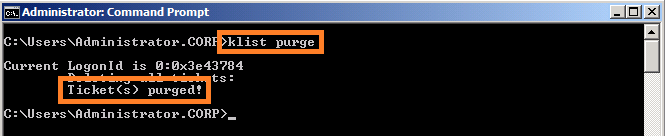
klist purge (hit enter)
Note: this does not affect any other functionality on the client or server

In the prompt you will see:

Deleting all tickets:

Ticket(s) purged!
KerbKlist2x

5.5 Try again listing all tickets, type:

klist (hit enter)

KerbKlist5x

This time the list should be empty. (if not, then some service has managed to connect again during the time from that you purged until you ran Klist again)

5.6 With an empty Kerberos ticket list, open up a new Internet Explorer session and go to the URL of the Web Application.
Note: You cannot start a browser as a different user, if you do, the tickets will not be available to the klist command for the logged on user.

5.7 When authenticated and logged into the site, all loaded ok

KerbLoadSite3x

5.8 Switch back to the command prompt and again, type:

klist (hit enter)

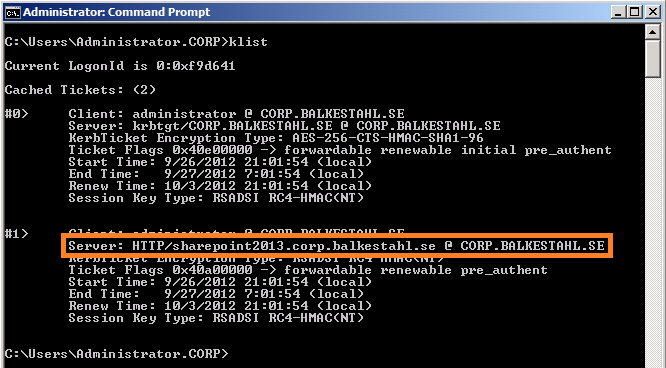
Now, with Kerberos working, you will see two tickets, the most important one is the second ticket(#1) that contains:

Client: username@domain.com

Server: HTTP/mywebappurl

KerbTicket Encryption Type:

And a few timestamps and similar stuff. This is good!
KerbKlist1x

If you see this ticket, things are working! Now, all we have to do is verify that it looks good on the Web Server as well.

Close down the Command Prompt and move on to the next task in this guide, the security log.

Note: For Windows Server 2003, KLIST is available as a free download in the Windows Server 2003 Resource Kit Tools. To obtain the tools, visit the following Microsoft Web site: Download Klist here

Security Log

Note: Before checking for events in the eventlog, you may want to verify that your server is logging authentication success, else you will not see the event ID 4624 in the Security Log of your Web servers.
You will find the Group Policy at ‘Computer Configuration / Windows Settings / Security Settings / Local Policies / Audit Policy > [Audit logon events], make sure this is set to ‘Success’.
(Thanks to Alvar Kresh for sharing this important note)

Verify that the Web Server Authenticates the user using Kerberos using the following:

5.9 On the SharePoint Web Server, in Administrative Tools, open up Event Viewer.

KerbEvent1x

5.10 Expand the ‘Windows Logs’ container and locate the ‘Security’ Log.

KerbEvent2x

5.11 In the Security log, locate a recent event with the ID of 4624. This event should be a successfull logon, and hold the security ID and accountname of the user that accessed the SharePoint Web Application using Internet Explorer on the client, and it should also state:

Logon process: Kerberos

Authentication Package: Kerberos.

KerbEvent1x

If you can verify that you do have this event, then you are done, Kerberos works!

You are now done with step 5. Verification of functionality, there are no more steps from here…

This means that if you have successfully completed all steps in this guide, you have managed to configure Kerberos for SharePoint 2013.

If Kerberos authentication fail with an error, then you may experience that authentication does not fall back to NTLM at all. It simply fails. There are a few reasons why this can happen and you may want to keep this in mind just in case.

Related links:
Problems with Kerberos authentication when a user belongs to many groups
http://support.microsoft.com/kb/327825
“HTTP 400 – Bad Request (Request Header too long)” error in Internet Information Services (IIS)
http://support.microsoft.com/default.aspx?scid=kb;EN-US;2020943
Users who are members of more than 1,015 groups may fail logon authentication
http://support.microsoft.com/kb/328889/
Group Policy may not be applied to users belonging to many groups
http://support.microsoft.com/kb/263693/

CONGRATULATIONS!
Back to main menu

Thanks to, for technical and spiritual support!

Hasain Alshakarti Truesec

Mattias Gutke Enfo Zipper

Anders Grönlund Enfo Sweden

Markus MurrayTruesec

HeraklesUnknown

References

Plan for Kerberos authentication in SharePoint 2013
http://technet.microsoft.com/en-us/library/ee806870(v=office.15).aspx

Plan authentication in SharePoint 2013
http://technet.microsoft.com/en-us/library/ee794879(v=office.15).aspx

Plan for user authentication methods in SharePoint 2013
http://technet.microsoft.com/en-us/library/cc262350(v=office.15).aspx

Setspn (Windows Server 2008, Windows Server 2008 R2)
http://technet.microsoft.com/en-us/library/cc731241(v=ws.10).aspx

Klist (Windows Server 2008 R2)
http://technet.microsoft.com/en-us/library/hh134826(v=ws.10).aspx

DNS Server Overview (Windows Server 2008)
http://technet.microsoft.com/en-us/library/cc770392(v=ws.10).aspx

Trust for delegation (Windows Server 2003 but this still goes)
http://technet.microsoft.com/en-us/library/cc739764(v=ws.10).aspx

How the Kerberos Version 5 Authentication Protocol Works
http://go.microsoft.com/fwlink/p/?LinkID=196644

Kerberos Explained (old but still good)
http://technet.microsoft.com/en-us/library/bb742516.aspx

Microsoft Kerberos
http://msdn.microsoft.com/en-us/library/aa378747(VS.85).aspx

Multiple Authentication Methods in SharePoint 2010
http://shpt2010.wordpress.com/2011/11/10/multiple-authentication/
(A really good link that explains the inner workings of claims based authentication in SharePoint, valid for 2010 and 2013 alike.)

Kérberos (lat. Cérberus)
http://en.wikipedia.org/wiki/Cerberus

_________________________________________________________

Enjoy!

Regards

Twitter | Technet Profile | LinkedIn