Configure ULS log and Usage and Health log location


SharePoint jokers!

If you left the settings in SharePoint 2013 as default when installing and configuring, then you will probably have a log path that looks like this for both the ULS log and the Usage and Health log.
C:\Program Files\Common Files\microsoft shared\Web Server Extensions\15\LOGS

If you want to change this to a new path, maybe on a different disk like D: (recommended) or on a simpler path easier to remember, use the following commands:

You will need to run the commands in a PowerShell running as administrator and you will also need to load the SharePoint snapin first, add-pssnapin.
add-pssnapin microsoft.sharepoint

For the Diagnostics log(ULS)
set-SPDiagnosticConfig -LogLocation “D:\Program Files\Common files\Microsoft shared\Web server extensions\15\LOGS”
or
set-SPDiagnosticConfig -LogLocation “D:\SharePoint Logs\ULS”

For the Usage and Health log
set-SPUsageService -UsageLogLocation “C:\Program Files\Common files\Microsoft shared\Web server extensions\15\LOGS”
or
set-SPUsageService -UsageLogLocation “D:\SharePoint Logs\Health”

set-SPDiagnosticConfig -LogLocation “C:\Program Files\Common files\Microsoft shared\Web server extensions\15\LOGS”

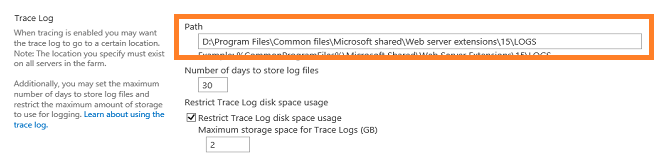
In my environment, the Diagnostics trace log path looks like this:
ULS2

ULS1

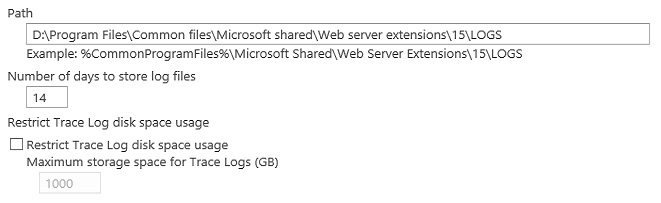
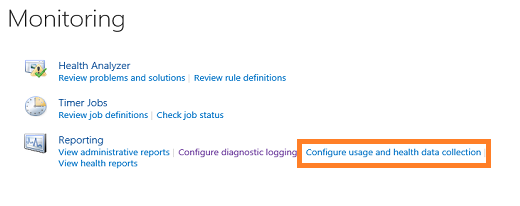
And for the Usage and Health log, it looks like this:

U&H2

U&H1

References:

(If the two paths Point to a different location then you may see this in your event log)
6398 – The Execute method of job definition…SPUsageImportJobDefinition

https://blog.blksthl.com/2013/05/27/6398-the-execute-method-of-job-definition-spusageimportjobdefinition/

ULS Log Viewer download
http://archive.msdn.microsoft.com/ULSViewer

Thanks to:

Ankie at my customers, who pointed out the Usage and Health log issue 6398 in the first place.


___________________________________________________________________________________________________

Enjoy!

Regards

Twitter | Technet Profile | LinkedIn

6398 – The Execute method of job definition…SPUsageImportJobDefinition


SharePointees!

Have this critical error in your Eventlog?

The Execute method of job definition Microsoft.SharePoint.Administration.SPUsageImportJobDefinition (ID ef497ec2-0cbf-4458-91ea-db75422fd9da) threw an exception. More information is included below.

Access to the path ‘C:\Program Files\Common Files\Microsoft Shared\Web Server Extensions\15\LOGS’ is denied.

This is a really annoying error in the eventlog, there are many references to this out there but most or even all take the easy way out and that is not for me 🙂

Two suggestions I have seen(that I do not recommend):

1. Add the ‘serviceaccount’ (usually the farm account) to the local administrators Group effectively giving the account full access to the entire filesystem.

2. Give the service account ‘serviceaccount’ (usually the farm account) read/write permissions to the LOGS folder.

Both are wrong, if the system would need access to this Place, why does it not have that allready?
In a real Life scenario I had this in the customers logs, when t-shooting I eventually figured out why they had it. In this customers Environment we had moved the ULS log location.
Central Administration/Monitoring/Configure Diagnostic Logging/Path
We had changed it (during PowerShell setup) to D: as one would…

CA1x

So far so good, this will not in itself cause you any issues or events.
However, it as the other configurable location that did it. Usage and Health data…
CA21x

This setting looked like this:

CA3x

This was the reason…why this setting eaither was changed together with the log or if it would still have access…but no.
We ended up changing this path to D: as well, after all, this is what we really wanted anyway, no eccessive data on C:

Hope this helps anyone else.

Good luck!

Thanks to:

Mattias Gutke at CAG. My main man…


___________________________________________________________________________________________________

Enjoy!

Regards

Twitter | Technet Profile | LinkedIn

SharePoint 2013 page loads takes a very long time


Short version: Stopping the Distributed cache service gave me great performance! From 6.10 s to 79 ms

NFCx

Something is just a liiitle bit off…?

Long story: This is a bit of reality right here…
I was about to give up on one of my labb SharePoint 2013 Environments because it was so extremely slow all the time.
Warmup scripts, reloads, more memory, more CPU, stopping services, stopping search…nothing helped.

I had a constant loadtime of all aspx pages of 6+ seconds, 6.10-6.20 something. Even when the page was just loaded and I pressed F5 to reload, it still took 6.10 seconds.
This was an environment that gave you sensitive nerves…

So, after looking for any solution or more like looking for the little issue that caused this all day, I gave up more or less.
– CPU was at a maximum 40% on SQL, SharePoint cranked it up to 18%…
– Memory consumtion was at 25% of the 12GB SharePoint had…
– SQL was Lightning fast to all other SharePoint farms…
– Network utilization showed about 100Kbps at the most…

I scavenged the internet as usual and found nothing but the standard: add more memeory, add more CPU, stop services, stop search…
None of that helped and I had tried it all…

Then…when all hope was lost, I got on a call with my excellent SharePoint buddy Mattias Gutke, we talked about the issue, his server on a laptop with SSD disks showed 50-100ms loadtime of all pages, reload did nopt even produce a flicker…
Then as often happens, we came to discuss the Distributed cache service, what it did and why it was there and so on…I had already had a look at it but could not find any reason why a default cache would give me this lousy performance. Then, I had a look at the timestamp in the F12 Developer dashbord – Network tab – Start capturing. I saw the home.aspx load and it took the usual 6.10 seconds.
The timestamp could be found in the detailed view and on the response header.
I memorized the timestamp (that was in GMT timezone) and opened up my ULS log. In the log at the exact time of the response header, I saw errors from the distributed cache.

ULS1

I decided that t-shooting the distributed cache would have to wait, it was getting late…but, before disconnecting the Lync call with Mattias, we decided to try and see just what would happen if I stopped the distributed cache service and loaded the page.
Said and done:

CA1x

Now, loaded the same site:

F12-2x

Whit the Distributed cache service running:

F12-1x

Notice any difference? Now my SharePoint farm is Lightning fast!!! From 6.10 seconds down to 79 ms!

Why is this so then you ask? No idea, something misconfigured or perhaps this is standard when using a single SharePoint server…anyway, today I don’t care.
Stop the service and the performance is great!

Hope this may help you as it did me!

Thanks to:

Mattias Gutke at CAG. Again, my SharePoint sparring partner no 1…


___________________________________________________________________________________________________

Enjoy!

Regards

Twitter | Technet Profile | LinkedIn

A quick guide to configuring the Loopback check


Update: A free tool is available that does all this for you in a GUI: Loopback Check configuration Tool released – free download

Hi dear friends!

401.1 Access denied…
If you try to access your newly created web application with a real nice FQDN or NetBIOS name and you end up getting a 401.1 Access denied…

Even after adding the site to the local intranet zone in IE…
Even after beeing prompted 3 times and filling in the correct credentials…
After setting up your Search to crawl you sites in a small farm whith crawl and web services on the same server…

You check and doublecheck your credentials, you add yourself as the farm admin, you try logging on with the farm account, but nothing…still 401.1…

I know this has been written about many times Before, but some things seem to still be missing…
Now everyone seems comfortable with the sparse description on how to ‘add hosts to the list’ which is pretty much what you do when configuring the loopback check the ‘secure way’. You can also disable the loopbackcheck completely, but why if there is no real reason. Read Spencer Harbars excellent post on the topic if you need explaining why this is so. It is a few years but it is still the truth!

The KB article 896861 for this is an old one and the title does not really tell you that this is the one you are looking for, ‘type the host name or the host names for the sites that are on the local  computer, and then click OK.’ is not crystal…

Jump to:
Configure Loopback check using the GUI
Configure Loopback check using Powershell
Credits and References


What you need to do is this step by step:

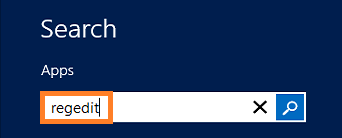
In ‘Metro’ mode, type regedit

Regedit1x

Regedit will most likely be the only result, hit enter

Regedit2

In regedit, find the following registry key: HKEY_LOCAL_MACHINE\SYSTEM\CurrentControlSet\Control\Lsa\MSV1_0

First…

Regedit3x

then…

Regedit4x

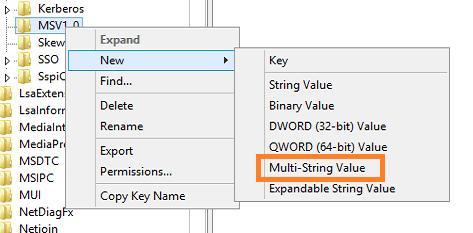
Now, create a Multi-String Value under the MSV1_0 key.

Regedit5x

Type in the name of the new Multi-String value: ‘BackConnectionHostNames’, Hit Enter.

Regedit6x

Right click on the value BackConnectionHostNames and coose Modify.

Regedit7x

Add the URL you want to be able to access from a local browser on the server.

Regedit8

Don’t know why, but I seem to Always get this. Click Ok.

Regedit9

Viola!

Regedit10x

Adding multiple URL’s to the list of ‘trusted’ URL’s, simply make a new line between them.

Regedit11

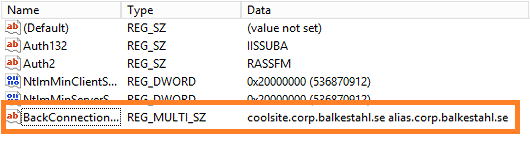
That will look like this.

Regedit12x

To be extra sure that nothing else will sabotage functionality, check so that the URL’s are added to DNS.
(Or local hosts file)

DNS1x

Check so that the URL’s are added as bindings in IIS.

IIS1x

Verify that the URL’s are correct and are added to AAM.

AAM1x

Make sure that the URL is added to the Local Intranet Zone in Internet Explorer (if you need to browse the site from the server, NOT RECOMMENDED!).

IE3x

Try to access the URL in a browser.

IE1x

And the other URL.

IE2x

Done!

Doing the same using PowerShell

Using PowerShell to configure the Loopback check, requires two steps:

1. Add the multistring value to the registry
Get-Item -path “HKLM:\System\CurrentControlSet\Control\Lsa\MSV1_0” | new-Itemproperty -Name “BackConnectionHostNames” -Value (“coolsite.corp.balkestahl.se”, “alias.corp.balkestahl.se”) -PropertyType “MultiString”

2. Restart the IISADMIN service
Restart-Service IISADMIN

1. Add the multistring value to the registry

Given that you have Everything setup correctly, your AAM’s, your DNS entrys, (URL added to local intranetsites zone in IE), and so forth…you can use this single PowerShell command to exclude the URL’s for your sites from the loopbackcheck, this way, you don’t have to disable the loopbackcheck at all (Way better security).

The following command will add my two URL’s to the exclusion list, edit the values to add your own URL’s.

Run this in a PowerShell prompt running in elevaled mode/as Administrator

Get-Item -path “HKLM:\System\CurrentControlSet\Control\Lsa\MSV1_0” | new-Itemproperty -Name “BackConnectionHostNames” -Value (“coolsite.corp.balkestahl.se”, “alias.corp.balkestahl.se”) -PropertyType “MultiString”

Running this will if Everything is done right, show this

Powershell1

This is how it will look if it succeeds!

Powershell2

If you get ‘The property already exists.’, then you already have the ‘BackConnectionHostNames’ value added to the registry, check using registry editor to see if you can delete it or if it has other values that need to be there.

After a successful execution, check the registry to verify

Regedit12x

2. Restart the IISADMIN service

Now you have to restart the IISADMIN service in order for it to ‘reread’ the registry values and implement our Changes.
This is easy, in a PowerShell prompt running in elevaled mode/as Administrator

Restart-Service IISADMIN

Powershell3

Note the typo/bug in the text, it says stopping twice but what it does it stopping and starting

Done!

The command line in step 1 will add two (2) entries to the list, coolsite.corp.balkestahl.se and alias.corp.balkestahl.se. If you need to add more URL’s, add them to the Values, like: -Value (“coolsite.corp.balkestahl.se”, “alias.corp.balkestahl.se”, “mycoolnetbiosname”, “extraname.corp.balkestahl.se”).

Make sure that the doublequotes are formated in the proper way if you copy from this post!

That would make the command

Get-Item -path “HKLM:\System\CurrentControlSet\Control\Lsa\MSV1_0” | new-Itemproperty -Name “BackConnectionHostNames” -Value (“coolsite.corp.balkestahl.se”, “alias.corp.balkestahl.se”, “mycoolnetbiosname”, “extraname.corp.balkestahl.se”) -PropertyType “MultiString”

and

Restart-Service IISADMIN -force

References:

You receive error 401.1 when you browse a Web site that uses Integrated Authentication and is hosted on IIS 5.1 or a later version
http://support.microsoft.com/kb/896861

DisableLoopbackCheck & SharePoint: What every admin and developer should know. (Spencer Harbar folks)
http://www.harbar.net/archive/2009/07/02/disableloopbackcheck-amp-sharepoint-what-every-admin-and-developer-should-know.aspx

Can’t crawl web apps you KNOW you should be able to crawl (Todd Klindt’s oldie but goodie)
http://www.toddklindt.com/blog/Lists/Posts/Post.aspx?ID=107

Thanks to:

As Always, Mattias Gutke! Now at CAG. Always a great help and second opinion!


___________________________________________________________________________________________________

Enjoy!

Regards

Twitter | Technet Profile | LinkedIn

SharePoint Server 2013 Language Packs


Hi dear friends!

Update: Additional SharePoint Server 2013 LP’s (the full list) made GA, Generally Available since April 30 – SharePoint Server 2013 LP’s

Language support in SharePoint 2013 onprem…
(Lacking better info, I assume that the same list applies to SharePoint online)

IMG_0987x

Remember this anyone?

If you are like me you have not seen anything official on the topic of Language Packs and release dates and availability yet (written April 16, 2013).
I don’t know if anyone has put this info out there yet, but I have not found it and then I figure it won’t hurt to do it here I guess…

In my case, I was looking for Swedish, but others need to find their special local language, now I have some info for all of you:

Jump to:
SharePoint Server 2013 LP’s (44 LP’s)
SharePoint Foundation 2013 LP’s (44 LP’s)
Office Web Apps 2013 LP’s (44 LP’s)
Credits and References

 SharePoint in the languages listed under Server Language packs are also available in a localized server version, these are also available at MSDN  


SharePoint Server 2013
Since (March 28) April 30th, all Language Packs are now available as a free download (link) Select your language in the dropdown or use the directlink in the list below.
(serverlanguagepack.img) I recommend renaming the files when downloaded since all LP’s have the same name, add for example the two letter code for your country after the filename: serverlanguagepack_se.exe (Swedish SPS LP)

TechNet suggests you take one of the following actions:
For Windows Server 2012, open the .img file directly and run Setup.exe (double-click it).
For Windows Server 2008 R2 SP1, use a program that can mount or extract .img files. Then run Setup.exe (double-click it).

Generally Available Server Language packs listed:

Language Release date
English March 28, 2013
German April 30, 2013
French April 30, 2013
Hebrew April 30, 2013
Italian April 30, 2013
Japanese April 30, 2013
Spanish April 30, 2013
Catalan April 30, 2013
Portuguese-Brazil April 30, 2013
Chinese – Simplified April 30, 2013
Chinese – Traditional April 30, 2013
Dutch April 30, 2013
Korean April 30, 2013
Russian April 30, 2013
Czech April 30, 2013
Greek April 30, 2013
Hungarian April 30, 2013
Romanian April 30, 2013
Thai April 30, 2013
Turkish April 30, 2013
Ukrainian April 30, 2013
Serbian (Latin) N/A! April 30, 2013
Serbian (Cyrillic) April 30, 2013
Slovak April 30, 2013
Slovenian April 30, 2013
Bulgarian April 30, 2013
Croatian April 30, 2013
Estonian April 30, 2013
Kazakh April 30, 2013
Latvian April 30, 2013
Lithuanian April 30, 2013
Danish April 30, 2013
Finnish April 30, 2013
Norwegian (Bokmål) April 30, 2013
Swedish April 30, 2013
Arabic April 30, 2013
Hindi April 30, 2013
Polish April 30, 2013
Portuguese-Portugal April 30, 2013
Malay (Malaysia) April 30, 2013
Indonesian April 30, 2013
Vietnamese April 30, 2013
Galician April 30, 2013
Basque April 30, 2013

You can also find these on MSDN (and TechNet) (link):
(nn_office_server_2013_language_pack_x64_dvd_nnnnnnn.iso)

SharePoint Foundation 2013
Language Packs for SharePoint Foundation 2013 is a free download (link)
(sharepointlanguagepack.exe) I recommend renaming the files when downloaded since all LP’s have the same name, add for example the two letter code for your country after the filename: sharepointlanguagepack_se.exe (Swedish SPF LP)
Size: Aproximately 29 MB

Language Release date
English October 30, 2012
German October 30, 2012
French October 30, 2012
Hebrew October 30, 2012
Italian October 30, 2012
Japanese October 30, 2012
Spanish October 30, 2012
Catalan October 30, 2012
Portuguese-Brazil October 30, 2012
Chinese – Simplified October 30, 2012
Chinese – Traditional October 30, 2012
Dutch October 30, 2012
Korean October 30, 2012
Russian October 30, 2012
Czech October 30, 2012
Greek October 30, 2012
Hungarian October 30, 2012
Romanian October 30, 2012
Thai October 30, 2012
Turkish October 30, 2012
Ukrainian October 30, 2012
Serbian (Latin) N/A! October 30, 2012
Serbian (Cyrillic) October 30, 2012
Slovak October 30, 2012
Slovenian October 30, 2012
Bulgarian October 30, 2012
Croatian October 30, 2012
Estonian October 30, 2012
Kazakh October 30, 2012
Latvian October 30, 2012
Lithuanian October 30, 2012
Danish October 30, 2012
Finnish October 30, 2012
Norwegian (Bokmål) October 30, 2012
Swedish October 30, 2012
Arabic October 30, 2012
Hindi October 30, 2012
Polish October 30, 2012
Portuguese-Portugal October 30, 2012
Malay (Malaysia) October 30, 2012
Indonesian October 30, 2012
Vietnamese October 30, 2012
Galician October 30, 2012
Basque October 30, 2012


Office Web Apps 2013
Language Packs for Office Web Apps 2013 is a free download (link)
(wacserverlanguagepack.exe) I recommend renaming the files when downloaded since all LP’s have the ame name, add for example the two letter code for your country after the filename: wacserverlanguagepack_se.exe (Swedish LP)
Size: Aproximately 25.5 MB

List last updated May 23, 2013

Language Release date
English
German
French
Hebrew
Italian
Japanese
Spanish
Catalan
Portuguese-Brazil
Chinese – Simplified
Chinese – Traditional
Dutch
Korean
Russian
Czech
Greek
Hungarian
Romanian
Thai
Turkish
Ukrainian
Serbian (Latin) N/A!
Serbian (Cyrillic)
Slovak
Slovenian
Bulgarian
Croatian
Estonian
Kazakh
Latvian
Lithuanian
Danish
Finnish
Norwegian (Bokmål)
Swedish
Arabic
Hindi
Polish
Portuguese-Portugal
Malay (Malaysia)
Indonesian
Vietnamese
Galician
Basque


I hope that this will help you find what you need. This was the kind of info I was looking for and could not find so hopwefully it will help you save time.

References:

Language Packs for Microsoft Office Web Apps Server
http://www.microsoft.com/en-us/download/details.aspx?id=35490

Language Packs for SharePoint Foundation 2013
http://www.microsoft.com/en-us/download/details.aspx?id=35492

Office Server 2013 Language Pack on MSDN Subscriber Downloads
https://msdn.microsoft.com/en-us/subscriptions/securedownloads/hh442898.aspx#FileId=50889

Install or uninstall language packs for SharePoint 2013 (Foundation and Server)
http://technet.microsoft.com/en-us/library/cc262108.aspx

Thanks to:
Wictor Wilén who pointed out the simple fact to me that the Server LP’s were available on MSDN…a fact I had somehow managed to miss.


___________________________________________________________________________________________________

Enjoy!

Regards

Twitter | Technet Profile | LinkedIn

TCP/IP Ports of SharePoint 2013


Hi fellow SharePoint lovers!
(Find the 2016 version here)

Have you ever wondered? What ports do I need to open? Why can’t the web server access the Databases…what does that event mean? For example in SharePoint 2010 we had the ‘Cannot connect to SQL Server – Event 3355‘, perhaps you need to know simply for the docmentation you want to leave behind?
Wonder no more. I have here tried to compile a complete list of all the ports used. Most are configured by SharePoint but some needs to be manualy configured and it all depends on hw you have installed and configured your farm in the first Place.

headerx

I hope that the list will be of use! Please let me know if I have missed anything related, however remote…

List of ports used by SharePoint 2013 and its related services.
Reference links at the end.

Protocol Port Usage Comment
TCP 80 http Client to SharePoint web server traffic
(SharePoint – Office Web Apps communication)
TCP 443 https/ssl Encrypted client to SharePoint web server traffic
(Encrypted SharePoint – Office Web Apps communication)
TCP 1433 SQL Server default communication port. May be configured to use custom port for increased security
UDP 1434 SQL Server default port used to establish connection May be configured to use custom port for increased security
TCP 445 SQL Server using named pipes When SQL Server is configured to listen for incoming client connections by using named pipes over a NetBIOS session, SQL Server communicates over TCP port 445
TCP 25 SMTP for e-mail integration Cannot be configured
TCP 16500-16519 Ports used by the search index component Intra-farm only
Inbound rule Added to Windows firewall by SharePoint
TCP 22233-22236 Ports required for the AppFabric Caching Service Distributed Cache…
TCP 808 Search – Query processing component
Windows Communication Foundation communication
Search – Query processing component
WCF
TCP 32843 Communication between Web servers and service applications http (default) To use custom port, see references section
Inbound rule Added to Windows firewall by SharePoint
TCP 32844 Communication between Web servers and service applications https
Inbound rule Added to Windows firewall by SharePoint
TCP 32845 net.tcp binding: TCP 32845 (only if a third party has implemented this option for a service application)  Custom Service Applications
Inbound rule Added to Windows firewall by SharePoint
TCP 32846 Microsoft SharePoint Foundation User Code Service (for sandbox solutions)  Inbound on all Web Servers
Inbound rule Added to Windows firewall by SharePoint
Outbound on all Web and App servers with service enabled.
TCP 5725 User Profile Synchronization Service(FIM) Synchronizing profiles between SharePoint 2013 and Active Directory Domain Services (AD DS) on the server that runs the Forefront Identity Management agent
TCP + UDP 389 User Profile Synchronization Service(FIM) LDAP Service
TCP + UDP 88 User Profile Synchronization Service(FIM) Kerberos
TCP + UDP 53 User Profile Synchronization Service(FIM) DNS
UDP 464 User Profile Service(FIM) Kerberos change password
TCP 809 Office Web Apps Intra-farm Office Web Apps communication.

References:

Plan security hardening for SharePoint 2013
http://technet.microsoft.com/en-us/library/cc262849.aspx

Configure SQL Server security for SharePoint 2013 environments
http://technet.microsoft.com/en-us/library/ff607733.aspx#proc1

Blocking the standard SQL Server ports
http://technet.microsoft.com/en-us/library/cc262849.aspx#BlockingSQL

Service application communication
http://technet.microsoft.com/en-us/library/cc262849.aspx#ServiceApp

User Profile service hardening requirements
http://technet.microsoft.com/en-us/library/cc262849.aspx#UserProfile

Set-SPServiceHostConfig
http://technet.microsoft.com/en-us/library/ff607922.aspx

Get-SPServiceHostConfig
http://technet.microsoft.com/en-us/library/ff607794.aspx

TCP/IP Communications (Windows Server AppFabric Caching)
http://msdn.microsoft.com/en-us/library/ee790914(v=azure.10).aspx


___________________________________________________________________________________________________

Enjoy!

Regards

Twitter | Technet Profile | LinkedIn