Skydrive Pro availability and functionality chart


SkydriveSP_h64

Wow! Skydrive Pro, what a great invention! (I know, It has been out there for a while already…)
I assume that you all know what Skydrive Pro is all about, but to just real short sum it up, SkyDrive Pro is:
A client application that allows a user to keep files synchronized between his device and his online SharePoint document library.

Now, the thing is, that apparently, you are not really supposed to run Skydrive pro unless you with that mean to it against anything but Office365…seems like this was meant to be but is slowly turning toward not meant to be…
I do realize that Office 365 is the future for Microsoft, but when such a great feature is available, and it must be a rather easy task to get the functionality dynamic so that you can connect to any webfolder, it is a shame that the support for running Skydrive Pro as a SharePoint onprem has so little support.

From my tests and research this is what works and what does not work:

Windows 8.x x64 Windows 8.x 32bit Windows 8.x RT Windows Phone IOS   Android   Mac OSX 
App to Onprem * No No No Yes No 3rd party No
Desktop to Onprem** Yes Yes No No No No No
App to Office 365 *** Yes Yes Yes Yes Yes 3rd party No
Desktop to Office 365 **** Yes Yes No No No No No

Please, do let me know if I am missing out on anything in the chart!

Windows 7 uses the same App and Desktop application as Windows 8x

* The App model with the possibility to connect to SharePoint 2013 Onprem
** A Desktop integrated application that connects to SharePoint 2013 Onprem
*** The App model with the possibility to connect to SharePoint Online/Office 365
**** A Desktop integrated application that connects to SharePoint Online/Office 365

So, if you want to make use of your internal onprem SharePoint 2013 farm for Skydrive Pro, you have to rely solely on Windows 8x or Windows Phone (Available in the Office hub)

The Skydrive pro desktop klient is available in Office 2013 versions as well, except for the Office 2013 for Windows RT

Skydrive pro requires SharePoint 2013 or Office 365 (Eligable subscriptions)
SharePoint 2010 works only with SharePoint Workspace on Windows OS

References

What is SkyDrive Pro?
http://office.microsoft.com/en-us/sharepoint-server-help/what-is-skydrive-pro-HA102822076.aspx

What is SkyDrive Pro in SharePoint 2013 and how does it relate to SkyDrive?
http://www.toddklindt.com/blog/Lists/Posts/Post.aspx?ID=388

How to setup SkyDrive Pro on Mac OSX
http://www.dogu.no/blog/posts/2013/08/26/how-to-setup-skydrive-pro-on-mac-osx.aspx

_________________________________________________________

Enjoy!

Regards

Twitter | Technet Profile | LinkedIn

Loopback Check configuration Tool released – free download


Win2012  logo  SharePoint2013Logo70x338

Hi All.

It is here! Free for all! DOWNLOAD

I am happy to announce that the Loopback Check Tool has finally been made available at Codeplex – https://loopbackchecktool.codeplex.com
No more last minute t-shooting the loopback check and ending up disabling it, trying to find the KB or a decent blog post on how to do it.

This Tool takes care of it all for you. Download the exe, put it on your servers, run it to configure the Loopback Check feature simple and easy.

Its simple.
Its small (21kb zipped)
Only click and make it happen
No installation, one single exe that works on most Windows Servers (and clients)
Disable the Loopback check completely (Not recommended)
Enable or Disable the Loopback Check function
Enable it and add excluded URLs (Recommended, now easy to do)

This is a preview image of what the tool looks like

Form

The tool works fine on:

Windows Server 2012
Windows Server 2012 R2
Windows Server 2008 R2
Windows Server 2008
Windows 7
Windows 8
Windows 8.1
And probably a few more…

References:

You receive error 401.1 when you browse a Web site that uses Integrated Authentication and is hosted on IIS 5.1 or a later version
http://support.microsoft.com/kb/896861/en-us

A quick guide to configuring the Loopback check
https://blog.blksthl.com/2013/05/07/a-quick-guide-to-configuring-the-loopback-check/

DisableLoopbackCheck & SharePoint: What every admin and developer should know.
http://www.harbar.net/archive/2009/07/02/disableloopbackcheck-amp-sharepoint-what-every-admin-and-developer-should-know.aspx

Thanks to:

Herakles and Gutke!

Win2012  logo  SharePoint2013Logo70x338

___________________________________________________________________________________________________

Enjoy!

Regards

Twitter | Technet Profile | LinkedIn

Create a bootable Windows Server 2012 R2 installation USB flash drive


2012R2 logo

Hi Windows connoisseurs! (wiki)

(This is essentially a remake of my Create a bootable Windows 8.1 installation USB flash drive post.) The setps are the same so you can easily follow that post or use this slightly updated version.

In this guide I will help you find a way to install Windows Server 2012 R2 quick and easy, from a simple USB flash drive. It’s really easy, but you still need to Think about a few things.
I’ll list them here and if you want, you can follow the step by step guide below.

Quicksteps:

1. Get a USB Flash drive formatted with FAT32, it has to be AT LEAST 8GB! (The Windows Server 2012R2 installation bits will not fit on a 4GB USB drive…)
2. Download and install the Windows 7 USB/DVD Download tool from Microsoft Store here or Codeplex here  (It is an official Microsoft tool, totally wierdly named from the Windows 7 release but still very much valid!)
3. Download or locate a ‘Windows Server 2012 R2’ .iso file and store it locally on your harddrive.
4. Start the Windows 7 USB/DVD Download tool (from startbutton or ‘windows 8/Metro’ style startmenu’?)
5. Complete the steps 1-4
6. Insert the USB flash drive into the powered off PC to install, Power on and boot from USB drive (F9 at HP logo on HP Machines).
7. Install Windows Server as you would normally.
8. Done!

This guide in its entirety works just as well if you replace the Windows Server 2012 R2 .iso file with Windows 8.1, Windows 7, Windows Server 2012 or plain Windows 8 (Windows Server 2008 R2 not verified but willmost likely also work)

Step by step:

1. USB Flash Drive

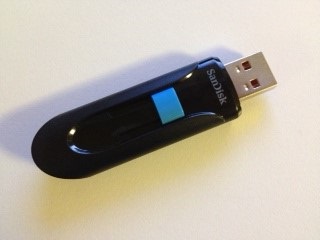
Prepare a USB flash drive for installation, is has to be at least 8 GB in size and it has to be formatted with FAT32. It does not have to be erased, the tool will do that for you if needed.

USB

Before

2. Download and install the Windows 7 USB/DVD Download tool from Microsoft Store or Codeplex. The Links are as follows:

http://images2.store.microsoft.com/prod/clustera/framework/w7udt/1.0/en-us/Windows7-USB-DVD-tool.exe
or
http://wudt.codeplex.com

Run the .exe file, you will have to be a local administrator on your machine for it to install properly.

1

Click Next

2

Click Install

3

Click Finish

3. Locate a Windows Server 2012 R2 .iso file. This file should be placed on a local harddrive. It does not matter where you put it, as long as it is on a local HD and it is accessable to you when running the tool, meaning that you have access to where the file is stored in the filesystem.

4. After the installation of the tool has completed, you will suddenly notice this tile:

MetroIcon

You can also just use the search function, in ‘metro mode’ simply type Windows 7 and you will see it and its uninstall app.
Start the tool
Click Ok at the User Account Control popup dialog
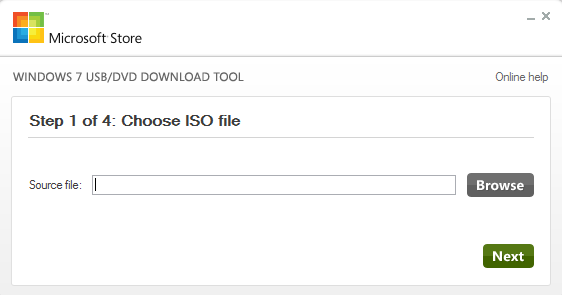
The first screen should now look like this:

ChooseISO

5. Hit the Browse button to locate your Windows Server 2012 R2 installation iso file.

Step1

In my test, I’m using an .iso file downloaded from TechNet Subscriber downloads (soon to be no more)
It does not have to be from TechNet, it can be MSDN or Volume Licensing or really any form of Windows Server 2012 R2 installation iso.

Click ‘Next’

Step2ChooseMedia

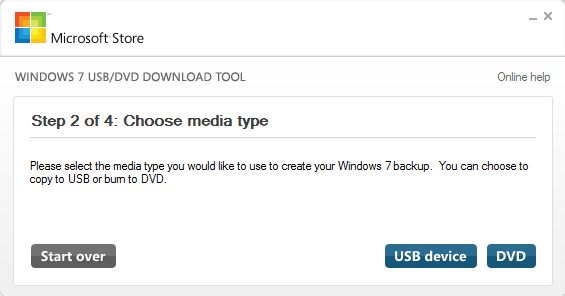
Click on ‘USB device’
If you see the window below, that means that the USB drive is either not plugged in properly, or it has the wrong formatting or insufficient storage or similar. Make sure that you have a USB flash drive that meets: 4GB minimum+FAT32.

Step2ChooseMediaNoUSB

Insert a USB drive that meets the requirements and press the refresh button
Now, click on the ‘Begin copying’ button.

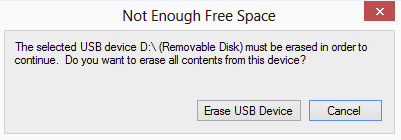
If the USB drive was ok, the copying will begin, but if not, if it still had files still on it, you will see this dialog:

Erase1

Click Erase to continue

Erase2

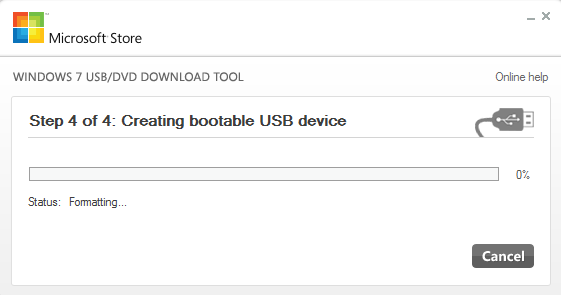
Click Yes and the formatting and copying process will begin.

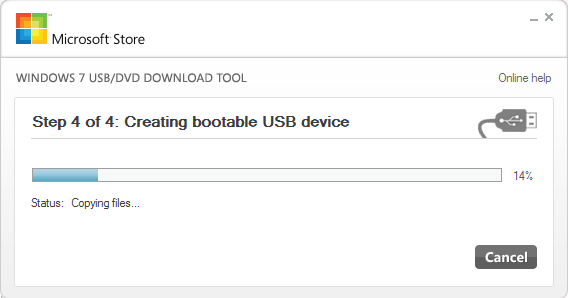
Step4

Step42

Let it do its thing until it reaches 100%

When it has finished formatting and copying files, you are done.

USB

After!

6. Next step, is to insert the USB drive into the PC you want to install Windows Server 2012 R2 on, Power it off completely and Power on again.
Use BIOS settings to select ‘boot from USB’ or like on a HP machine, hit F9 at the HP logo screen to boot directly from USB.

7. Let the Installation begin! The Windows installation is pretty much standard. A Clean install is described here.  The setup of Windows 8, which is pretty much the same, is described here

8. Done!

References:

Install and Deploy Windows Server 2012 (R2)
http://technet.microsoft.com/en-us/library/hh831620.aspx

Thanks to:

Herakles and Gutke!

2012R2 logo

___________________________________________________________________________________________________

Enjoy!

Regards

Twitter | Technet Profile | LinkedIn

A quick-guide to setting up OWA with SharePoint 2013 – start to finish


Future and existing Office Web Apps – OWA Lovers!
😁
This time, I just found that a quick guide like this was something that I needed myself, and since I could not find anything that was short and compact enough, I made my own guide…
This Little guide is completely based on the TechNet articles mentioned in the references section, but this is nontheless a lot shorter and easier to follow.

Oakwood_clockx

The old Clock at Oakwood station


Click your OWA task of choice:
Step 1
Prepare a 2008 R2 Server to run OWA
Prepare a 2012 Server to run OWA
Step 2
Install Office Web Apps Server
Step 3
Deploy a single-server Office Web Apps Server farm that uses HTTPS
Step 4
Configure SharePoint to use OWA over https (recommended)
Configure SharePoint to use OWA over http
Additional
Disconnect SharePoint from OWA farm
Configure the Default open behavior for documents
Credits and References


Prepare a 2008 R2 server to run Office Web Apps Server

1. Install the following software (Minimum required):

2. Import the server module
(In a PowerShell prompt running as administrator and with the SharePoint snapin loaded)
Import-Module ServerManager

3. Add the required Features and Roles by running this command:
Add-WindowsFeature Web-Server,Web-WebServer,Web-Common-Http,Web-Static-Content,Web-App-Dev,Web-Asp-Net,Web-Net-Ext,Web-ISAPI-Ext,Web-ISAPI-Filter,Web-Includes,Web-Security,Web-Windows-Auth,Web-Filtering,Web-Stat-Compression,Web-Dyn-Compression,Web-Mgmt-Console,Ink-Handwriting,IH-Ink-Support

4. Restart the server if prompted when the command finishes.

5. Done

TechNet Reference
Back to menu


Prepare a 2012 server to run Office Web Apps Server

1. In a PowerShell prompt running as administrator, add the required Features and Roles by running this command:
Add-WindowsFeature Web-Server,Web-Mgmt-Tools,Web-Mgmt-Console,Web-WebServer,Web-Common-Http,Web-Default-Doc,Web-Static-Content,Web-Performance,Web-Stat-Compression,Web-Dyn-Compression,Web-Security,Web-Filtering,Web-Windows-Auth,Web-App-Dev,Web-Net-Ext45,Web-Asp-Net45,Web-ISAPI-Ext,Web-ISAPI-Filter,Web-Includes,InkandHandwritingServices

2. Done

TechNet Reference
Back to menu


Install Office Web Apps Server
1. Download Office Web Apps Server from the Microsoft Download Center (Link).

2. Run Setup and walk through the steps in the wizard.
Windows Server 2012, open the .img file directly and run Setup.exe
Windows Server 2008 R2 SP1, use any program that can mount or extract .img files. Then run Setup.exe

3. Download and install the Office Web Apps Server update KB2810007.

TechNet Reference
Back to menu


Deploy a single-server Office Web Apps Server farm that uses HTTPS

If components of the .NET Framework 3.5 were installed and then removed, you might see “500 Web Service Exceptions” or “500.21 – Internal Server Error” messages when you run OfficeWebApps cmdlets. To fix this, run the following sample commands from an elevated command prompt to clean up settings that could prevent Office Web Apps Server from functioning correctly:
In Windows Server 2008 R2:
%systemroot%\Microsoft.NET\Framework64\v4.0.30319\aspnet_regiis.exe -iru
iisreset /restart /noforce
In Windows Server 2012:
dism /online /enable-feature /featurename:IIS-ASPNET45

1. Create the Office Web Apps Server farm

New-OfficeWebAppsFarm -InternalUrl <InternalURL> -ExternalUrl <ExternalURL> -CertificateName <CertificateName> -EditingEnabled

<InternalURL> FQDN name of the server that runs Office Web Apps Server
<ExternalURL> FQDN name that can be accessed on the Internet
<CertificateName> Is the friendly name of the https/SSL certificate used
-EditingEnabled, optional and is added to enable editing in Office Web Apps

2. Verify that the Office Web Apps Server farm was created successfully

Go to the https://internal.url.com/hosting/discovery
If you see a (WOPI)-discovery XML file in your web browser then all is good.

Depending on the security settings of your web browser, you might see a message that prompts you to select Show all content before the contents of the discovery XML file are displayed.

3. Done

TechNet Reference
Back to menu


Configure SharePoint to use OWA over https (recommended)
(In a PowerShell prompt running as administrator and with the SharePoint snapin loaded)

The Web Application to be used must be configured to use Claims as authentication method, else OWA will not work.

1. Create new binding:
New-SPWOPIBinding -ServerName <WacServerName>
(<WacServerName> must be the FQDN internal URL)

2. Verify current zone:
Get-SPWOPIZone

3. Change to internal-https if it is set to http:
Set-SPWOPIZone –zone “internal-https

4. Verify https:
Get-SPWOPIZone

5. Verify functionality in a document library (Not using the system account, appearing as sharepoint\system)
Click on the ‘Three dots’ after a documents name and see if you get a preview, if you do, its all good!

6. Done

TechNet Reference
Back to menu


Configure SharePoint to use OWA over http
(In a PowerShell prompt running as administrator and with the SharePoint snapin loaded)

The Web Application to be used must be configured to use Claims as authentication method, else OWA will not work.

1. Create new binding:
New-SPWOPIBinding -ServerName -AllowHTTP
( must be the FQDN internal URL)

2. Verify current zone:
Get-SPWOPIZone

3. Change to internal-http:
Set-SPWOPIZone –zone “internal-http”

4. Verify http:
Get-SPWOPIZone

5. Check AllowoverHttp setting:
(Get-SPSecurityTokenServiceConfig).AllowOAuthOverHttp

6. Set AllowOAuthOverHttp to True.
$config = (Get-SPSecurityTokenServiceConfig)
$config.AllowOAuthOverHttp = $true
$config.Update()

7. Verify change:
(Get-SPSecurityTokenServiceConfig).AllowOAuthOverHttp

8. Verify functionality in a document library (Not using the system account, appearing as sharepoint\system)
Click on the ‘Three dots’ after a documents name and see if you get a preview, if you do, its all good!

9. Done

TechNet Reference
Back to menu


Disconnect SharePoint from OWA farm
(In a PowerShell prompt running as administrator and with the SharePoint snapin loaded)

1. Remove the binding
Remove-SPWOPIBinding –All:$true

2. Done

TechNet Reference
Back to menu


Configure the Default open behavior for documents

1. On a per farm level: Adjust the default open behavior on a per-file-type basis by using the New-SPWOPIBinding and Set-SPWOPIBinding Windows PowerShell cmdlets.

2. On a per Site Collection level by activating the ‘Open Documents in Client Applications by Default’ site Collection feature.

3. On a per Document library level using the Library setting – Advanced setting – ‘Default open behavior for browser-enabled documents’

4. Done

TechNet Reference
Back to menu


References:

Deploy Office Web Apps Server
http://technet.microsoft.com/en-us/library/jj219455.aspx

Configure SharePoint 2013 to use Office Web Apps
http://technet.microsoft.com/en-us/library/ff431687.aspx

Configure the default open behavior for browser-enabled documents (Office Web Apps when used with SharePoint 2013)
http://technet.microsoft.com/en-us/library/ee837425.aspx

Set-SPWOPIBinding
http://technet.microsoft.com/en-us/library/jj219454.aspx

Plan Office Web Apps (Used with SharePoint 2013)
http://technet.microsoft.com/en-us/library/ff431682.aspx

SharePoint authentication requirements for Office Web Apps
http://technet.microsoft.com/en-us/library/ff431682.aspx#authentication

Configuring Office Web Apps in SharePoint 2013 (Steve Peschka – Microsoft)
http://blogs.technet.com/b/speschka/archive/2012/07/23/configuring-office-web-apps-in-sharepoint-2013.aspx

Enabling Licensing and Editing for Office Web Apps in SharePoint 2013 (Steve Peschka – Microsoft)
http://blogs.technet.com/b/speschka/archive/2012/12/31/enabling-licensing-and-editing-for-office-web-apps-in-sharepoint-2013.aspx

Thanks to:

Mattias Gutke! All the time dude!
Ankie D – a great customer who has forced me to learn more on OWA
Stefan K – Another customer who made me refresh my knowledge
Steve Peschka, he wrote the original guide…see ref section


___________________________________________________________________________________________________

Enjoy!

Regards

Twitter | Technet Profile | LinkedIn

Create a bootable Windows 8.1 installation USB flash drive


win8.1logo

Hi Windows Lovers!?

(Looking to install Windows Server? The same steps apply, but for a server specific guide, go here Create a bootable Windows Server 2012 R2 installation USB flash drive)

This time I’ll help you find a way to install Windows 8.1 quick and easy, from a simple USB flash drive. It’s a piece of cake really, but a few things you need to know about.
I’ll list them here and if you want, you can follow the step by step guide below.

Quicksteps:

1. Get a USB Flash drive formatted with FAT32, it has to be AT LEAST 4GB!
2. Download and install the Windows 7 USB/DVD Download tool from Microsoft Store HERE or Codeplex HERE  (It is an official Microsoft tool, totally wierdly named from the Windows 7 release but still very much valid!)
3. Download or locate a ‘Windows 8.1’ .iso file and store it locally on your harddrive.
4. Start the Windows 7 USB/DVD Download tool (from startbutton or ‘windows 8 style startmenu’?)
5. Complete the steps 1-4
6. Insert the USB flash drive into the powered off PC to install, Power on and boot from USB drive (F9 at HP logo on HP Machines).
7. Install Windows as you would normally.
8. Done!

This guide in its entirety works just as well if you replace the Windows 8.1 .iso file with Windows 7, Windows Server 2012 or plain Windows 8 (Windows Server 2008 R2 not verified but willmost likely also work)

Step by step:

1. USB Flash Drive

Prepare a USB flash drive for installation, is has to be at least 4 GB in size and it has to be formatted with FAT32. It does not have to be erased, the tool will do that for you if needed.

USB

Before

2. Download and install the Windows 7 USB/DVD Download tool from Microsoft Store or Codeplex. The Links are as follows:

http://images2.store.microsoft.com/prod/clustera/framework/w7udt/1.0/en-us/Windows7-USB-DVD-tool.exe
or
http://wudt.codeplex.com

Run the .exe file, you will have to be a local administrator on your machine for it to install properly.

1

Click Next

2

Click Install

3

Click Finish

3. Locate a Windows 8.1 .iso file. This file should be placed on a local harddrive. It does not matter where you put it, as long as it is on a local HD and it is accessable to you when running the tool, meaning that you have access to where the file is stored in the filesystem.

4. After the installation of the tool has completed, you will suddenly notice this tile:

MetroIcon

You can also just use the search function, in ‘metro mode’ simply type Windows 7 and you will see it and its uninstall app.
Start the tool
Click Ok at the User Account Control popup dialog
The first screen should now look like this:

ChooseISO

5. Hit the Browse button to locate your Windows 8.1 installation iso file.

ChooseISO2

In my test, I’m using an .iso file downloaded from TechNet Subscriber downloads (soon to be no more)
It does not have to be from TechNet, it can be MSDN or Volume Licensing or really any form of Windows 8.1 installation iso.

Click ‘Next’

Step2ChooseMedia

Click on ‘USB device’
If you see the window below, that means that the USB drive is either not plugged in properly, or it has the wrong formatting or insufficient storage or similar. Make sure that you have a USB flash drive that meets: 4GB minimum+FAT32.

Step2ChooseMediaNoUSB

Insert a USB drive that meets the requirements and press the refresh button
Now, click on the ‘Begin copying’ button.

If the USB drive was ok, the copying will begin, but if not, if it still had files still on it, you will see this dialog:

Erase1

Click Erase to continue

Erase2

Click Yes and the formatting and copying process will begin.

Step4

Step42

Let it do its thing until it reaches 100%

When it has finished formatting and copying files, you are done.

USB

After!

6. Next step, is to insert the USB drive into the PC you want to install Windows 8.1 on, Power it off completely and Power on again.
Use BIOS settings to select ‘boot from USB’ or like on a HP machine, hit F9 at tghe HP logo screen to boot directly from USB.

7. Let the Installation begin! The Windows installation is pretty much standard. A Clean install is described here.  The setup of Windows 8, which is the same, is described here

8. Done!

References:

Thanks to:

As Always, Mattias Gutke! At CAG for some strange reason….Always a friend, a great help and a second opinion!

GetItNow
___________________________________________________________________________________________________

Enjoy!

Regards

Twitter | Technet Profile | LinkedIn

Export a document library using Export-SPWeb and itemurl


Export-SPWeb

(This is my better version of the TechNet articles on the same CMDlet that does a poor job with the details, I hope that it will help some of you)
SharePoint 2010 | SharePoint 2013
Applies to:  SharePoint Foundation 2010 | SharePoint Server 2010 | SharePoint Foundation 2013 | SharePoint Server 2013 

Exports a site, list, or library.


Export-SPWeb [-Identity] <GUID/Name/SPWeb object> -Path <String> [-AssignmentCollection <SPAssignmentCollection>] [-CompressionSize <Int32>] [-Confirm [<SwitchParameter>]] [-Force <SwitchParameter>] [-HaltOnError <SwitchParameter>] [-HaltOnWarning <SwitchParameter>] [-IncludeUserSecurity <SwitchParameter>] [-IncludeVersions <LastMajor | CurrentVersion | LastMajorAndMinor | All>] [-ItemUrl <String>] [-NoFileCompression <SwitchParameter>] [-NoLogFile <SwitchParameter>] [-UseSqlSnapshot <SwitchParameter>] [-WhatIf [<SwitchParameter>]]

——————–EXAMPLE———————–

Export-SPWeb http://site –Path "c:\temp\site export.cmp" -ItemURL "/subsite/documents"

This example exports the document library at http://site/subsite/documents to a new file called ‘site export.cmp' in the ‘C:\temp’ directory.

Parameters

Parameter

Required

Description

Identity Required Specifies the URL or GUID of the Web to be exported. The type must be either
– a valid GUID, in the form ‘12345678-90ab-cdef-1234-567890bcdefgh’
– a valid name of a SharePoint site (for example, MySPSite1)
or a URL: http://blog.blksthl.com
or an instance of a valid SPWeb object
Path Required Specifies the name of the export file. If the -NoFileCompression parameter is used, a directory must be specified; otherwise, any file format is valid.
Example: “c:\temp\exportedsite.cmp” or with the -NoFileCompression “c:\temp\exportedsite\”
AssignmentCollection Optional Manages objects for the purpose of proper disposal. Use of objects, such as SPWeb or SPSite, can use large amounts of memory and use of these objects in Windows PowerShell scripts requires proper memory management. Using the SPAssignment   object, you can assign objects to a variable and dispose of the objects after they are needed to free up memory. When SPWeb, SPSite, or SPSiteAdministration objects are used, the objects are automatically disposed of if an assignment collection or the Global parameter is not used.

                                                                                                                                         Note:
When the Global parameter is used, all objects are contained in the global store. If objects are not immediately used, or disposed of by using the Stop-SPAssignment command, an out-of-memory scenario can occur.
CompressionSize Optional Sets the maximum file size for the compressed export files. If the total size of the exported package is greater than this size, the exported package will be split into multiple files.
Confirm Optional Prompts you for confirmation before executing the command. For more information, type the following   command: get-help about_commonparameters
Force Optional -Force Forcefully overwrites the export package if it already exists.The type must be either of the following values:
True
FalseThe default value is False.
HaltOnError Optional Stops the export process when an error occurs.
HaltOnWarning Optional Stops the export process when a warning occurs.
IncludeUserSecurity Optional Preserves the user security settings except for SPLists that have broken inheritance and item level   permissions set.
(Use Import-SPWeb with –IncludeUserSecurity to preserve security on import)
IncludeVersions Optional Indicates the type of file and list item version history to be included in the export operation. If the
-IncludeVersions parameter is absent, the Export-SPWeb cmdlet by default uses a value of CurrentVersion. The type must be any one of the following versions:
LastMajor “Last major version for files and list items (default)”
CurrentVersion “The current version, either the last major version or the last minor version”
LastMajorAndMinor “Last major and last minor version for files and list items”
All “All versions for files and list items”
ItemUrl Optional Specifies the relative path to the object to be exported. Can also be a GUIDThe type must be a valid relative path, for example, /Subsite/Documents
or a valid GUID in the form: 12345678-90ab-cdef-1234-567890bcdefgh
NoFileCompression Optional Either enables or disables file compression in the export package. The export package is stored in the   folder specified by the Path parameter or Identity parameter. We recommend that you use this parameter for performance reasons. If compression is enabled, the export process can increase by approximately 30 percent.
NoLogFile Optional Suppresses the generation of an export log file. If this parameter is not specified, the Export-SPWeb   cmdlet will generate an export log file in the same location as the export package. The log file uses Unified Logging Service (ULS).It is recommended to use this parameter. However, for performance reasons, you might not want to generate a log file.
UseSqlSnapshot Optional Specifies a SQL Database Snapshot will be created when the export process begins, and all exported   data will be retrieved directly from the database snapshot. This snapshot will be automatically deleted when export completes.
WhatIf Optional Displays a message that describes the effect of the command instead of executing the command. For   more information, type the following command: get-help about_commonparameters

References:

Export-SPWeb
http://technet.microsoft.com/en-us/library/ff607895(v=office.15).aspx

Export a site, list, or document library (Search Server 2010)
http://technet.microsoft.com/en-us/library/ff428101(v=office.14).aspx

Thanks to:

Mattias Gutke – CAG – My main man!


___________________________________________________________________________________________________

Good Luckl!!

Regards

Twitter | Technet Profile | LinkedIn