Office 365 guide series – Using your document templates in SharePoint online


Office365logo      SP2013logo

Greetings SharePoint Online users!

This is the third in the Office 365 and SharePoint Online series.

1. Office 365 guide series – Create a new list from an Excel spreadsheet
2. Office 365 guide series – A guide to SharePoint Navigation using metadata
3. Office 365 guide series – Using your document templates in SharePoint online (This post)

This time I will explain how to:

Use Office templates within your SharePoint Online document libraries. In every organisation, or at least the majority, you talk about templates and you know that you have them, somewhere, but in the end, you and everyone else end up using an existing document and make changes, like you take an agreement from one customer and make changes to the numbers and customer names…would it not be nice if you could get everyone to use the same template? And if a change to the template affected everyone? Wouldn’t that be just smashing eh?

Now I’ll show you the easy steps you have to follow to just get started, We’ll use a simple word template in this example, but you can use any template that you allready have.

Note: In this guide, I will show the quick and easy method, in a later post, I wil show how to use Content Types wich will also allow you to use custom templates, but in a much more controlled way. A link to that post will be added here when that guide has been posted. 

Start by locating a word template, or create one, add some info to the header with logo and company name and address maybe, and add something to the footer for example and save the file as a dotx file. Save it locally so that you easily can access it when we want to upload it to our SharePoint online. – I have created a simple letter template for the company DonkeyMind, with their logo and some additional info in it. I’ll use this in my step by step guide below. I saved this as letter.dotx in my ..\documents\DonkeyMind templates\ folder.

Letter1

In a SharePoint Online site, now do this:

1.0 Upload the template file. This is not the easies thing to do, unfortunately Microsoft has choosen to make it a lot harder in SPO and SharePoint 2013 than it really has to be (Browse button from 2010 has been removed), unknown to me why. But this is how you do it:

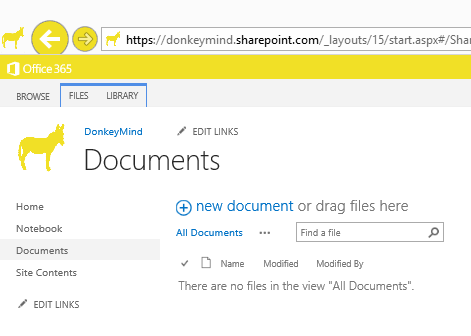
1.1 Browse to your document library in SharePoit online, where you want to use your own custom document template.

Documents1

1.2 Click the tab, Library. This will present the ribbon for you with the settings available for a document library.

Documents2

1.3 In the ribbon, click on Open with Explorer

Documents3

Note: The site URL has to be added to the ‘Local intranet sites’ or ‘Trusted sites’ with added logon automatically, if it isn’t, you will get a popup telling you that it will not work otherwise.

1.4 Click ok on the Internet Explorer Security warning

Documents4

1.5 The library will now open in a Explorer window, in this windows you will see a folder named forms which is a bit greyed out.

Documents5

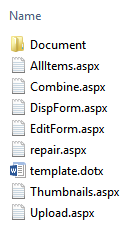
1.6 Double-click on the folder forms, now you will see the following list of files

Documents6

1.7 Now, in a separate explorer window on your computer, locate your saved template file (dotx)

Note: In my case, I stored it under ..\Documents\DonkeyMind templates\

Documents7

1.8 Put the tw0 explorer windows side by side

Documents8

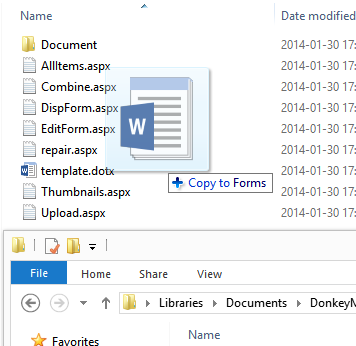
1.9 Drag and drop the template file from your local folder to the SharePoint library forms folder

Documents9

1.10 The file will now be uploaded to the SharePoint forms folder

Documents91

2.0 When the file is uploaded ok, go back to your browser and the document library

Documents1

2.1 Now, we need to change the template used from the default template.dotx to our own template, in my case, letter.dotx. Again, click on the Library tab.

Documents2

2.2 Click on Library Settings

Library1

2.3 In the Library Settings dialog, click on Advanced settings

Library2

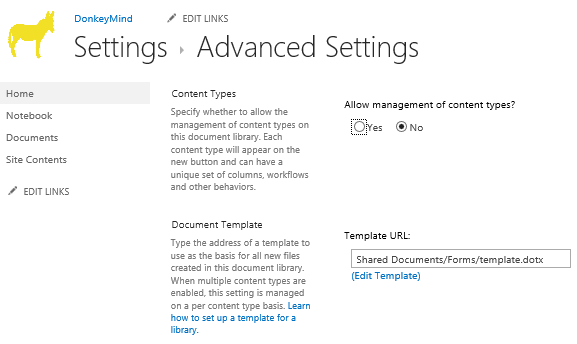
2.4 Locate the Document Template section

Library3

2.5 Change the filename in the Template URL to reflect your template files name

Library4

2.6 Click on OK

Library5

2.7 Click on Documents in the ‘breadcrumbs’ to go back to the library again.

Library6

2.8 Click on the Files tab

Library7

2.9 Now, on the New Document button, click on the dropdown and New Document

Library8

2.10 Press Yes in the dialog asking if you really want to open this file, because you do…

Note: Avoid this by changing the Trust Center settings in your Office applications.
1. Allow trusted locations on my network.
2. Add new location
3. Type in the https path to your SharePoint Online tenant
(See references for 2007 and 2010)

Library9

2.11 You may also get prompted for your username/email address for the Office 365 account. Type it in and press Next

Note: This dialog only shows up if you are not logged into your office applications using your Office 365 account 

Open1

2.12 And Password…Sign in

Open2

2.13 The new document opens, based on the template

Word2

2.14 When you have types your letter and are done, simply press Save, this will show you the save as dialog with the path to the SharePoint document library at the top

Word3

2.15 Select that and type in a filename and save the file

2.16 You are done, use the New Documents button to create your standard letters based on the custom template, again and again.

Done1

3.0 Done!

Note: All the same steps apply in SPO as well as SharePoint 2013 onpremise, exept for the ‘add site URL to trusted sites’ issue. In an onprem situation the URL is most of the time already considered Trusted or Local intranet.

References

Learn how to set up a template for a library.

How to enable or disable hyperlink warning messages in 2007 Office programs and in Office 2010 programs
http://support.microsoft.com/kb/925757

SP2013logo

_________________________________________________________

Enjoy!

Regards

Twitter | Technet Profile | LinkedIn

Office 365 guide series – Create a new list from an Excel spreadsheet


 Office365logo       SP2013logo

Greetings SharePoint Online users!

This is the first in a series of Office 365 and SharePoint Online guides primarily aimed at users and power users, my aim with these guides is to show in an easy to grasp way, how you do a few relatively easy but important tasks in SharePoint Online/Office 365. Tasks that will give you a lot of functionality with relatively little effort. Since a lot have been covered already for SharePoint onprem in blogs and other online documentation like TechNet, but not specifically for Office 365 or SharePoint Onlne, I feel that there is a gap to fill here.

1. Office 365 guide series – Create a new list from an Excel spreadsheet
2. Office 365 guide series – A guide to SharePoint Navigation using metadata
3. Office 365 guide series – Using your document templates in SharePoint online

This first time, I will explain how to:

Create a new custom list from an existing excel spreadsheet
This task is simple if everything goes smoothly, but if you have never done it before, or if you have tried but got stuck on any of the little hickups you may encounter, then this may be the perfect guide for you.

– Start by creating your Excel spreadsheet. Make sure that it is a xlsx file. You may also use an existing spreadsheet with your listdata, copy from an old file, save another format as xlsx.

In the spreadsheet, follow the following rules to get a good result:
– Make sure that you do not have any empty column headers between columns. This will cause all headers to be imported as row 1 instead of beeing headers, new column headers will be created as 1, 2, 3 and so on.
– Keep the spreadsheet ‘clean’, remove empty rows, empty columns and any text above the header row and to the right or under of the table or cell range.
– The first column to the left will be the default edit field in the SharePoint list. Make sure that it has values on all rows.
– For best result, avoid formulas with calculated values.
– Use Excel 2013.

In a SharePoint Online site, do this:
1. Decide on a name for the list, it will be the URL and name of the list.
2. Go to the ‘cogs’/Settings and select Add an app

AddanApp

3. You will now see a list of all available apps (installed)
4. Search for Import or scroll down until you find the app called Import Spreadsheet
5. Click on Import Spreadsheet

ImportSpreadsheet

6. Type in the Name of the new list
7. Type in a optional Description
8. At the File location field, click Browse…
9. Browse to your xlsx file on your computer
10. Click on Import

AddApp1

11. The Import Wizard starts, by default, the Range type is set to Table Range
12. Change this to Range of cells
13. Click in the Select Range field
14. In the Spreadsheet, select the top left cell and then make sure that you select the entire table of data you want imported
15. It should now read something similar to: Sheet1!$A$1:$G$400 (top left : bottom right)

ImportWiz2

16. Now you click on Import
17. You may now get a logonprompt from Excel, enter the emailaddress for the SPO account and click next
18. Enter the account password and click on Sign in
19. Excel will now create the list and start importing the data, you will see a little progressbar at the bottom of the Excel application.
20. When the import is done, the new list will open and you will see the columns from the top

NewList

Note: You may note sometimes that a ‘mailto:’ has been added to the email column values.
ColumnError2
This is added in excel but hidden when a cell is formatted as an email address. In the example above, note that the first row has the value of ‘Email’ which made the list field be formatted as single line of text instead of email.
The trick is most of the time to make sure that all fieldvalues in a column are consistent in format. One cell with a different format will cause the entire column to get a different formatting.

21. Done!

– You may now want to add a link in the left hand navigation to the list. Check the url in the addressbar of IE and copy it.
– Click on EDIT LINKS
– Click on +Link
– Type in the Text to display (will be seen in the navigation), for example ‘Contacts’ and paste the URL into Address
– Click OK
– Try the link out to make sure
Done! (Again)

Error list

1
You get ‘The specified file is not a valid spreadsheet or contains no data to import’
When: When you browse to your Excel spreadsheet and click Import
Fix: Add site URL to trusted sites in Internet Explorer, it has to be in either trusted sites or Local Intranet sites.

2
A new header row is created instead of the headers I got (Column1, Column2, Column3…) and the headers becomes values if the first datarow
When: You have one or many empty headers in your cellrange
Fix: Remove all columns with blank headers, or add a value to them, this is only within your cell span.

ColumnError2

3
If you get the error, ‘An unexpected error has occured. (-2147467259)’
When: Something is wrong with the SPO User session you have open
Fix: Sign out of your SPO session, close all IE windows, Close Excel – logon again to SPO, Add app…same procedure as last time.

Error1


4

Very large files, field data types get wrong, you expect Single line of text but get Multiple lines of text
When: The cellrange probably contain one or more ‘special’ values that is interpreted by excel/SPO as something else than it is.
Fix: With large files, create a new excelfile with only header and one row, make sure that the header row or the data row do not contain any value or characters out of the ordinary. Then, copy paste the rest of the rows in quick edit or datasheet view.

5
The wrong Column becomes the default edit column with the ‘…’ for the edit dropdown meny.
When: The column you want to use for default edit is not the first from the left.
Fix: First column will be the default edit field with the …make sute the Cell range starts with the top left cell.

Note: All the same steps apply in SPO as well as SharePoint 2013 onpremise, exept for the Excel logon prompt and the ‘add site URL to trusted sites issue. In an onprem situation the URL is most of the time already considered Trusted or Local intranet.

References

None so far 🙂

SP2013logo

_________________________________________________________

Enjoy!

Regards

Twitter | Technet Profile | LinkedIn

Loopback Check configuration Tool released – free download


Win2012  logo  SharePoint2013Logo70x338

Hi All.

It is here! Free for all! DOWNLOAD

I am happy to announce that the Loopback Check Tool has finally been made available at Codeplex – https://loopbackchecktool.codeplex.com
No more last minute t-shooting the loopback check and ending up disabling it, trying to find the KB or a decent blog post on how to do it.

This Tool takes care of it all for you. Download the exe, put it on your servers, run it to configure the Loopback Check feature simple and easy.

Its simple.
Its small (21kb zipped)
Only click and make it happen
No installation, one single exe that works on most Windows Servers (and clients)
Disable the Loopback check completely (Not recommended)
Enable or Disable the Loopback Check function
Enable it and add excluded URLs (Recommended, now easy to do)

This is a preview image of what the tool looks like

Form

The tool works fine on:

Windows Server 2012
Windows Server 2012 R2
Windows Server 2008 R2
Windows Server 2008
Windows 7
Windows 8
Windows 8.1
And probably a few more…

References:

You receive error 401.1 when you browse a Web site that uses Integrated Authentication and is hosted on IIS 5.1 or a later version
http://support.microsoft.com/kb/896861/en-us

A quick guide to configuring the Loopback check
https://blog.blksthl.com/2013/05/07/a-quick-guide-to-configuring-the-loopback-check/

DisableLoopbackCheck & SharePoint: What every admin and developer should know.
http://www.harbar.net/archive/2009/07/02/disableloopbackcheck-amp-sharepoint-what-every-admin-and-developer-should-know.aspx

Thanks to:

Herakles and Gutke!

Win2012  logo  SharePoint2013Logo70x338

___________________________________________________________________________________________________

Enjoy!

Regards

Twitter | Technet Profile | LinkedIn

Create a bootable Windows Server 2012 R2 installation USB flash drive


2012R2 logo

Hi Windows connoisseurs! (wiki)

(This is essentially a remake of my Create a bootable Windows 8.1 installation USB flash drive post.) The setps are the same so you can easily follow that post or use this slightly updated version.

In this guide I will help you find a way to install Windows Server 2012 R2 quick and easy, from a simple USB flash drive. It’s really easy, but you still need to Think about a few things.
I’ll list them here and if you want, you can follow the step by step guide below.

Quicksteps:

1. Get a USB Flash drive formatted with FAT32, it has to be AT LEAST 8GB! (The Windows Server 2012R2 installation bits will not fit on a 4GB USB drive…)
2. Download and install the Windows 7 USB/DVD Download tool from Microsoft Store here or Codeplex here  (It is an official Microsoft tool, totally wierdly named from the Windows 7 release but still very much valid!)
3. Download or locate a ‘Windows Server 2012 R2’ .iso file and store it locally on your harddrive.
4. Start the Windows 7 USB/DVD Download tool (from startbutton or ‘windows 8/Metro’ style startmenu’?)
5. Complete the steps 1-4
6. Insert the USB flash drive into the powered off PC to install, Power on and boot from USB drive (F9 at HP logo on HP Machines).
7. Install Windows Server as you would normally.
8. Done!

This guide in its entirety works just as well if you replace the Windows Server 2012 R2 .iso file with Windows 8.1, Windows 7, Windows Server 2012 or plain Windows 8 (Windows Server 2008 R2 not verified but willmost likely also work)

Step by step:

1. USB Flash Drive

Prepare a USB flash drive for installation, is has to be at least 8 GB in size and it has to be formatted with FAT32. It does not have to be erased, the tool will do that for you if needed.

USB

Before

2. Download and install the Windows 7 USB/DVD Download tool from Microsoft Store or Codeplex. The Links are as follows:

http://images2.store.microsoft.com/prod/clustera/framework/w7udt/1.0/en-us/Windows7-USB-DVD-tool.exe
or
http://wudt.codeplex.com

Run the .exe file, you will have to be a local administrator on your machine for it to install properly.

1

Click Next

2

Click Install

3

Click Finish

3. Locate a Windows Server 2012 R2 .iso file. This file should be placed on a local harddrive. It does not matter where you put it, as long as it is on a local HD and it is accessable to you when running the tool, meaning that you have access to where the file is stored in the filesystem.

4. After the installation of the tool has completed, you will suddenly notice this tile:

MetroIcon

You can also just use the search function, in ‘metro mode’ simply type Windows 7 and you will see it and its uninstall app.
Start the tool
Click Ok at the User Account Control popup dialog
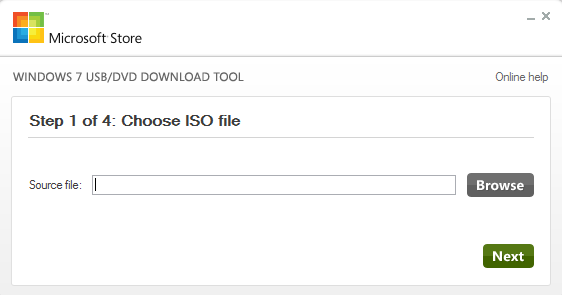
The first screen should now look like this:

ChooseISO

5. Hit the Browse button to locate your Windows Server 2012 R2 installation iso file.

Step1

In my test, I’m using an .iso file downloaded from TechNet Subscriber downloads (soon to be no more)
It does not have to be from TechNet, it can be MSDN or Volume Licensing or really any form of Windows Server 2012 R2 installation iso.

Click ‘Next’

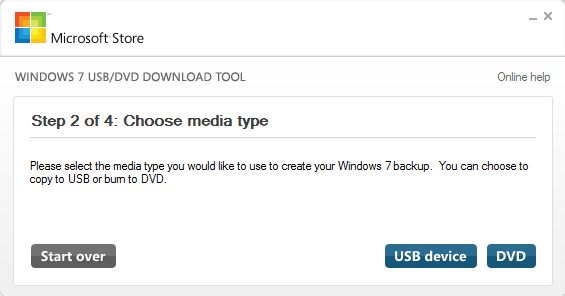
Step2ChooseMedia

Click on ‘USB device’
If you see the window below, that means that the USB drive is either not plugged in properly, or it has the wrong formatting or insufficient storage or similar. Make sure that you have a USB flash drive that meets: 4GB minimum+FAT32.

Step2ChooseMediaNoUSB

Insert a USB drive that meets the requirements and press the refresh button
Now, click on the ‘Begin copying’ button.

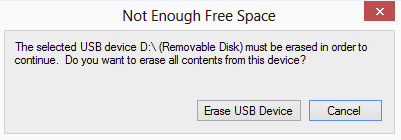
If the USB drive was ok, the copying will begin, but if not, if it still had files still on it, you will see this dialog:

Erase1

Click Erase to continue

Erase2

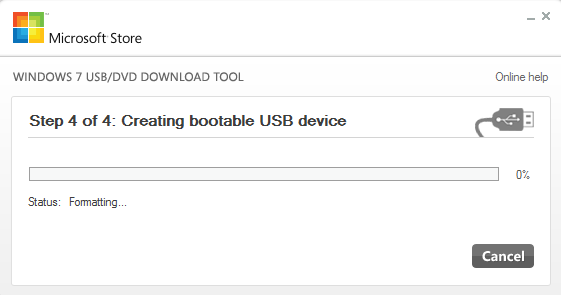
Click Yes and the formatting and copying process will begin.

Step4

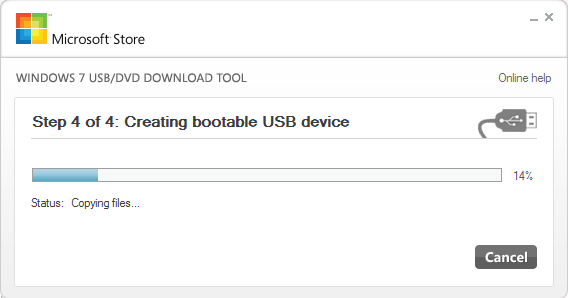
Step42

Let it do its thing until it reaches 100%

When it has finished formatting and copying files, you are done.

USB

After!

6. Next step, is to insert the USB drive into the PC you want to install Windows Server 2012 R2 on, Power it off completely and Power on again.
Use BIOS settings to select ‘boot from USB’ or like on a HP machine, hit F9 at the HP logo screen to boot directly from USB.

7. Let the Installation begin! The Windows installation is pretty much standard. A Clean install is described here.  The setup of Windows 8, which is pretty much the same, is described here

8. Done!

References:

Install and Deploy Windows Server 2012 (R2)
http://technet.microsoft.com/en-us/library/hh831620.aspx

Thanks to:

Herakles and Gutke!

2012R2 logo

___________________________________________________________________________________________________

Enjoy!

Regards

Twitter | Technet Profile | LinkedIn

A quick-guide to setting up OWA with SharePoint 2013 – start to finish


Future and existing Office Web Apps – OWA Lovers!
😁
This time, I just found that a quick guide like this was something that I needed myself, and since I could not find anything that was short and compact enough, I made my own guide…
This Little guide is completely based on the TechNet articles mentioned in the references section, but this is nontheless a lot shorter and easier to follow.

Oakwood_clockx

The old Clock at Oakwood station


Click your OWA task of choice:
Step 1
Prepare a 2008 R2 Server to run OWA
Prepare a 2012 Server to run OWA
Step 2
Install Office Web Apps Server
Step 3
Deploy a single-server Office Web Apps Server farm that uses HTTPS
Step 4
Configure SharePoint to use OWA over https (recommended)
Configure SharePoint to use OWA over http
Additional
Disconnect SharePoint from OWA farm
Configure the Default open behavior for documents
Credits and References


Prepare a 2008 R2 server to run Office Web Apps Server

1. Install the following software (Minimum required):

2. Import the server module
(In a PowerShell prompt running as administrator and with the SharePoint snapin loaded)
Import-Module ServerManager

3. Add the required Features and Roles by running this command:
Add-WindowsFeature Web-Server,Web-WebServer,Web-Common-Http,Web-Static-Content,Web-App-Dev,Web-Asp-Net,Web-Net-Ext,Web-ISAPI-Ext,Web-ISAPI-Filter,Web-Includes,Web-Security,Web-Windows-Auth,Web-Filtering,Web-Stat-Compression,Web-Dyn-Compression,Web-Mgmt-Console,Ink-Handwriting,IH-Ink-Support

4. Restart the server if prompted when the command finishes.

5. Done

TechNet Reference
Back to menu


Prepare a 2012 server to run Office Web Apps Server

1. In a PowerShell prompt running as administrator, add the required Features and Roles by running this command:
Add-WindowsFeature Web-Server,Web-Mgmt-Tools,Web-Mgmt-Console,Web-WebServer,Web-Common-Http,Web-Default-Doc,Web-Static-Content,Web-Performance,Web-Stat-Compression,Web-Dyn-Compression,Web-Security,Web-Filtering,Web-Windows-Auth,Web-App-Dev,Web-Net-Ext45,Web-Asp-Net45,Web-ISAPI-Ext,Web-ISAPI-Filter,Web-Includes,InkandHandwritingServices

2. Done

TechNet Reference
Back to menu


Install Office Web Apps Server
1. Download Office Web Apps Server from the Microsoft Download Center (Link).

2. Run Setup and walk through the steps in the wizard.
Windows Server 2012, open the .img file directly and run Setup.exe
Windows Server 2008 R2 SP1, use any program that can mount or extract .img files. Then run Setup.exe

3. Download and install the Office Web Apps Server update KB2810007.

TechNet Reference
Back to menu


Deploy a single-server Office Web Apps Server farm that uses HTTPS

If components of the .NET Framework 3.5 were installed and then removed, you might see “500 Web Service Exceptions” or “500.21 – Internal Server Error” messages when you run OfficeWebApps cmdlets. To fix this, run the following sample commands from an elevated command prompt to clean up settings that could prevent Office Web Apps Server from functioning correctly:
In Windows Server 2008 R2:
%systemroot%\Microsoft.NET\Framework64\v4.0.30319\aspnet_regiis.exe -iru
iisreset /restart /noforce
In Windows Server 2012:
dism /online /enable-feature /featurename:IIS-ASPNET45

1. Create the Office Web Apps Server farm

New-OfficeWebAppsFarm -InternalUrl <InternalURL> -ExternalUrl <ExternalURL> -CertificateName <CertificateName> -EditingEnabled

<InternalURL> FQDN name of the server that runs Office Web Apps Server
<ExternalURL> FQDN name that can be accessed on the Internet
<CertificateName> Is the friendly name of the https/SSL certificate used
-EditingEnabled, optional and is added to enable editing in Office Web Apps

2. Verify that the Office Web Apps Server farm was created successfully

Go to the https://internal.url.com/hosting/discovery
If you see a (WOPI)-discovery XML file in your web browser then all is good.

Depending on the security settings of your web browser, you might see a message that prompts you to select Show all content before the contents of the discovery XML file are displayed.

3. Done

TechNet Reference
Back to menu


Configure SharePoint to use OWA over https (recommended)
(In a PowerShell prompt running as administrator and with the SharePoint snapin loaded)

The Web Application to be used must be configured to use Claims as authentication method, else OWA will not work.

1. Create new binding:
New-SPWOPIBinding -ServerName <WacServerName>
(<WacServerName> must be the FQDN internal URL)

2. Verify current zone:
Get-SPWOPIZone

3. Change to internal-https if it is set to http:
Set-SPWOPIZone –zone “internal-https

4. Verify https:
Get-SPWOPIZone

5. Verify functionality in a document library (Not using the system account, appearing as sharepoint\system)
Click on the ‘Three dots’ after a documents name and see if you get a preview, if you do, its all good!

6. Done

TechNet Reference
Back to menu


Configure SharePoint to use OWA over http
(In a PowerShell prompt running as administrator and with the SharePoint snapin loaded)

The Web Application to be used must be configured to use Claims as authentication method, else OWA will not work.

1. Create new binding:
New-SPWOPIBinding -ServerName -AllowHTTP
( must be the FQDN internal URL)

2. Verify current zone:
Get-SPWOPIZone

3. Change to internal-http:
Set-SPWOPIZone –zone “internal-http”

4. Verify http:
Get-SPWOPIZone

5. Check AllowoverHttp setting:
(Get-SPSecurityTokenServiceConfig).AllowOAuthOverHttp

6. Set AllowOAuthOverHttp to True.
$config = (Get-SPSecurityTokenServiceConfig)
$config.AllowOAuthOverHttp = $true
$config.Update()

7. Verify change:
(Get-SPSecurityTokenServiceConfig).AllowOAuthOverHttp

8. Verify functionality in a document library (Not using the system account, appearing as sharepoint\system)
Click on the ‘Three dots’ after a documents name and see if you get a preview, if you do, its all good!

9. Done

TechNet Reference
Back to menu


Disconnect SharePoint from OWA farm
(In a PowerShell prompt running as administrator and with the SharePoint snapin loaded)

1. Remove the binding
Remove-SPWOPIBinding –All:$true

2. Done

TechNet Reference
Back to menu


Configure the Default open behavior for documents

1. On a per farm level: Adjust the default open behavior on a per-file-type basis by using the New-SPWOPIBinding and Set-SPWOPIBinding Windows PowerShell cmdlets.

2. On a per Site Collection level by activating the ‘Open Documents in Client Applications by Default’ site Collection feature.

3. On a per Document library level using the Library setting – Advanced setting – ‘Default open behavior for browser-enabled documents’

4. Done

TechNet Reference
Back to menu


References:

Deploy Office Web Apps Server
http://technet.microsoft.com/en-us/library/jj219455.aspx

Configure SharePoint 2013 to use Office Web Apps
http://technet.microsoft.com/en-us/library/ff431687.aspx

Configure the default open behavior for browser-enabled documents (Office Web Apps when used with SharePoint 2013)
http://technet.microsoft.com/en-us/library/ee837425.aspx

Set-SPWOPIBinding
http://technet.microsoft.com/en-us/library/jj219454.aspx

Plan Office Web Apps (Used with SharePoint 2013)
http://technet.microsoft.com/en-us/library/ff431682.aspx

SharePoint authentication requirements for Office Web Apps
http://technet.microsoft.com/en-us/library/ff431682.aspx#authentication

Configuring Office Web Apps in SharePoint 2013 (Steve Peschka – Microsoft)
http://blogs.technet.com/b/speschka/archive/2012/07/23/configuring-office-web-apps-in-sharepoint-2013.aspx

Enabling Licensing and Editing for Office Web Apps in SharePoint 2013 (Steve Peschka – Microsoft)
http://blogs.technet.com/b/speschka/archive/2012/12/31/enabling-licensing-and-editing-for-office-web-apps-in-sharepoint-2013.aspx

Thanks to:

Mattias Gutke! All the time dude!
Ankie D – a great customer who has forced me to learn more on OWA
Stefan K – Another customer who made me refresh my knowledge
Steve Peschka, he wrote the original guide…see ref section


___________________________________________________________________________________________________

Enjoy!

Regards

Twitter | Technet Profile | LinkedIn

Create a bootable Windows 8.1 installation USB flash drive


win8.1logo

Hi Windows Lovers!?

(Looking to install Windows Server? The same steps apply, but for a server specific guide, go here Create a bootable Windows Server 2012 R2 installation USB flash drive)

This time I’ll help you find a way to install Windows 8.1 quick and easy, from a simple USB flash drive. It’s a piece of cake really, but a few things you need to know about.
I’ll list them here and if you want, you can follow the step by step guide below.

Quicksteps:

1. Get a USB Flash drive formatted with FAT32, it has to be AT LEAST 4GB!
2. Download and install the Windows 7 USB/DVD Download tool from Microsoft Store HERE or Codeplex HERE  (It is an official Microsoft tool, totally wierdly named from the Windows 7 release but still very much valid!)
3. Download or locate a ‘Windows 8.1’ .iso file and store it locally on your harddrive.
4. Start the Windows 7 USB/DVD Download tool (from startbutton or ‘windows 8 style startmenu’?)
5. Complete the steps 1-4
6. Insert the USB flash drive into the powered off PC to install, Power on and boot from USB drive (F9 at HP logo on HP Machines).
7. Install Windows as you would normally.
8. Done!

This guide in its entirety works just as well if you replace the Windows 8.1 .iso file with Windows 7, Windows Server 2012 or plain Windows 8 (Windows Server 2008 R2 not verified but willmost likely also work)

Step by step:

1. USB Flash Drive

Prepare a USB flash drive for installation, is has to be at least 4 GB in size and it has to be formatted with FAT32. It does not have to be erased, the tool will do that for you if needed.

USB

Before

2. Download and install the Windows 7 USB/DVD Download tool from Microsoft Store or Codeplex. The Links are as follows:

http://images2.store.microsoft.com/prod/clustera/framework/w7udt/1.0/en-us/Windows7-USB-DVD-tool.exe
or
http://wudt.codeplex.com

Run the .exe file, you will have to be a local administrator on your machine for it to install properly.

1

Click Next

2

Click Install

3

Click Finish

3. Locate a Windows 8.1 .iso file. This file should be placed on a local harddrive. It does not matter where you put it, as long as it is on a local HD and it is accessable to you when running the tool, meaning that you have access to where the file is stored in the filesystem.

4. After the installation of the tool has completed, you will suddenly notice this tile:

MetroIcon

You can also just use the search function, in ‘metro mode’ simply type Windows 7 and you will see it and its uninstall app.
Start the tool
Click Ok at the User Account Control popup dialog
The first screen should now look like this:

ChooseISO

5. Hit the Browse button to locate your Windows 8.1 installation iso file.

ChooseISO2

In my test, I’m using an .iso file downloaded from TechNet Subscriber downloads (soon to be no more)
It does not have to be from TechNet, it can be MSDN or Volume Licensing or really any form of Windows 8.1 installation iso.

Click ‘Next’

Step2ChooseMedia

Click on ‘USB device’
If you see the window below, that means that the USB drive is either not plugged in properly, or it has the wrong formatting or insufficient storage or similar. Make sure that you have a USB flash drive that meets: 4GB minimum+FAT32.

Step2ChooseMediaNoUSB

Insert a USB drive that meets the requirements and press the refresh button
Now, click on the ‘Begin copying’ button.

If the USB drive was ok, the copying will begin, but if not, if it still had files still on it, you will see this dialog:

Erase1

Click Erase to continue

Erase2

Click Yes and the formatting and copying process will begin.

Step4

Step42

Let it do its thing until it reaches 100%

When it has finished formatting and copying files, you are done.

USB

After!

6. Next step, is to insert the USB drive into the PC you want to install Windows 8.1 on, Power it off completely and Power on again.
Use BIOS settings to select ‘boot from USB’ or like on a HP machine, hit F9 at tghe HP logo screen to boot directly from USB.

7. Let the Installation begin! The Windows installation is pretty much standard. A Clean install is described here.  The setup of Windows 8, which is the same, is described here

8. Done!

References:

Thanks to:

As Always, Mattias Gutke! At CAG for some strange reason….Always a friend, a great help and a second opinion!

GetItNow
___________________________________________________________________________________________________

Enjoy!

Regards

Twitter | Technet Profile | LinkedIn

Move your SharePoint IIS sites from the systemdrive(C:)


Move your SharePoint IIS sites from the systemdrive(C:)
or avoid putting them there in the first Place.

Lionx

Do you see the lion that is totally in the wrong Place…or is it the Jeeps that are…?

Deal fellow SharePointlovers!

This time, I’ll try to show you how to avoid the messed up situation most SharePoint installations are in, with everything on the systemdrive, or C:
Now, us people have over time been better and better at one thing, we understand that the logfiles should not be located on the systemdrive, so we have learned over time to move the ULS log and the Usage and Health log from C:, some have even been clever enough to move even the IIS log from C:

But, what do we still always, always, always, find installed on C:?… … …yes, C:\inetpub!

It not very strange though, the developers of Windows Server have made a point out of not giving us an option to install inetpub on a different path, not unless you do an unattended installation or otherwise script or Control your installation. The ‘Add/Remove roles’ wizards in Server 2008, 2008R2 and 2012 all lack this option (for a reason).

BUT! This is intentially, the default inetpub location should and must be in the systemdrive, IIS is considered an operating system Component and has to be there for a number of reasons. At the end you will find a link to a KB article that explains this in more detail. Leave inetpub and its subfolders where it is!

So, why would we want to do this anyway
why move the inetpub and all of its content, or at least the separate site catalogs to a different drive?
– Separation (Performance and Security)
– Compartmentalization (Performance and Security)
Having averything on the same drive is bad for a few reasons, primarily performance and security. Perfomance since the OS is on the C drive and security because if an attacker by some means gets access to a different less secure applications sitecatalog, they also get access to the systemdrive and possible also all other webapplication sitecatalogs. Moving them to other drives, same or different, helps mitigate both possible issues.
I therefore recommend doing this:

Do your regular installation, add the Web Server role and let the inetpub folder end up on C:, like I said, no worries. Whats important for us will not be located there anyway.
Next, edit the registry to make the default location of inetpub be for example D: (unless this is were you will be putting all of your logfiles, then select a third or fourth drive)
Install the SharePoint as you would normally do, Central administration will now end up were you pointed the default location.
Create your Web Applications using the GUI or PowerShell and leave out the path, the IIS sites will be were you wanted them.

So, how do we do this in more detail? A Guide…

Configure the Web Server(s)

1. Configure the default location

On all of your web servers in the farm, and on your Central Administration server(s), edit the registry key that Controls the default location:

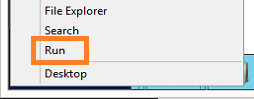
Start regedit by, Right clicking in the very lower left corner and you will get a list of actions, click on Run.

Reg1x

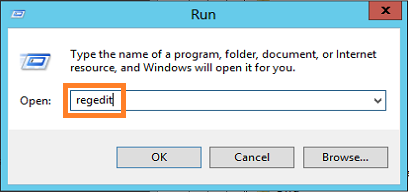
Type Regedit and click Ok.

Reg2x

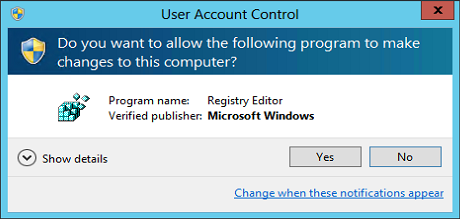
Click Yes in the UAC dialog.

Reg3

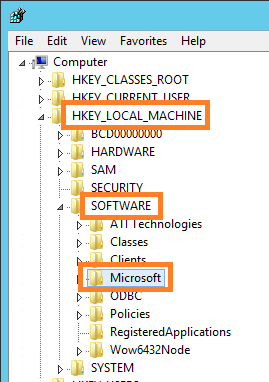
In Registry Editor, we locate the following path: HKEY_LOCAL_MACHINE\SOFTWARE\Microsoft\InetStp
Reg4x

Reg5x

Under ‘InetStp’ we have a number of keys.

Reg6x

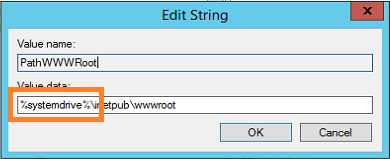
Locate and Edit the key PathWWWRoot from the default: (%systemdrive%)

Regbeforex

to: (D: or where you prefer to locate it, E: F: G: H:…)

Regafterx

There you go! All set, no IIS reset or restarts of any kind required.
Like said before, go on and do this on all servers that will host a webserver (WFE or CA). If you don’t, then you will have an inconsistent setup making Everything very hard to setup and t-shoot.

2. Add SharePoint
After this has been changed on all of you r web servers, you can go ahead and install the SharePoint binaries and configure your farm, The Central Administration site will now be located on the drive you have specified, it will be in the exact same path as it normally would but on a different drive. For example: ‘D:\inetpub\wwwroot\wss\VirtualDirectories\20000\’

Note that the Central Administration UI will now be default suggest a different path:

NewWeb1x

If you create a new site using PowerShell, it will also by default put it in D: even if you don’t specify any path:

New-SPWebApplication -Name TheVeryFirst -ApplicationPool SharePoint -HostHeader theveryfirst.corp.balkestahl.se -Port 80 -Url theveryfirst.corp.balkestahl.se -DatabaseServer blksthl-sql -DatabaseName SP11_Content_TheVeryFirst

As you can see, were done! 🙂

Donex

For the logfiles, I’ll make a separate post, they should also be moved, more so even than the sitefolders. Logfiles will fill up the disks, they will slow performance and maybe most importantly, they contain delicate information that you want to keep separated from the OS and IIS.

References:

Guidance for relocation of IIS 7.0 and IIS 7.5 content directories
http://support.microsoft.com/kb/2752331

Configure ULS log and Usage and Health log location
https://blog.blksthl.com/2013/06/05/configure-uls-log-and-usage-and-health-log-location/

Thanks to:

Mikael Nyström (The Deployment Bunny) – Truesec
Mattias Gutke – CAG


___________________________________________________________________________________________________

Good Luckl!!

Regards

Twitter | Technet Profile | LinkedIn