The Guide is now available as a PDF download from Microsoft Technet Gallery.
Download : The final guide to SharePoint 2010 Site Settings
A preview of the whitepaper:

_________________________________________________________
Enjoy!
Regards

Mostly what I know and share about…
The Guide is now available as a PDF download from Microsoft Technet Gallery.
Download : The final guide to SharePoint 2010 Site Settings
A preview of the whitepaper:
_________________________________________________________
Enjoy!
Regards

Changing the Farm’s PassPhrase, is it difficult and something that canb possible screw Everything up? Or is it an easy and pretty trival task?
I’d say the latter, changing it is easy, what is important and hard, is to make sure that dokumentation and possibly secure stores and such are updated to reflect the change. Remember, as long as you have at least one SharePoint server still connected/joined to the farm, you can Always reset the PassPhrase again. It’s when you have a single Config Database without a single server that you really really want to have the PassPhrase documented and in order.
So, how to do it practically? There is really only one way, and that is using PowerShell:
Open a PowerShell Prompt as Administrator.
Load the SharePoint Module:
Add-PSSnapin Microsoft.SharePoint.PowerShell
Enter this at the PowerShell prompt:
$passphrase = ConvertTo-SecureString -asPlainText -Force
Input the new passphrase and hit Enter

Enter this at the PowerShell prompt:
Set-SPPassPhrase -PassPhrase $passphrase -Confirm
You will be asked to confirm the passphrase by re-entering it in cleartext
Re-enter the passphrase and hit Enter
You will be asked if you are sure that you want to perform this action, type Y (for Yes) and hit Enter

Your farm passphrase has now been reset!
Next time, use the new PassPhrase when joining the farm.
!! And remember to update any documentation !!
Why I had to do this now? Well, this is, I’m currently helping a customer setting up Resporting Services for SharePoint, that requires an extra server joined to the farm with SSRS and SP installed on them. I installed the server and added all the SP’s and LP’s and CU’s and soon, until we were good to go to join it into the farm. Now, I got prompted for the PassPhrase…hmm. This farm was setup some time ago by a different firm and they are not around anymore…
My customer sent me the documentation on the farm setup but no luck. The PassPhrase was forgotten and gone…
So, instead of panicking and screaming for a complete reinstall, I started to look for the way to retrieve it or reset it. Turns out, you can reset it but never retrieve it. You must have one server still in the farm to be able to reset it, this server is wehere you run the Powershell commands from.
So, now my PassPhrase is reset, I quickly added it to textfile on the server and also emailed it to my customer. Later, I will also add it to the Farm documentation for future reference.
_________________________________________________________
Enjoy!
Regards

In Conjunction with the release of the SharePoint 2013 preview and Office 15 and all the great releases this summer, Microsoft also saw fit to release some info on the support for PowerShell in SharePoint in Office 365 more commonly known simply as SharePoint online.
Have a look at this link:
Windows PowerShell for SharePoint Online
http://technet.microsoft.com/en-us/library/fp161362(v=office.15)
What I regard as a bit cryptic regarding this release is this:
Applies to: SharePoint Online Preview
Update 20120920: Sign up for the preview here: http://go.microsoft.com/fwlink/p/?linkid=257731
I have not spent time figuring out how to get access to a Preview, I’ll rather just read up on the CMD’lets and wait for the support to become general availability.
The list of CMD’lets is limited to just a few, but as a starter, it is a huge leap forward compared to no support, which was what we had before.
The entire list looks like this:
SharePoint Online cmdlets in verb order
| Cmdlet name | Description |
|---|---|
| Add-SPOUser | Adds an existing Office 365 user or an Office 365 security group to a SharePoint group. |
| Connect-SPOService | Connects a SharePoint Online global administrator to a SharePoint Online connection (the SharePoint Online Administration Center). This cmdlet must be run before any other SharePoint Online cmdlets can run. |
| Disconnect-SPOService | Disconnects from a SharePoint Online service. |
| Get-SPOAppErrors | Returns application errors. |
| Get-SPOAppInfo | Returns all installed applications. |
| Get-SPODeletedSite | Returns all deleted site collections that are in the Recycle Bin. |
| Get-SPOSite | Returns one or more site collections. |
| Get-SPOSiteGroup | Returns all the groups on the specified site collection. |
| Get-SPOTenantLogEntry | Retrieves SharePoint Online company logs. |
| Get-SPOTenantLogLastAvailableTimeInUtc | Returns the time when the SharePoint Online organization logs are collected. |
| Get-SPOUser | Returns the SharePoint Online user or security group accounts that match given search criteria. |
| Get-SPOWebTemplate | Shows all site templates that match the given identity. |
| New-SPOSite | Creates a new SharePoint Online site collection for the current company. |
| New-SPOSiteGroup | Creates a new group in a SharePoint Online site collection. |
| Remove-SPODeletedSite | Removes a SharePoint Online deleted site collection from the Recycle Bin. |
| Remove-SPOSite | Sends a SharePoint Online site collection to the SharePoint Online Recycle Bin. |
| Remove-SPOSiteGroup | Removes a SharePoint Online group from a site collection. |
| Remove-SPOUser | Removes a user or a security group from a site collection or a group. |
| Repair-SPOSite | Checks and repairs the specified site collection and its contents. |
| Request-SPOUpgradeEvaluationSite | Requests to create a copy of an existing site collection for the purposes of validating the effects of upgrade without affecting the original site. |
| Restore-SPODeletedSite | Restores a SharePoint Online deleted site collection from the Recycle Bin. |
| Set-SPOSite | Sets or updates the values of one or more properties for a site collection. |
| Set-SPOSiteGroup | Updates the SharePoint Online owner and permission level on a group inside a site collection. |
| Set-SPOTenant | Sets properties on the SharePoint Online organization. |
| Set-SPOUser | Configures properties on an existing user. |
| Test-SPOSite | Tests a SharePoint Online site collection. |
| Upgrade-SPOSite | Starts the upgrade process on a site collection. |
Enjoy!
Regards
As you might know Microsoft has a site called The Scripting Guys. My colleague Niclas Goude will be writing a couple of guest blogs on The Scripting Guys regarding security from the 2:nd to the 6:th of July.
The specific subjects will be:
Monday: Scanning – Direct Link
Tuesday: Brute Force – Direct Link
Wednesday: Shares and Metadata – Direct Link
Thursday: Beyond Local admin – Direct Link
Friday: LSA Secrets – Direct Link
Look them up there: http://blogs.technet.com/b/heyscriptingguy
Or Goudes blog: http://www.powershell.nu
Enjoy!
Regards
Remove SharePoint DB using PowerShell
Just a quick tip that can help a lot in some situations, when in the situation when you for example have deleted a service application and the DB’s are still there, the DBA’s have all left and you have no way of connecting to SQL with a management tool…
This is what you can do, given that you have the permissions…(high?)
Get-SPDatabase
(Will list all databases used by SharePoint, Name and GUID and Type.)
$DatabaseToDelete = Get-SPDatabase <GUID of the database you need to get rid of>
(Load the database as a SPDatabase object)
$DatabaseToDelete.Delete()
(It’s now gone…)
Thats all there is to it.
Enjoy!
Regards
Ok, when lacking a better way of getting this out to the public, I’ll just drop it here for now, this is free and it is a lot of work behind it, please download and use if you find it’s content valuable. Perhaps I will find a better means of getting it out, but this is ok for now.
As you all know, the Site Settings in SharePoint Server 2010 are dynamic, meaning that they change as different features are enabled or disabled. Some are available in the Site Collection root only(SPSite), some in subsites(SPWeb) only.
All of these seetings that have been made available to us in SharePoint Server 2010, I have catalogued and tagged.
You will find all settings explained, when they show up and what they do, what the url is and if it can be controlled using PowerShell.
These are the sections that we have seen so many times but perhaps not reflected over, I know I still saw a setting or two that I did not know existed during mywork with this paper…
Site Settings, 71 all in all available in the following categories:
Users and permissions
Galleries
Site Administration
Site Collection Administration
Look and feel
Site Actions
Reporting Services
Download, but please do not share the document, share the link. That way I will get some form of reward in knowing how many people have downloaded and used my paper. Thanks!
Big THANKS to my present and future Collegues and friends for helping out and supporting the idea:
Mattias Gutke (Enfo Zipper)
Niklas Goude (Truesec)
Anders Grönlund (Enfo Zipper)
I owe you guys big time!
For the rest of you – Enjoy!
Regards

If you for unknown reasons end up with the wrong user in the last modified and author field of documents and folder, or if you simply want to replace a user with a differerent user account, then you can use this script to do it in all documents and flders within an SPWeb.
The script below will iterate thru the Shared Documents library, replace every ‘Last Modified'(Editor) and ‘Created By'(Author) with the user with ID 405.
[Reflection.Assembly]::Load(“Microsoft.SharePoint, Version=12.0.0.0, Culture=neutral, PublicKeyToken=71e9bce111e9429c”)
# don’t leave out the last “/” in the url
$SPSite = New-Object Microsoft.SharePoint.SPSite(“http://www.mycompany.com/“)
$SPWeb = $SPSite.OpenWeb(“MySite”)
$SPList = $SPWeb.Lists[“Shared documents”]
$SPListItemCollection = $SPList.Items
foreach ($ListItem in $SPListItemCollection) {
#This example gets the user with ‘SharePoint ID’ of 405.
$SPFieldUserValue = New-Object Microsoft.SharePoint.SPFieldUserValue ($SPWeb,405)
If ($ListItem[“Editor”] -eq “1;#Chuck Norris (Admin)” -or $ListItem[“Editor”] -eq “385;#Bruce Lee”) {
$ListItem[“Author”] = $SPFieldUserValue
$ListItem[“Editor”] = $SPFieldUserValue
$ListItem.Update()
}
}
# Do the same for all folders
$SPListItemCollection = $SPList.folders
foreach ($ListFolder in $SPListItemCollection) {
$SPFieldUserValue = New-Object Microsoft.SharePoint.SPFieldUserValue ($SPWeb,405)
If ($ListFolder[“Editor”] -eq “1;#Chuck Norris (Admin)” -or $ListFolder[“Editor”] -eq “385;#Bruce Lee”) {
$ListFolder[“Author”] = $SPFieldUserValue
$ListFolder[“Editor”] = $SPFieldUserValue
$ListFolder.Update()
}
}
$SPWeb.Update()
$SPSite.Dispose()
Remember though, the last modified date will be updated to the current date.
Stay tuned!
Regards
This time I will give you a sample script that will enumerate all of your subwebs and remove a node from the current navigation.
A very useful script if you have a large and complec site structure and when you want to change the global or current navigation.
In my example, I am enumerating all subwebs of my sitecollection, and in the current navigation of every subweb, I remove the ‘Ste Pages’ link that you get from enabling publishing. If you want to remove a different link, find the ID of that link and replace or add a $currentnode… to the script.
Since my users have no use for the ‘site pages’ link, I’ll simply remove it from navigation.
# get a sitecollection object(SPSite)
$SPSite = Get-SPSite -Identity “http://farm.company.local/sitecollection“
# loop through all the subwebs(SPWebs) in the site collection
foreach ($SPWeb in $SPSite.AllWebs)
{
# Get a navigation node object and delete it
$currentnode = $SPWeb.Navigation.GetNodeByID(2001)
$currentnode.Delete()
# Make it stick...
$SPWeb.Update()
Write-Host “Removing the Node: ” $currentNode.URL
}
A comlex way of finding out a nodes ID, is to do as follows:
$SPWeb = Get-SPWeb "http://farm.company.local/sitecollection/Web"
(Check in site settings/Navigation what the url for the node is, for example:)
$currentnode = $web.Navigation.GetNodeByUrl
("site/Web/SharedDocuments/Forms/AllItems.aspx")
$currentnode.ID
That will probably give you the ID 2002 for ‘Shared Documents’
Thats it!
Good luck.
I encountered this issue and had some trouble finding the correct info on it, so I thought that I’s share a good guide with all of you.
If you have made the correct choice to not run the configuration wizard to install all of the Service Applications…then you may encounter that you are missing the State Service Application. It can also be from deleting it after it was created by the wizard…
This Service Application is not available for creation in the New dialog in Central Administration, Manage Service Application, so it requires some special treatment.
An example of how it can look when this service Application is missing can look like this (in Health analyzer):
Title : InfoPath Forms Services forms cannot be filled out in a Web browser because no State Service connection is configured.
Severity : 2 – Warning
Category : Configuration
Explanation : InfoPath Forms Services is not functional on the following Web applications because there is no service connection configured for the State Service: SharePoint – 80
Remedy : If a State Service application doesn’t exist, create one by using the new-SPStateServiceApplication Powershell commandlet. For more information on configuring the State Service, see Help. For more information about this rule, see “http://go.microsoft.com/fwlink/?LinkID=142645“.
Failing Servers: XXXXXXXX
Failing Services: SPTimerService (SPTimerV4)
The obvious command new-SPStateServiceApplication gives you this:
PS C:\Media\ConfigScript> New-SPStateServiceApplication -Name “State Service Application” -Database “SharePoint_Service _State” New-SPStateServiceApplication : The pipeline has been stopped. At line:1 char:30 + New-SPStateServiceApplication <<<< -Name “State Service Application” -Database “SharePoint_Service_State” + CategoryInfo : InvalidData: (Microsoft.Offic…plicationCmdlet:NewStateServiceApplicationCmdlet) [New-S PStateServiceApplication], PipelineStoppedException + FullyQualifiedErrorId : Microsoft.Office.Server.Administration.NewStateServiceApplicationCmdlet
New-SPStateServiceApplication : The specified object was not found. Parameter name: Database At line:1 char:30 + New-SPStateServiceApplication <<<< -Name “State Service Application” -Database “SharePoint_Service_State” + CategoryInfo : InvalidArgument: (Microsoft.Offic…plicationCmdlet:NewStateServiceApplicationCmdlet) [N ew-SPStateServiceApplication], ArgumentException + FullyQualifiedErrorId : Microsoft.Office.Server.Administration.NewStateServiceApplicationCmdlet
Do not let this put you down, the correct way to create a new State Service Application is a bit different, no thanks to the get-help command…the syntaxt to use is as follows:
1. $serviceApp = New-SPStateServiceApplication -Name “State Service Application”
2. New-SPStateServiceDatabase -Name “SharePoint_Service_State” -ServiceApplication $serviceApp
3. New-SPStateServiceApplicationProxy -Name “State Service Application Proxy” -ServiceApplication $serviceApp -DefaultProxyGroup
Thats it!
Good luck.
Configuring your site settings is really something that you want to do using PowerShell, this is for many reasons but the most obvious ones are that you get more control. You can test your script with settings in a test environment and see the effect, when it is perfected you simply run the script against a different URL and the result is moved to the proper target environment.
One more benefit is repeatability, you can do one configuration and repeat it for every site or web in your farm. Doing the same thing manually would take time and would increase the risk of making mistakes.
(See more Site settings by Powershell in my Whitepaper that can be downloaded from here: SharePoint 2010 Site Settings explained. I have tried to cover most every site setting and how it can be done using Powershell only. )
All of these settings can also be configured during site creation, in order to do that, get your publishingweb object of the websites you are creating, set the values and same as always, finish off with an update().
In this post I will try to cover most of the settings you can do in the Navigation part of your site settings. The Navigation settings are available only in sites in a site collection that has the SharePoint Server Publishing Infrastructure Site Collection Feature activated.

Activating this feature gives you among many other things, control over the global and current navigations. These settings are available in Site Settings under Look and Feel.

The settings that I will show how to configure using PowerShell are as shown in the below image. There are also ways to add and remove items from the navigations in the same dialog, but these will not be covered here.
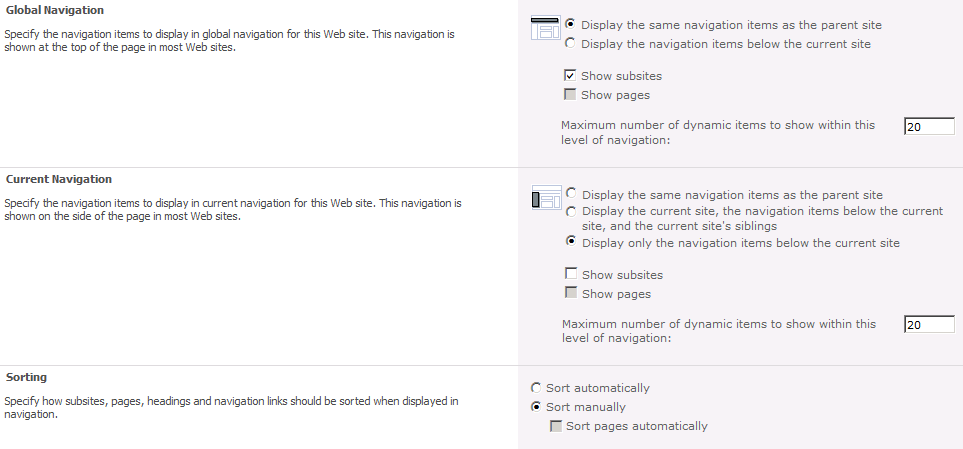
First off, we need an object to work with. In this case we need a Publishing Web object, so first we create a spweb object, then a publishing web object:
$SPWeb = Get-SPSPWeb http://server/sitecoll/spweb/spweb
$SPPubWeb = [Microsoft.SharePoint.Publishing.PublishingWeb]
::GetPublishingWeb($SPWeb)
Some changes, like unchecking the Show subsites, require that you first allow unsafe updates. You can set the show subsites to false, but it will never be reflected unless you first allow unsafe updates. This is done on the SPWeb object by:
$SPWeb.AllowUnsafeUpdates = $true
Using our Publishing Web object, we can now configure the different settings, from the top in the graphical user interface:
Global Navigation
Display the same navigation items as the parent site:
$SPPubWeb.Navigation.InheritGlobal = $true
Display the navigation items below the current site:
$SPPubWeb.Navigation.InheritGlobal = $false
Show subsites:
$SPPubWeb.Navigation.GlobalIncludeSubSites = $true
Show pages:
$SPPubWeb.Navigation.GlobalIncludePages = $true
Maximum number of dynamic items to show within this level of navigation:
$SPPubWeb.Navigation.GlobalDynamicChildLimit = 20 (int32)
Current Navigation
Display the same navigation items as the parent site: (both values in combination)
$SPPubWeb.Navigation.InheritCurrent = $true
$SPPubWeb.Navigation.ShowSiblings = $false
Display the current site, the navigation items below the current site, and the current site’s siblings: (both values in combination)
$SPPubWeb.Navigation.InheritCurrent = $false
$SPPubWeb.Navigation.ShowSiblings = $true
Display only the navigation items below the current site: (both values in combination)
$SPPubWeb.Navigation.InheritCurrent = $false
$SPPubWeb.Navigation.ShowSiblings = $false
Show subsites:
$SPPubWeb.Navigation.CurrentIncludeSubSites = $true
Show pages:
$SPPubWeb.Navigation.CurrentIncludePages = $true
Maximum number of dynamic items to show within this level of navigation:
$SPPubWeb.Navigation.CurrentDynamicChildLimit = 20 (int32)
Sorting
Sort automatically:
$SPPubWeb.Navigation.OrderingMethod = "Automatic"
Sort manually:
$SPPubWeb.Navigation.OrderingMethod = "Manual"
Sort sites manually and pages automatically: (This is option is only available with publishing pages)
$SPPubWeb.Navigation.OrderingMethod = "ManualWithAutomaticPageSorting”
When Sort automatically is selected

Sort by Title (shown left):
$SPPubWeb.Navigation.AutomaticSortingMethod = "Title"
Sort by Created Date:
$SPPubWeb.Navigation.AutomaticSortingMethod = "CreatedDate"
Sort by Last Modified Date:
$SPPubWeb.Navigation.AutomaticSortingMethod = "LastModifiedDate"
Sort in ascending order (shown left):
$SPPubWeb.Navigation.SortAscending = $true
Sort in descending order:
$SPPubWeb.Navigation.SortAscending = $false
That’s it, that covers all of the settings I meant to show and this will hopefully be useful to you when scripting the creation and configuration of your sites.
In order to help you get started, you can modify the script included below and that will allow you to configure all of the above settings the same way on all sites in a designated site collection.
Sample script
# get a sitecollection object(SPSite)
$SPSite = Get-SPSite -Identity “http://farm.company.local/sitecollection“
# loop through all the subwebs(SPWebs) in the site collection
foreach ($SPWeb in $SPSite.AllWebs)
{
  # check so that this is not the root web
  if (!$SPWeb.IsRootWeb)
  {

 # Save AllowUnsafeUpdates setting and set it to allow.
    $AllowUnsafeUpdatesStatus = SPWeb.AllowUnsafeUpdates
 SPWeb.AllowUnsafeUpdates = $true
 # Get a PublishingWeb object for the current web
    $SPPubWeb = [Microsoft.SharePoint.Publishing.PublishingWeb]
 ::GetPublishingWeb($SPWeb)

    # UnComment the setting you will use:
    # Global settings
    # $SPPubWeb.Navigation.InheritGlobal = $true
    # $SPPubWeb.Navigation.InheritGlobal = $false
    # $SPPubWeb.Navigation.GlobalIncludeSubSites = $true
    # $SPPubWeb.Navigation.GlobalIncludeSubSites = $false
    # $SPPubWeb.Navigation.GlobalIncludePages = $true
    # $SPPubWeb.Navigation.GlobalIncludePages = $false
    # $SPPubWeb.Navigation.GlobalDynamicChildLimit = 20
    # Current settings
    # See combination of the two below
    # $SPPubWeb.Navigation.InheritCurrent = $true
    # $SPPubWeb.Navigation.ShowSiblings = $false
    # $SPPubWeb.Navigation.CurrentIncludeSubSites = $true
    # $SPPubWeb.Navigation.CurrentIncludePages = $true
    # $SPPubWeb.Navigation.CurrentDynamicChildLimit = 20
    # Sorting
    # $SPPubWeb.Navigation.OrderingMethod = "Automatic"
    # $SPPubWeb.Navigation.OrderingMethod = "Manual"
    # $SPPubWeb.Navigation.OrderingMethod = "ManualWithAutomaticPageSorting”
    # $SPPubWeb.Navigation.AutomaticSortingMethod = "Title"
    # $SPPubWeb.Navigation.AutomaticSortingMethod = "CreatedDate"
    # $SPPubWeb.Navigation.AutomaticSortingMethod = "LastModifiedDate"
    # $SPPubWeb.Navigation.SortAscending = $true
    # $SPPubWeb.Navigation.SortAscending = $false
    $SPPubWeb.Update()
  }
  # cleanup
 # Set AllowUnsafeUpdates back to original value
 $SPWeb.AllowUnsafeUpdates = $AllowUnsafeUpdatesStatus
  $SPWeb.Dispose() }
# cleanup
$SPSite.Dispose()
Please allow some time for the changes to take affect, it can take a couple of minutes until the changes are reflected in your navgation.
Reference:
PortalNavigation Members
2012-02-16 Updates: Added $SPWeb.AllowUnsafeUpdates section to script.
 blksthl