SharePoint Branding Project


SharePoint Branding Project

Download: http://visualstudiogallery.msdn.microsoft.com/7237a2e1-a7b5-4b12-bc56-c62c805c01e7

– Please review the project if you download and use it, use the above link! –

This template is used to create a new SharePoint branding solution wsp package, the package includes custom masterpage, stylesheet, logo and favicon. The wsp includes an activation and deactivation feature as well as a childweb eventreciever to apply branding on all subsites when created.

The SharePoint Branding Project is created by
Thomas Balkeståhl
Technical Specialist SharePoint
Enfo Zipper

BLKSTHL – Blog

Version 1.15 (NEW! Now also with minimal master and search styles. Added in 1.15 full support for SharePoint Foundation added)
Revision 1.0

Facts:
This project is built for SharePoint Server 2010, SharePoint Foundation 2010 and Visual Studio 2010. It is a Site Collection Feature and activation will replace the master and the site logo, it will also add a favicon and a custom css.

Version:

1.1. Included is a minimal masterpage and basic Search classes. The minimal masterpage are used in a search center instead of the normal master. The MyBrandingMinimal.master will be deployed to the masterpage library and will be available to select in the site settings/Masterpage settings for a search site. Added to the MyStyles.css are also classes to support basic Search and Search Results styles. The included styling can easily be edited to suit your own needs. Deploy the solution as normal and then manually change the masterpage for the search site to the mybrandingminimal.master.

1.15 Now included support for Foundation. Because of the limitation in SharePoint Foundation that makes $SPUrl unavailable when getting a relative URL to the current sitecollection, code for foundation that replaces $SPUrl has been added. Instructions on how to configure this in included in the project inline and in the readme file. The SharePoint component affected are the custom CSS, the Favicon and the site logo. These can now be placed in the site collection root and still be accessable in the subsites that uses the same masterpage.

Usage:
After installing the vsix template to your Visual Studio 2010, Start a new project, select a new SharePoint 2010 Branding project, give it a name and create the project. Then enter a URL to your SharePoint 2010 sitecollection in the Project Properties, under Site URL.

(remember, the template will only be installed to the user that executed the vsix file.)

Farm vs. Sandboxed
The project is by default configured as a sandboxed code, so If your farm is running in Sandboxed mode or if your site is an Office365 then you can deploy it as is. If your farm does not have the sandboxed code service running, then you need to configure this project to be deployed as a farm solution. This setting is available in the project properties. To deploy as a farm solution – Set the value ‘Sandboxed solution’ to False. (requires the user to have SharePoint administrator privileges to deploy the solution)

SharePoint Foundation 2010
The project support usage on SharePoint Foundation with slight modifications, the $SPUrl has to be replaced with a relative or absolute link, or a different approach that uses a similar method to the $SPUrl that is available on Foundation.
The reason for this is that the $SPUrl in a publishing function and as such it is only available on SharePoint Server 2010.
See Version 1.15 above.

Deployment
To deploy the project to the designated site, Build menu – Deploy Solution (requires Visual Studio to run with elevated privileges, ‘Run as Administrator’).
To deploy in production, build the project in Build menu – Deploy Package. The wsp package will be located under <Your Projects folder>\ProjectName\ProjectName\Bin\Debug\ProjectName.wsp
Deploy the wsp to your farm using PowerShell(Requires Add-PSSnapin Microsoft.SharePoint.Powershell):

Add-SPSolution -LiteralPath <SolutionPath>
(Add-SPSolution -LiteralPath c:\solutions\ ProjectName.wsp)

Install-SPSolution -Identity <SolutionName> -WebApplication <URLname>
(Install-SPSolution -Identity ProjectName.wsp -WebApplication http://www.company.com)

Redeploy:

Update-SPSolution -Identity ProjectName.wsp -LiteralPath c:\solutions\ProjectName.wsp -GACDeployment

A deployed solution will show as a Site Collection feature, this will have the same name as you r Visual Studio Project, activating it enabled all of the branding, deactivating it will replace the master with v4.master and remove the logo.

Customizing:
Modify the existing components to get the design and branding that is required. The components that can easily be edited and/or replaced are:

Logo
favicon
StyleSheet
Master Page

Logo : The logo is in this version placed as a URL property in the ‘Title, Description, and Icon’ section of Site settings. This can be changed to have the logo in the masterpage, look up the SharePoint:SIteLogoImage> section in the master and follow the instructions inline. Remember to comment out the logo adding in the featureactivated section in the main.EventReceiver.cs

<SharePoint:SPLinkButton runat=”server” NavigateUrl=”/” id=”onetidProjectPropertyTitleGraphic”>
<SharePoint:SiteLogoImage name=”onetidHeadbnnr0″ id=”onetidHeadbnnr2″ style=”padding-left: 15px;padding-top: 10px;padding-bottom: 10px” LogoImageUrl=”<% $SPUrl:~sitecollection/Style Library/My Branding/Images/Logo.png %>” runat=”server”/></SharePoint:SPLinkButton>
(sample code for server, available in the readme file)
This will make the masterpage always show the logo, remember that the logo setting in site settings may override the masterpage SiteLogoImage. USing this method will also allow you to set a fixed link on the logo, so that it always points to the site collection root for instance.
(Code modification to the master needed to work on SharePoint Foundation)

Favicon : Replace the favicon.ico file in the ‘Style Library/My Branding/Images/ catalog. The ico file should be a real ico image and have a size of 32×32.
(Code modification to the master needed to work on SharePoint Foundation)

StyleSheet : Edit the styles in the included stylesheet MyStyles.css located in the ‘Style Library/My Branding/’ catalog. Or replace the file with your own using the same name. You can also add another CSS and refer to it in the master(se comments in master on how).
Add to this file the classes you need to style. (You can use F12 developer toolbar to find out which class to style.)
(Code modification to the master needed to work on SharePoint Foundation)

MasterPage : Edit the included master to suit your needs. The included master is a very lightly modified copy of the V4.master. Do not replace it or change its name, if you do, then you have to know what references in other places have to be changed as well.

The SharePoint Branding Project by BLKSTHL is licensed under a Attribution-NonCommercial-ShareAlike
3.0 Unported (CC BY-NC-SA 3.0) License

Description: Description: Creative Commons-licens

More on SharePoint 15 – SDK preview


If you missed that MS released a Tech Preview on SP15 Managed OM SDK…

SharePoint 15 Technical Preview Interoperability API Documentation

‘SharePoint 15 Technical Preview Managed Object Model SDK: This compiled help (.chm) file contains reference topics focusing only on types and members that are called by other Microsoft applications. This reference does not document the full SharePoint 15 managed object model. That documentation will accompany a later release of SharePoint 15.’

Early release as it is, its still interesting…

Others on SP15:

SharePoint Joel:
So it begins… SharePoint 15 & Office 15 Wave of Products – Happy Days

Rincón de Héctor Calvarro
SharePoint 15 SDK CTP has been released (Only documentation)

The 2012 Scripting Games!


Don’t miss the Hey, Scripting Guy’s 2012 Scripting Games.

“…The 2012 Windows PowerShell Scripting Games begin on April 2, 2012, and they run through April 13, 2012. The Scripting Games are the premier learning event of the year for IT pros, devs, and others who want to learn Windows PowerShell…”

Everyhting is told here at the ‘all links on one page
More info on related topics, PowerSHell for the mostpart, can be found on the Hey, Scripting Guy‘s blog.

2012 Scripting Games

Grab this badge here!

Site Settings by PowerShell part 1.1 Delete navigation nodes


This time I will give you a sample script that will enumerate all of your subwebs and remove a node from the current navigation.
A very useful script if you have a large and complec site structure and when you want to change the global or current navigation.

In my example, I am enumerating all subwebs of my sitecollection, and in the current navigation of every subweb, I remove the ‘Ste Pages’ link that you get from enabling publishing. If you want to remove a different link, find the ID of that link and replace or add a $currentnode… to the script.

Since my users have no use for the ‘site pages’ link, I’ll simply remove it from navigation.

# get a sitecollection object(SPSite) 
$SPSite = Get-SPSite -Identity “http://farm.company.local/sitecollection“ 
# loop through all the subwebs(SPWebs) in the site collection 
foreach ($SPWeb in $SPSite.AllWebs) 
{   
# Get a navigation node object and delete it   
$currentnode = $SPWeb.Navigation.GetNodeByID(2001)   
$currentnode.Delete()   
# Make it stick...   
$SPWeb.Update()   
Write-Host “Removing the Node: ” $currentNode.URL 
}

A comlex way of finding out a nodes ID, is to do as follows:

$SPWeb = Get-SPWeb "http://farm.company.local/sitecollection/Web"

(Check in site settings/Navigation what the url for the node is, for example:)

$currentnode = $web.Navigation.GetNodeByUrl 
("site/Web/SharedDocuments/Forms/AllItems.aspx") 
$currentnode.ID

That will probably give you the ID 2002 for ‘Shared Documents’

Thats it!

Good luck.

Create a new ‘State Service’ Service Application using Powershell


I encountered this issue and had some trouble finding the correct info on it, so I thought that I’s share a good guide with all of you.

If you have made the correct choice to not run the configuration wizard to install all of the Service Applications…then you may encounter that you are missing the State Service Application. It can also be from deleting it after it was created by the wizard…
This Service Application is not available for creation in the New dialog in Central Administration, Manage Service Application, so it requires some special treatment.

An example of how it can look when this service Application is missing can look like this (in Health analyzer):

Title : InfoPath Forms Services forms cannot be filled out in a Web browser because no State Service connection is configured.
Severity : 2 – Warning
Category : Configuration
Explanation : InfoPath Forms Services is not functional on the following Web applications because there is no service connection configured for the State Service: SharePoint – 80
Remedy : If a State Service application doesn’t exist, create one by using the new-SPStateServiceApplication Powershell commandlet. For more information on configuring the State Service, see Help. For more information about this rule, see “http://go.microsoft.com/fwlink/?LinkID=142645“.
Failing Servers: XXXXXXXX
Failing Services: SPTimerService (SPTimerV4)

The obvious command new-SPStateServiceApplication  gives you this:

PS C:\Media\ConfigScript> New-SPStateServiceApplication  -Name “State Service Application” -Database “SharePoint_Service _State” New-SPStateServiceApplication : The pipeline has been stopped. At line:1 char:30 + New-SPStateServiceApplication <<<<   -Name “State Service Application” -Database “SharePoint_Service_State”     + CategoryInfo          : InvalidData: (Microsoft.Offic…plicationCmdlet:NewStateServiceApplicationCmdlet) [New-S    PStateServiceApplication], PipelineStoppedException     + FullyQualifiedErrorId : Microsoft.Office.Server.Administration.NewStateServiceApplicationCmdlet

New-SPStateServiceApplication : The specified object was not found. Parameter name: Database At line:1 char:30 + New-SPStateServiceApplication <<<<   -Name “State Service Application” -Database “SharePoint_Service_State”     + CategoryInfo          : InvalidArgument: (Microsoft.Offic…plicationCmdlet:NewStateServiceApplicationCmdlet) [N    ew-SPStateServiceApplication], ArgumentException     + FullyQualifiedErrorId : Microsoft.Office.Server.Administration.NewStateServiceApplicationCmdlet

Do not let this put you down, the correct way to create a new State Service Application is a bit different, no thanks to the get-help command…the syntaxt to use is as follows:

1. $serviceApp = New-SPStateServiceApplication -Name “State Service Application”
2. New-SPStateServiceDatabase -Name “SharePoint_Service_State” -ServiceApplication $serviceApp
3. New-SPStateServiceApplicationProxy -Name “State Service Application Proxy” -ServiceApplication $serviceApp -DefaultProxyGroup

Thats it!

Good luck.

Site Settings by Powershell part 1 – Navigation


Configuring your site settings is really something that you want to do using PowerShell, this is for many reasons but the most obvious ones are that you get more control. You can test your script with settings in a test environment and see the effect, when it is perfected you simply run the script against a different URL and the result is moved to the proper target environment.
One more benefit is repeatability, you can do one configuration and repeat it for every site or web in your farm. Doing the same thing manually would take time and would increase the risk of making mistakes.
(See more Site settings by Powershell in my Whitepaper that can be downloaded from here: SharePoint 2010 Site Settings explained. I have tried to cover most every site setting and how it can be done using Powershell only. )

All of these settings can also be configured during site creation, in order to do that, get your publishingweb object of the websites you are creating, set the values and same as always, finish off with an update().

In this post I will try to cover most of the settings you can do in the Navigation part of your site settings. The Navigation settings are available only in sites in a site collection that has the SharePoint Server Publishing Infrastructure Site Collection Feature activated.

Activating this feature gives you among many other things, control over the global and current navigations. These settings are available in Site Settings under Look and Feel.

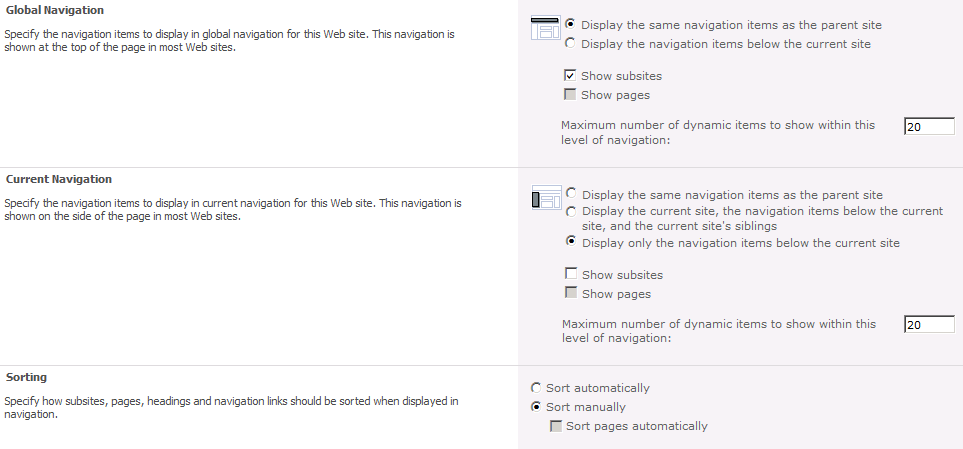
The settings that I will show how to configure using PowerShell are as shown in the below image. There are also ways to add and remove items from the navigations in the same dialog, but these will not be covered here.

First off, we need an object to work with. In this case we need a Publishing Web object, so first we create a spweb object, then a publishing web object:

$SPWeb = Get-SPSPWeb http://server/sitecoll/spweb/spweb
$SPPubWeb = [Microsoft.SharePoint.Publishing.PublishingWeb] 
::GetPublishingWeb($SPWeb)

Some changes, like unchecking the Show subsites, require that you first allow unsafe updates. You can set the show subsites to false, but it will never be reflected unless you first allow unsafe updates. This is done on the SPWeb object by:

$SPWeb.AllowUnsafeUpdates = $true

Using our Publishing Web object, we can now configure the different settings, from the top in the graphical user interface:

Global Navigation

Display the same navigation items as the parent site:

$SPPubWeb.Navigation.InheritGlobal = $true

Display the navigation items below the current site:

$SPPubWeb.Navigation.InheritGlobal = $false

Show subsites:

$SPPubWeb.Navigation.GlobalIncludeSubSites = $true

Show pages:

$SPPubWeb.Navigation.GlobalIncludePages = $true

Maximum number of dynamic items to show within this level of navigation:

$SPPubWeb.Navigation.GlobalDynamicChildLimit = 20 (int32)

Current Navigation

Display the same navigation items as the parent site: (both values in combination)

$SPPubWeb.Navigation.InheritCurrent = $true
$SPPubWeb.Navigation.ShowSiblings = $false

Display the current site, the navigation items below the current site, and the current site’s siblings: (both values in combination)

$SPPubWeb.Navigation.InheritCurrent = $false
$SPPubWeb.Navigation.ShowSiblings = $true

Display only the navigation items below the current site: (both values in combination)

$SPPubWeb.Navigation.InheritCurrent = $false
$SPPubWeb.Navigation.ShowSiblings = $false

Show subsites:

$SPPubWeb.Navigation.CurrentIncludeSubSites = $true

Show pages:

$SPPubWeb.Navigation.CurrentIncludePages = $true

Maximum number of dynamic items to show within this level of navigation:

$SPPubWeb.Navigation.CurrentDynamicChildLimit = 20 (int32)

Sorting

Sort automatically:

$SPPubWeb.Navigation.OrderingMethod = "Automatic"

Sort manually:

$SPPubWeb.Navigation.OrderingMethod = "Manual"

Sort sites manually and pages automatically: (This is option is only available with publishing pages)

$SPPubWeb.Navigation.OrderingMethod = "ManualWithAutomaticPageSorting”

When Sort automatically is selected

Sort by Title (shown left):

$SPPubWeb.Navigation.AutomaticSortingMethod = "Title"

Sort by Created Date:

$SPPubWeb.Navigation.AutomaticSortingMethod = "CreatedDate"

Sort by Last Modified Date:

$SPPubWeb.Navigation.AutomaticSortingMethod = "LastModifiedDate"

Sort in ascending order (shown left):

$SPPubWeb.Navigation.SortAscending = $true

Sort in descending order:

$SPPubWeb.Navigation.SortAscending = $false


That’s it, that covers all of the settings I meant to show and this will hopefully be useful to you when scripting the creation and configuration of your sites.
In order to help you get started, you can modify the script included below and that will allow you to configure all of the above settings the same way on all sites in a designated site collection.

Sample script

# get a sitecollection object(SPSite)
$SPSite = Get-SPSite -Identity “http://farm.company.local/sitecollection“
# loop through all the subwebs(SPWebs) in the site collection
foreach ($SPWeb in $SPSite.AllWebs)
{
  # check so that this is not the root web
  if (!$SPWeb.IsRootWeb)
  {

 # Save AllowUnsafeUpdates setting and set it to allow.
    $AllowUnsafeUpdatesStatus = SPWeb.AllowUnsafeUpdates
 SPWeb.AllowUnsafeUpdates = $true
 # Get a PublishingWeb object for the current web
    $SPPubWeb = [Microsoft.SharePoint.Publishing.PublishingWeb]
 ::GetPublishingWeb($SPWeb)

    # UnComment the setting you will use:
    # Global settings
    # $SPPubWeb.Navigation.InheritGlobal = $true
    # $SPPubWeb.Navigation.InheritGlobal = $false
    # $SPPubWeb.Navigation.GlobalIncludeSubSites = $true
    # $SPPubWeb.Navigation.GlobalIncludeSubSites = $false
    # $SPPubWeb.Navigation.GlobalIncludePages = $true
    # $SPPubWeb.Navigation.GlobalIncludePages = $false
    # $SPPubWeb.Navigation.GlobalDynamicChildLimit = 20
    # Current settings
    # See combination of the two below
    # $SPPubWeb.Navigation.InheritCurrent = $true
    # $SPPubWeb.Navigation.ShowSiblings = $false
    # $SPPubWeb.Navigation.CurrentIncludeSubSites = $true
    # $SPPubWeb.Navigation.CurrentIncludePages = $true
    # $SPPubWeb.Navigation.CurrentDynamicChildLimit = 20
    # Sorting
    # $SPPubWeb.Navigation.OrderingMethod = "Automatic"
    # $SPPubWeb.Navigation.OrderingMethod = "Manual"
    # $SPPubWeb.Navigation.OrderingMethod = "ManualWithAutomaticPageSorting”
    # $SPPubWeb.Navigation.AutomaticSortingMethod = "Title"
    # $SPPubWeb.Navigation.AutomaticSortingMethod = "CreatedDate"
    # $SPPubWeb.Navigation.AutomaticSortingMethod = "LastModifiedDate"
    # $SPPubWeb.Navigation.SortAscending = $true
    # $SPPubWeb.Navigation.SortAscending = $false
    $SPPubWeb.Update()
  }
  # cleanup 
 # Set AllowUnsafeUpdates back to original value
 $SPWeb.AllowUnsafeUpdates = $AllowUnsafeUpdatesStatus
  $SPWeb.Dispose() }
# cleanup
$SPSite.Dispose()

Please allow some time for the changes to take affect, it can take a couple of minutes until the changes are reflected in your navgation.

Reference:

PortalNavigation Members

http://msdn.microsoft.com/en-us/library/microsoft.sharepoint.publishing.navigation.portalnavigation_members.aspx

2012-02-16 Updates: Added $SPWeb.AllowUnsafeUpdates section to script.

First official word on SharePoint 15!


News the other day about SharePoint 15 from the Microsoft Office Division:

“Office 15” Begins Technical Preview

This morning, we reached an important development milestone:  the beginning of the “Office 15” Technical Preview Program. Office 15 is the codename for the next generation of the Microsoft Office products and services, and the Technical Preview is the first time we share our work with a select group of customers under non-disclosure agreements. These customers play a key role in our development process by testing early builds and providing feedback, which we incorporate into the final release.

At this early point in our development cycle, I’m not able to share too much about Office 15, but I can tell you Office 15 is the most ambitious undertaking yet for the Office Division. With Office 15, for the first time ever, we will simultaneously update our cloud services, servers, and mobile and PC clients for Office, Office 365, Exchange, SharePoint, Lync, Project, and Visio. Quite simply, Office 15 will help people work, collaborate, and communicate smarter and faster than ever before.

While the Technical Preview program is already full, everyone will have the opportunity to try the Office 15 public beta later this summer, and we’ll have more to share about the release then. In the meantime, I do want to thank everyone who is participating in the Technical Preview for their contributions and all our customers for their continued support.

PJ Hough CVP of Development, Microsoft Office Division

Link to the Office blog here

Looks like we will see some new SHarePoint at SPC in Las Vegas after all!

Installing Cumulative updates – current best practice


This is not brand new info, but I think it is important enough to mention again. Huge improvement!

Just a repeat on the current(August 31, 2011) best practice:

Updates for SharePoint 2010 Products
http://technet.microsoft.com/en-us/sharepoint/ff800847

Best practice

The packaging of cumulative updates changed as of August 31, 2011. The following packages are provided for cumulative updates:

  • SharePoint Foundation 2010
  • SharePoint Foundation 2010 + SharePoint Server 2010
  • SharePoint Foundation 2010 + SharePoint Server 2010 + Project Server 2010

As a result of the new packaging, it is no longer necessary to install the SharePoint Foundation cumulative update and then install the SharePoint Server cumulative update.

Previously, the recommendation was to install first foundation, then server, then project if you had project server installed. What this means is that you no longer have to do all of them, just the package that contains all of your updates. If you are running server, install the server package only. (these packages have before been called Überpackages, they are now ‘reinstated’)

Happy patching

Powershell – Getting started really really quick!


This is supposed to be the first introduction you get to Powershell. Start with these few steps and get further on your own.

Start a Windows Powershell Shell

Click on icon in Taskbar or, go to Start/All Programs/Accessories/Windows-PowerShell/Windows PowerShell.

Run commands

Try the following so that you will get the idea:
Use Get-Command to get a list of all available CmdLest, Functions, Aliases and Applications.
Use Get-Command *-Computer* and do a wildcard search for CmdLets where the object begins with Computer.

Run Scripts

First set the Execution Policy for the server ‘Set-ExecutionPolicy RemoteSigned‘.
Using the Tab key. Type ‘Get-Ex‘ then press Tab once. This will give you ‘Get-ExecutionPolicy‘.

Calling scripts. In order to execute a powershell scriptfile, either type the path to the file, or use tab, or drag and drop.
(Drag the file InstallMyProduct.ps1 from its location in a file explorer, drop the file in your Powershell shell window)

Write your own Scripts


param(
[Parameter(Mandatory = $true, position = 1)]
[String]$Command
)
Get-Help $Command

Paste this into a textfile, save it in C:\Scripts\ as GetHelpOn.ps1 – Execute by:
C:\sc‘ tab ‘GetH‘ Tab ‘–‘ Tab type any PS command, ex. ‘Get-ExecutionPolicy’ (Get-exe Tab)
The final command line will look like:
C:\Scripts\GetHelpOn.ps1 –Command Get-ExecutionPolicy’

What this simple script does is this: It asks for one parameter: $Command
Then it executes the Command Get-Help and adds the parameter $Command as a parameter to Get-Help, the result is the help text of the command ’Get-ExecutionPolicy’.

To add conditions to your script, use if or case:

if (condition) {code block}
elseif (condition) {code block}
else (condition) {code block}

Example (Append at the bottom of your script GetHelpOn.ps1):

if ($Command –eq “Get-ExecutionPolicy”)
{Write-host “You selected to get help on Get-ExecutionPolicy”}
elseif ($Command –eq “Get-Help”)
{Write-host “:-) You selected to get help on Get-Help!”}
else {Write-host “You selected something else…”}

More info

www.powershell.nu   http://www.powershell.se  (In Swedish)  http://technet.microsoft.com/en-us/powershell

Thats it, good luck getting started.

I have a site called SITE_2 in IIS, whats this…?


This is just a really short instruction and explaination on the SITE_2 phenomenon.

This site is created for some reason in IIS after you have uninstalled SharePoint from a server.

Delete it by selecting the ‘Sites’ container and then right-clicking in the right pane on SITE_2, Remove.

If you click on it in the leftpane you will get an error…’The application / does not exist’

‘Til next time.

_________________________________________________________

Enjoy!

Regards

Twitter | Technet Profile | LinkedIn