Login for ‘Sharepoint_Config’, Login failed for user ‘Domain\ComputerName$’ – SCOM agent


This is about a recurring error in the event log, that does not really affect SharePoint but stirs up a lot of fuss…

(Update added 2012-12-11 – permissions needed for the agent account, see note below)

Perhaps you have encountered this error in your event logs:

database login for ‘Sharepoint_Config’ on instance ‘SQLServer\SharePointInstance’ failed. Additional error information from SQL Server is included below.
Login failed for user ‘Domain\ComputerName$’.

I have seen this a couple of times and in both cases it was due to the MOM/SCOM Agent that has a SharePoint management pack installed, the agents Windows Service runs as ‘Local System’ and thus causes this. The agent tries to access some information from the Configuration database and when accessing the database as the SharePoint Server’s ‘Local System’ account, it gets access denied, this is as it should be, the local system account must never get access outside of the server and especially to the config database.

The workaround in the cases I have seen this so far, is to either kill the SCOM agent service, or set it to run as a dedicated service account. The later is the one that sound better to me, so I will try and add info on how exactly this is done in an update to this post later.
What probably should be done when installing the Management pack, and this my personal guess so far, is that the service account for the agent, should be given the Add-SPShellAdmin permission on the Config database. This is completely unconfirmed, but if any of you would confirm that this is required, please post me a note.

On a personal note, this error caused by the monitoring agent, has been the cause of a lot of comotion and has in the end had me spend hours of unnessesary hours on finding it and mitigating its effects and also calming down the operations people that think my farms have broken…

(Updated 2012-12-11)
Note:
The required permissions for the configured run as account on an individual SharePoint farm are:
•Local admin on all SharePoint 2010 Front End and Application Servers
•Local admin on all SQL machines that host SharePoint 2010 databases
•Full Farm Administrator rights within SharePoint 2010
•DBO for all SharePoint databases
(From: http://support.microsoft.com/kb/2690744)

Enjoy!

Regards


SPB usage guide – 2 Configuration and Modification


SPB usage guide – 2 Configuration and Modification

This is the guide on how to install and use the SharePoint Branding Project.
Download: Visual Studio gallery

The guide is devided into three parts:

1 Download and Installation

2 Configuration and Modification

3 Deployment and verification (soon to be released)

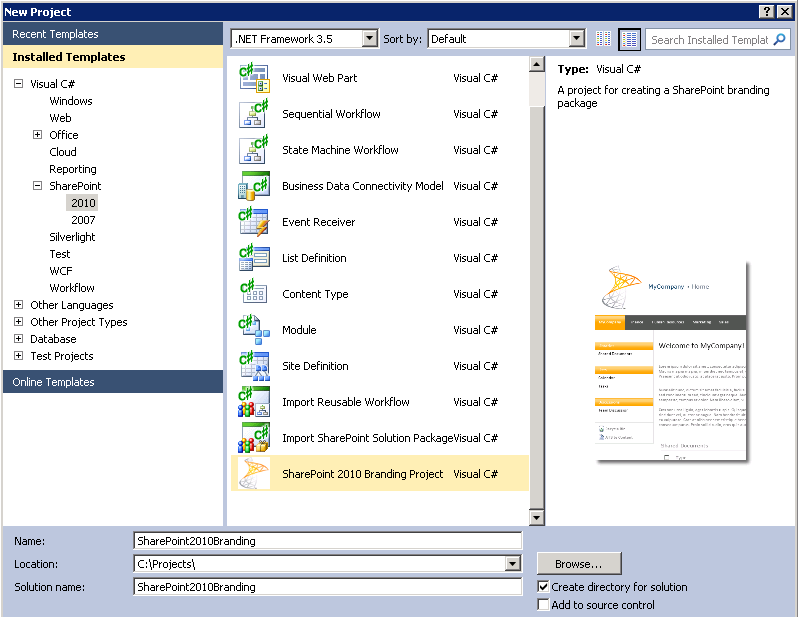
In part 1 of this guide, we left off at the new project dialog:

In the categories, select C#, SharePoint, 2010 and SharePoint 2010 Branding Project.
Name the project(This name will also be the name of the SharePoint Feature), select its file location and Click OK.

Clicking on OK will create a new project for you in Visual Studio, the project will be a complete branding solution ready to deploy or package and install to a SharePoint 2010 farm or even an Office 365/SharePoint online tenant.

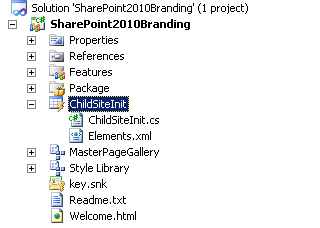
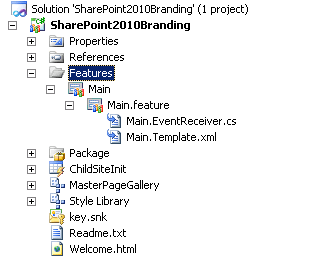
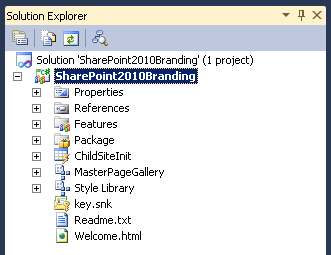
The first thing that you will see is the SharePointBrandingProject in the solution explorer:

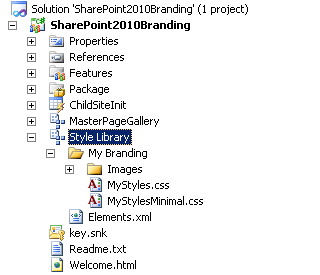
The solution will by default have a number of components and functionalities.

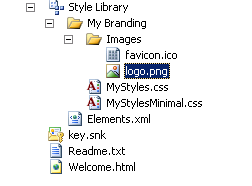
Custom SPB Masterpages for:
Team sites MyBranding.master, equivalent to the general V4.master.
Meeting Workspaces MyBrandingMWS.master, equivalent to the general MWSDefaultV4.master.
Team sites MyBrandingMinimal.master, equivalent to the minimal.master.

Custom SPB StyleSheets:
MyStyles.css, Contains styles for basic look and feel for most sites and is used in all masterpages.
MyStylesMinimal.css, This is an additional stylesheet loaded and used when the MyBrandingMinimal.master is loaded.
Custom logo:
logo.png
Custom Favicon:

favicon.ico

Custom Eventreciever:
ChildSiteInit, This handles the web provisioned event to apply branding on new subsites.

Custom Feature:
Main, This feature applies the branding to the rootsite and all subsites.
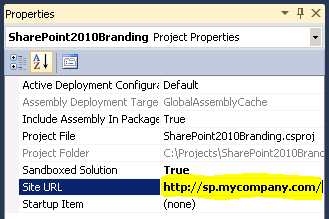
In order to deploy this solution directly from Visual Studio to your test site, enter the url of you site collection in the project properties:
Now you are ready to deploy the solution to SharePoint with the default branding. The default branding is good looking and all that, but perhaps you want to make a few changes first? I would however recommend that you try the deployment so that you can verify that everything really works and that you have the permissions needed and so on. After successful trial deploy and complete awe for the good looking SHarePoint you made for yourself, it is time to start changing the branding.

First thing you will want to do, is replace the logo and favicon(if you did not know this, the favicon is the small tiny image that is located to very left in the address field in your Internet Explorer browser(I guess FF and others too). The favicon is loacated in Solution Explorer in the Images folder under the Style Library/My Branding/Images/
You can replace this file with a new favicon using the same name, but it must have the same properties: 32×32, a 24bit bmp .ico file. There are applications that are made just for the purpose of creating icons available. Or there is a plugin to PhotoShop available if you have access to PhotoShop (ICO (Windows icon) plugin). You can also edit the icon right here in Visual Studio but that is probably not for the thorrow artists…

Same story with the logo, it does not have the same rigorous restrictions on the size and type, but it should be close to what is the default size, use a too big or small image and you will have to make adjustments to the master/Stylesheets to compensate.
The logo can be edited in Visual Studio but that is not something that you do, use a proper image editing application, or simply adjust you current company/Organization/Customer logo to fit. I will now show you how you replace the default logo file with your own custom logo:
The current logo, logo.png – 120×120.
Delete the default logo by right clicking on the imagefile in the solution explorer and Click Delete:

Click OK in the confirmation dialog:

Now the logo file is deleted and we have to replace it with our new custom logo file. For simplicity, use a PNG file if you have one (if you don’t, use another file but then you will HAVE to edit the feature that adds the logo to the site).
To add the image, Right Click on the Images flder in solution explorer, then select Existing Item and Add:

Browse to your logo file in the explorer window, it can be located locally, or on a fileshare somewhere. Select the file and Click Add:

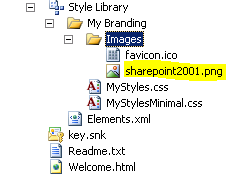
Now the imagefile is added, in my case I have found a wonderful logo from back in the days, when SharePoint 2001 was the talk of the town. SharePoint Portal Server 2001 had a pretty mean logo, this is what I’ll be using in my demo. See this guide part 3 for a presentation of that logo in action.

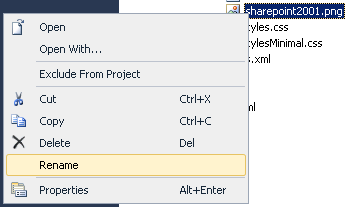
For the branding project to recognize the image as the logo, it will have to be renamed to logo.png (unless you used another fileformat or if you want to edit the feature to fit anyway).
Right Click on the Image in the Solution explorer window and select Rename.

Beautiful! The solution is again ready to be deployed:

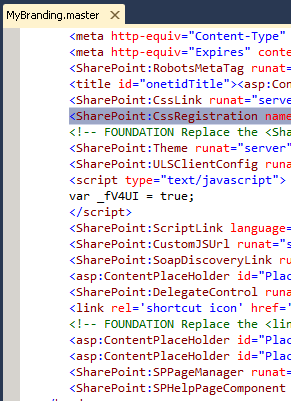
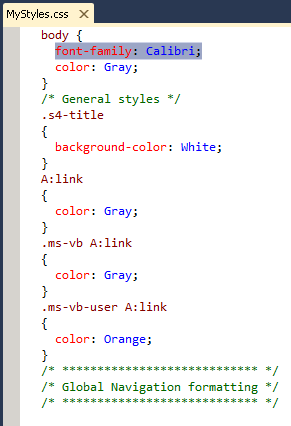
Before we deploy the solution, I want to just quickly show you the basics of how you edit the real source of the branding solution, the master pages and the stylesheets. What you do is that you in Solution explorer, Double Click on the master or stylesheet you want to edit or look at. Try that and you will see something like this for the master:

And this if you Double Click on a StyleSheet(css)…
Did you know that CSS actually stands for Cascading Style Sheets, Cascading comes from the order in which they are applied, the classes in the last css to be applied overruns the previous even if they contain the same classes.
Now we are ready to deploy. So, how do we do that? From Visual Studio, you simply do it in a few Clicks, or really, its just two Clicks away.
Right Click on the Project in Solution explorer, Click Deploy.

Verify that the deployment went ok:

In my case, it did! Happy happy! Over to the browser and verify the new look and feel, go to the site, if allready there, refresh the page.

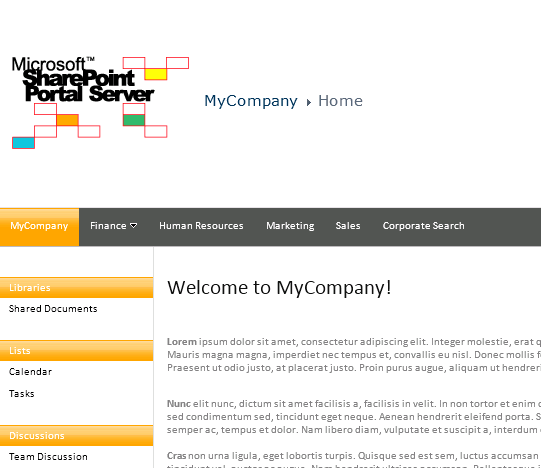
This is what my site looks like with that beautiful replaced retro logo, don’t you just love it?

In the next section of this guide, I will show you what the branding does and what you will see in the browser ‘onsite’.
The next part is called:

3 Configuration and Modification (soon to be released)

See also the previous part:

1 Download and Installation

Stay tuned!

Enjoy!

Regards

Twitter | Technet Profile | LinkedIn
 

SPB usage guide – 1 Download and Installation


SPB usage guide – 1 Download and Installation

This is the guide on how to install and use the SharePoint Branding Project.
Download: Visual Studio gallery

The guide is devided into three parts:

1 Download and Installation

2 Configuration and Modification

3 Deployment and verification (soon to be released)

Hi friends.

Allow me to welcome you on a journey to the wonderful world of SharePoint Branding. I created this SharePoint Branding Project thinking that the overhead and the learning curve to just get started with branding, was way too high. The amount of blogs to read and discard until you could actually build you very first, very basic custom branding solution, it was rediculous! Now pretty recently, the guides on Technet have been improved and most of them actually work, but it is still a long way to go if you want to start from scratch with little or no knowledge about how you go about creating such a project in Visual Studio.
With the SharePoint Branding Project, you can brand your company, organization or customer SharePoint in about 10 minutes, and you will have full control doing so. Follow this guide and you will cruise all the way to the finnish line.
To use this template, you need a SharePoint 2010 and Visual Studio on the same machine. If you can follow instructions, then you can achieve this.
Now, lets get started and have some fun, this IS fun after all!

There are two ways to download the extension file from the Visual Studio Gallery, the first is to simply go to the Visual Studio gallery, Click SPB.
Then on the large purple button, Click Download.

In the annoying but useful IE download bar, Click Open.

Click ‘Install’ to install the extension into Visual Studio.

When the extension is installed you will get a ‘Complete’ notice. Click Close in the dialog.

You are now done downloading and Installing the actual extension and you can now move on to the interesting stuff,  to create a SharePoint Branding Project in Visual Studio.
But before we go into how, we will show you another way to install the extension. From Visual Studio Extension Manager. The extension manager will show the installed extension regarless of the way you installed it, here you will also be notified of updates that have been released of the same extension.
Follow these steps from Visual Studio:

Start the Extension Manager from Visual Studio, Tools menu, Click Extension Manager

Click Online Gallery and search for SPB or browse the ‘Templates’ category and ‘SharePoint’ and you will find the SPB extension.
Click Download and the file will download and initiate the installation. Click Install in the next dialog:

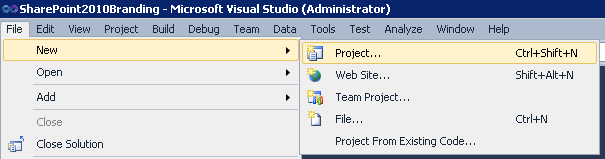
When the extesion have been installed, you can’t wait to get going with the branding right. Ok, we will start that part, regardless of the way you choose to perform the download and installation, and the installation (Which is very quick) has completed, in Visual Studio, select File, New and Click Project:

In the Installed Templates section, select Visual C#, SharePoint, 2010 and SharePoint 2010 Branding Project.
Name the project (This name will also be the name of the SharePoint Feature once deployed to SharePoint), select the projects file location and Click OK.

Now you are done with the installation and can move on to the next step in this guide:

2 Configuration and Modification

or jump directly to the last step, not recommended:

3 Deployment and verification(soon to be released)

Stay tuned!

Enjoy!

Regards

Twitter | Technet Profile | LinkedIn
 

Replace all instances of a user in Last Modified and Created By using PowerShell


If you for unknown reasons end up with the wrong user in the last modified and author field of documents and folder, or if you simply want to replace a user with a differerent user account, then you can use this script to do it in all documents and flders within an SPWeb.

The script below will iterate thru the Shared Documents library, replace every ‘Last Modified'(Editor) and ‘Created By'(Author) with the user with ID 405.

[Reflection.Assembly]::Load(“Microsoft.SharePoint, Version=12.0.0.0, Culture=neutral, PublicKeyToken=71e9bce111e9429c”)
# don’t leave out the last “/” in the url
$SPSite = New-Object Microsoft.SharePoint.SPSite(“http://www.mycompany.com/“)
$SPWeb = $SPSite.OpenWeb(“MySite”)
$SPList = $SPWeb.Lists[“Shared documents”]
$SPListItemCollection = $SPList.Items
foreach ($ListItem in $SPListItemCollection)  {
   #This example gets the user with ‘SharePoint ID’ of 405.
    $SPFieldUserValue = New-Object Microsoft.SharePoint.SPFieldUserValue ($SPWeb,405)
    If ($ListItem[“Editor”] -eq “1;#Chuck Norris (Admin)” -or $ListItem[“Editor”] -eq “385;#Bruce Lee”) {
        $ListItem[“Author”] = $SPFieldUserValue
        $ListItem[“Editor”] = $SPFieldUserValue
        $ListItem.Update()
    }
}

# Do the same for all folders

$SPListItemCollection = $SPList.folders
foreach ($ListFolder in $SPListItemCollection) {
    $SPFieldUserValue = New-Object Microsoft.SharePoint.SPFieldUserValue ($SPWeb,405)
    If ($ListFolder[“Editor”] -eq “1;#Chuck Norris (Admin)” -or $ListFolder[“Editor”] -eq “385;#Bruce Lee”) {
        $ListFolder[“Author”] = $SPFieldUserValue
        $ListFolder[“Editor”] = $SPFieldUserValue
       $ListFolder.Update()
    }
}
$SPWeb.Update()
$SPSite.Dispose()

Remember though, the last modified date will be updated to the current date.

Stay tuned!

Regards

A guide to Branding and SharePoint Foundation part 2


A guide to Branding and SharePoint Foundation
Part 2

Part 1 | Part 2 |

This is the part two of the series trying to cover the tweaks needed to get a starter branding going on a SharePoint Foundation installation.

In part 1 I tried to explain why the most common method of using the $PUrl to get the relative path does not work and also how to customize the masterpage in order to insert a custom favicon without the use of $SPUrl. Now I will cover how to add a custom CSS to your master without the use of $SPUrl.

The most common method on a SharePoint server is to add this line:

<SharePoint:CssRegistration name=”<% $SPUrl:~sitecollection/Style Library/My Branding/MyStyles.css %>”After=”corev4.css” runat=”server” />

After the default CSS loader:

<SharePoint:CssLink runat=”server” Version=”4″/>

But since the use of $SPUrl is unavailable to us, we need to find something else. If we use a hardcoded path it will work as long as the master is deployed only in the site collection root, but if we want to use the same master in all subsites(spwebs) as well, then we need a way to get the relative path from the sitecollection root. In my SharePoint Branding Project Foundation adaptation I solved it like this:

<asp:literal runat=”server” Text=”&lt;link href='”/>
<SharePoint:ProjectProperty Property=”SiteUrl” runat=”server” />
<asp:literal runat=”server” Text=”/Style Library/My Branding/MyStyles.css’ rel=’stylesheet’ type=’text/css’/&gt;”/>

What the code does is that it builds a new href link that point to the custom css deployed to the site collection style library, same as the <SharePoint:CssRegistration would, it renders a link and loads the css. If we want the custom css to be applied after the default, then we also need to add these lines before the default css line.
The trick to this is the use of the webcontrol SharePoint:ProjectProperty that is available for use in Foundation as well as Server. This will give you the URL to the Site Collection root, for example:

http://www.mycompany.com/sites/finance

Putting two literal contols before and after the webcontrol to fill in the text needed for a complete link tag is all that is needed.

This solution works very well for me, I hope that you will also find some help in my suggestion.

See also part 1, on how to add a custom favicon to your Foundation master

Stay tuned!

Regards


A guide to Branding and SharePoint Foundation part 1


A guide to Branding and SharePoint Foundation
Part 1

Part 1 | Part 2 |

SharePoint branding is something that most everyone wants to do, the default design is pretty good and stylish but it get dull and it does not fit in with any organizations brand book or design policy. A lot of posts have been written on the subject of SharePoint branding, many books have been published and most of what can be covered has been covered. What I found though during my work with the SharePoint Branding Project, is that there is a lack of information about branding and Foundation. Lots of organizations run Foundation, the reasons for doing so are many but the facts remains, SharePoint Foundation 2010 has a very large installed base. So, can’t we just buy the book on SharePoint branding and implement it in our Foundation farm? The answer to that question is most of the time no, or rather, not very likely. SharePoint Server has one vital component that Foundation lacks, it has a publishing infrastructure feature. In most cases the publishing components are used for some vital parts of a branding package, the most common one that you will see in almost every post is the

<% $SPUrl:~sitecollection/pathtosomething/%>

The SPUrl token is very handy when storing files in a centralized location in SharePoint, like for example the ‘sites/mycompany/style library/’. Lets use the FavIcon as an example in the first part.

<link rel=’shortcut icon’ href='<% $SPUrl:~sitecollection/Style Library/My Branding/Images/favicon.ico %>’/>

This tag would in Server farm pick the FavIcon image out from the site collection root. In Foundation you would see an error similar to this:

‘The expression prefix ‘SPUrl’ was not recognized. Please correct the prefix or register the prefix in the <expressionBuilders> section of configuration.’

Accessing CSS or Image files in the Style Library is easy using the $SPUrl expression builder to get the relative Site Collection Root URL(/sites/mycompany) or even the current Web Root URL. In Foundation the SPUrl token can’t be used so we need something else. One solution is pretty easy, just enter the relative path:

<link rel=’shortcut icon’ href=’sites/mycompany/style library/my branding/Images/favicon.ico’/>

For the Site Collection Root the path would resolve to:

http://webapplication/sites/mycompany/Style Library/My Branding/Images/favicon.ico

Perfectly allright, the favicon would be loaded. This is a great solution, with one huge flaw. If you have the branding implemented in all of your subsites then the path will be correct only in the root. Since the path is relative, it would in an example subsite look like this in the master:

<link rel=’shortcut icon’ href=’sites/MyCompany/Style Library/My Branding/Images/favicon.ico %>’/>

For my SubDivision subsite the path would resolve to:

http://webapplication/sites/mycompany/subdivision/Style Library/My Branding/Images/favicon.ico

Not ok! The load would fail since the favicon.ico is not located there. So, the permanent relative is only good for a site collection root with no subsites. You could obviously add the file to every subsite so that the path would work, but that is not really an option in most cases. So, how do we do it then…? In my own SharePoint branding project I use this workaround to replace the <link rel=’shortcut icon’ token:

<asp:literal runat=”server” Text=”&lt;link rel=’shortcut icon’ href='”/>
<SharePoint:ProjectProperty Property=”SiteUrl” runat=”server” />
<asp:literal runat=”server” Text=”/style library/my branding/images/favicon.ico’/&gt;”/>

It is a workaround, but it works. This will in reality build a relative path to the Site Collection Root even in the subsites and it will build up the <link> token by using 2 literal asp controls and the SharePoint:ProjectProperty control that is available in Foundation. The result in runtime will be the same as for a URL built on the $SPUrl expression builder.

<link rel=’shortcut icon’ href=’sites/mycompany/style library/my branding/Images/favicon.ico’/>

Add this to your Masterpage and you will have a functional FavIcon that uses a relative path.

Stay tuned!

Best regards

SharePoint Branding Project


SharePoint Branding Project

Download: http://visualstudiogallery.msdn.microsoft.com/7237a2e1-a7b5-4b12-bc56-c62c805c01e7

– Please review the project if you download and use it, use the above link! –

This template is used to create a new SharePoint branding solution wsp package, the package includes custom masterpage, stylesheet, logo and favicon. The wsp includes an activation and deactivation feature as well as a childweb eventreciever to apply branding on all subsites when created.

The SharePoint Branding Project is created by
Thomas Balkeståhl
Technical Specialist SharePoint
Enfo Zipper

BLKSTHL – Blog

Version 1.15 (NEW! Now also with minimal master and search styles. Added in 1.15 full support for SharePoint Foundation added)
Revision 1.0

Facts:
This project is built for SharePoint Server 2010, SharePoint Foundation 2010 and Visual Studio 2010. It is a Site Collection Feature and activation will replace the master and the site logo, it will also add a favicon and a custom css.

Version:

1.1. Included is a minimal masterpage and basic Search classes. The minimal masterpage are used in a search center instead of the normal master. The MyBrandingMinimal.master will be deployed to the masterpage library and will be available to select in the site settings/Masterpage settings for a search site. Added to the MyStyles.css are also classes to support basic Search and Search Results styles. The included styling can easily be edited to suit your own needs. Deploy the solution as normal and then manually change the masterpage for the search site to the mybrandingminimal.master.

1.15 Now included support for Foundation. Because of the limitation in SharePoint Foundation that makes $SPUrl unavailable when getting a relative URL to the current sitecollection, code for foundation that replaces $SPUrl has been added. Instructions on how to configure this in included in the project inline and in the readme file. The SharePoint component affected are the custom CSS, the Favicon and the site logo. These can now be placed in the site collection root and still be accessable in the subsites that uses the same masterpage.

Usage:
After installing the vsix template to your Visual Studio 2010, Start a new project, select a new SharePoint 2010 Branding project, give it a name and create the project. Then enter a URL to your SharePoint 2010 sitecollection in the Project Properties, under Site URL.

(remember, the template will only be installed to the user that executed the vsix file.)

Farm vs. Sandboxed
The project is by default configured as a sandboxed code, so If your farm is running in Sandboxed mode or if your site is an Office365 then you can deploy it as is. If your farm does not have the sandboxed code service running, then you need to configure this project to be deployed as a farm solution. This setting is available in the project properties. To deploy as a farm solution – Set the value ‘Sandboxed solution’ to False. (requires the user to have SharePoint administrator privileges to deploy the solution)

SharePoint Foundation 2010
The project support usage on SharePoint Foundation with slight modifications, the $SPUrl has to be replaced with a relative or absolute link, or a different approach that uses a similar method to the $SPUrl that is available on Foundation.
The reason for this is that the $SPUrl in a publishing function and as such it is only available on SharePoint Server 2010.
See Version 1.15 above.

Deployment
To deploy the project to the designated site, Build menu – Deploy Solution (requires Visual Studio to run with elevated privileges, ‘Run as Administrator’).
To deploy in production, build the project in Build menu – Deploy Package. The wsp package will be located under <Your Projects folder>\ProjectName\ProjectName\Bin\Debug\ProjectName.wsp
Deploy the wsp to your farm using PowerShell(Requires Add-PSSnapin Microsoft.SharePoint.Powershell):

Add-SPSolution -LiteralPath <SolutionPath>
(Add-SPSolution -LiteralPath c:\solutions\ ProjectName.wsp)

Install-SPSolution -Identity <SolutionName> -WebApplication <URLname>
(Install-SPSolution -Identity ProjectName.wsp -WebApplication http://www.company.com)

Redeploy:

Update-SPSolution -Identity ProjectName.wsp -LiteralPath c:\solutions\ProjectName.wsp -GACDeployment

A deployed solution will show as a Site Collection feature, this will have the same name as you r Visual Studio Project, activating it enabled all of the branding, deactivating it will replace the master with v4.master and remove the logo.

Customizing:
Modify the existing components to get the design and branding that is required. The components that can easily be edited and/or replaced are:

Logo
favicon
StyleSheet
Master Page

Logo : The logo is in this version placed as a URL property in the ‘Title, Description, and Icon’ section of Site settings. This can be changed to have the logo in the masterpage, look up the SharePoint:SIteLogoImage> section in the master and follow the instructions inline. Remember to comment out the logo adding in the featureactivated section in the main.EventReceiver.cs

<SharePoint:SPLinkButton runat=”server” NavigateUrl=”/” id=”onetidProjectPropertyTitleGraphic”>
<SharePoint:SiteLogoImage name=”onetidHeadbnnr0″ id=”onetidHeadbnnr2″ style=”padding-left: 15px;padding-top: 10px;padding-bottom: 10px” LogoImageUrl=”<% $SPUrl:~sitecollection/Style Library/My Branding/Images/Logo.png %>” runat=”server”/></SharePoint:SPLinkButton>
(sample code for server, available in the readme file)
This will make the masterpage always show the logo, remember that the logo setting in site settings may override the masterpage SiteLogoImage. USing this method will also allow you to set a fixed link on the logo, so that it always points to the site collection root for instance.
(Code modification to the master needed to work on SharePoint Foundation)

Favicon : Replace the favicon.ico file in the ‘Style Library/My Branding/Images/ catalog. The ico file should be a real ico image and have a size of 32×32.
(Code modification to the master needed to work on SharePoint Foundation)

StyleSheet : Edit the styles in the included stylesheet MyStyles.css located in the ‘Style Library/My Branding/’ catalog. Or replace the file with your own using the same name. You can also add another CSS and refer to it in the master(se comments in master on how).
Add to this file the classes you need to style. (You can use F12 developer toolbar to find out which class to style.)
(Code modification to the master needed to work on SharePoint Foundation)

MasterPage : Edit the included master to suit your needs. The included master is a very lightly modified copy of the V4.master. Do not replace it or change its name, if you do, then you have to know what references in other places have to be changed as well.

The SharePoint Branding Project by BLKSTHL is licensed under a Attribution-NonCommercial-ShareAlike
3.0 Unported (CC BY-NC-SA 3.0) License

Description: Description: Creative Commons-licens

More on SharePoint 15 – SDK preview


If you missed that MS released a Tech Preview on SP15 Managed OM SDK…

SharePoint 15 Technical Preview Interoperability API Documentation

‘SharePoint 15 Technical Preview Managed Object Model SDK: This compiled help (.chm) file contains reference topics focusing only on types and members that are called by other Microsoft applications. This reference does not document the full SharePoint 15 managed object model. That documentation will accompany a later release of SharePoint 15.’

Early release as it is, its still interesting…

Others on SP15:

SharePoint Joel:
So it begins… SharePoint 15 & Office 15 Wave of Products – Happy Days

Rincón de Héctor Calvarro
SharePoint 15 SDK CTP has been released (Only documentation)

Site Settings by PowerShell part 1.1 Delete navigation nodes


This time I will give you a sample script that will enumerate all of your subwebs and remove a node from the current navigation.
A very useful script if you have a large and complec site structure and when you want to change the global or current navigation.

In my example, I am enumerating all subwebs of my sitecollection, and in the current navigation of every subweb, I remove the ‘Ste Pages’ link that you get from enabling publishing. If you want to remove a different link, find the ID of that link and replace or add a $currentnode… to the script.

Since my users have no use for the ‘site pages’ link, I’ll simply remove it from navigation.

# get a sitecollection object(SPSite) 
$SPSite = Get-SPSite -Identity “http://farm.company.local/sitecollection“ 
# loop through all the subwebs(SPWebs) in the site collection 
foreach ($SPWeb in $SPSite.AllWebs) 
{   
# Get a navigation node object and delete it   
$currentnode = $SPWeb.Navigation.GetNodeByID(2001)   
$currentnode.Delete()   
# Make it stick...   
$SPWeb.Update()   
Write-Host “Removing the Node: ” $currentNode.URL 
}

A comlex way of finding out a nodes ID, is to do as follows:

$SPWeb = Get-SPWeb "http://farm.company.local/sitecollection/Web"

(Check in site settings/Navigation what the url for the node is, for example:)

$currentnode = $web.Navigation.GetNodeByUrl 
("site/Web/SharedDocuments/Forms/AllItems.aspx") 
$currentnode.ID

That will probably give you the ID 2002 for ‘Shared Documents’

Thats it!

Good luck.

Create a new ‘State Service’ Service Application using Powershell


I encountered this issue and had some trouble finding the correct info on it, so I thought that I’s share a good guide with all of you.

If you have made the correct choice to not run the configuration wizard to install all of the Service Applications…then you may encounter that you are missing the State Service Application. It can also be from deleting it after it was created by the wizard…
This Service Application is not available for creation in the New dialog in Central Administration, Manage Service Application, so it requires some special treatment.

An example of how it can look when this service Application is missing can look like this (in Health analyzer):

Title : InfoPath Forms Services forms cannot be filled out in a Web browser because no State Service connection is configured.
Severity : 2 – Warning
Category : Configuration
Explanation : InfoPath Forms Services is not functional on the following Web applications because there is no service connection configured for the State Service: SharePoint – 80
Remedy : If a State Service application doesn’t exist, create one by using the new-SPStateServiceApplication Powershell commandlet. For more information on configuring the State Service, see Help. For more information about this rule, see “http://go.microsoft.com/fwlink/?LinkID=142645“.
Failing Servers: XXXXXXXX
Failing Services: SPTimerService (SPTimerV4)

The obvious command new-SPStateServiceApplication  gives you this:

PS C:\Media\ConfigScript> New-SPStateServiceApplication  -Name “State Service Application” -Database “SharePoint_Service _State” New-SPStateServiceApplication : The pipeline has been stopped. At line:1 char:30 + New-SPStateServiceApplication <<<<   -Name “State Service Application” -Database “SharePoint_Service_State”     + CategoryInfo          : InvalidData: (Microsoft.Offic…plicationCmdlet:NewStateServiceApplicationCmdlet) [New-S    PStateServiceApplication], PipelineStoppedException     + FullyQualifiedErrorId : Microsoft.Office.Server.Administration.NewStateServiceApplicationCmdlet

New-SPStateServiceApplication : The specified object was not found. Parameter name: Database At line:1 char:30 + New-SPStateServiceApplication <<<<   -Name “State Service Application” -Database “SharePoint_Service_State”     + CategoryInfo          : InvalidArgument: (Microsoft.Offic…plicationCmdlet:NewStateServiceApplicationCmdlet) [N    ew-SPStateServiceApplication], ArgumentException     + FullyQualifiedErrorId : Microsoft.Office.Server.Administration.NewStateServiceApplicationCmdlet

Do not let this put you down, the correct way to create a new State Service Application is a bit different, no thanks to the get-help command…the syntaxt to use is as follows:

1. $serviceApp = New-SPStateServiceApplication -Name “State Service Application”
2. New-SPStateServiceDatabase -Name “SharePoint_Service_State” -ServiceApplication $serviceApp
3. New-SPStateServiceApplicationProxy -Name “State Service Application Proxy” -ServiceApplication $serviceApp -DefaultProxyGroup

Thats it!

Good luck.