
SharePoint jokers!
If you left the settings in SharePoint 2013 as default when installing and configuring, then you will probably have a log path that looks like this for both the ULS log and the Usage and Health log.
C:\Program Files\Common Files\microsoft shared\Web Server Extensions\15\LOGS
If you want to change this to a new path, maybe on a different disk like D: (recommended) or on a simpler path easier to remember, use the following commands:
| You will need to run the commands in a PowerShell running as administrator and you will also need to load the SharePoint snapin first, add-pssnapin. add-pssnapin microsoft.sharepoint |
For the Diagnostics log(ULS)
set-SPDiagnosticConfig -LogLocation “D:\Program Files\Common files\Microsoft shared\Web server extensions\15\LOGS”
or
set-SPDiagnosticConfig -LogLocation “D:\SharePoint Logs\ULS”
For the Usage and Health log
set-SPUsageService -UsageLogLocation “C:\Program Files\Common files\Microsoft shared\Web server extensions\15\LOGS”
or
set-SPUsageService -UsageLogLocation “D:\SharePoint Logs\Health”
set-SPDiagnosticConfig -LogLocation “C:\Program Files\Common files\Microsoft shared\Web server extensions\15\LOGS”
In my environment, the Diagnostics trace log path looks like this:

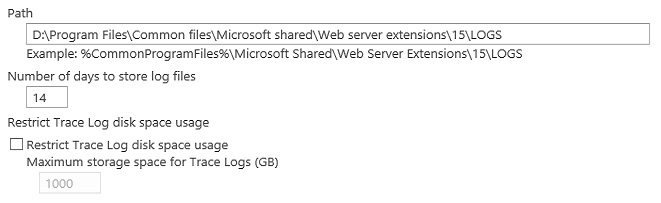
And for the Usage and Health log, it looks like this:


References:
(If the two paths Point to a different location then you may see this in your event log)
6398 – The Execute method of job definition…SPUsageImportJobDefinition
https://blog.blksthl.com/2013/05/27/6398-the-execute-method-of-job-definition-spusageimportjobdefinition/
ULS Log Viewer download
http://archive.msdn.microsoft.com/ULSViewer
Thanks to:
Ankie at my customers, who pointed out the Usage and Health log issue 6398 in the first place.

___________________________________________________________________________________________________
Enjoy!
Regards


 blksthl