Configuring your site settings is really something that you want to do using PowerShell, this is for many reasons but the most obvious ones are that you get more control. You can test your script with settings in a test environment and see the effect, when it is perfected you simply run the script against a different URL and the result is moved to the proper target environment.
One more benefit is repeatability, you can do one configuration and repeat it for every site or web in your farm. Doing the same thing manually would take time and would increase the risk of making mistakes.
(See more Site settings by Powershell in my Whitepaper that can be downloaded from here: SharePoint 2010 Site Settings explained. I have tried to cover most every site setting and how it can be done using Powershell only. )
All of these settings can also be configured during site creation, in order to do that, get your publishingweb object of the websites you are creating, set the values and same as always, finish off with an update().
In this post I will try to cover most of the settings you can do in the Navigation part of your site settings. The Navigation settings are available only in sites in a site collection that has the SharePoint Server Publishing Infrastructure Site Collection Feature activated.

Activating this feature gives you among many other things, control over the global and current navigations. These settings are available in Site Settings under Look and Feel.

The settings that I will show how to configure using PowerShell are as shown in the below image. There are also ways to add and remove items from the navigations in the same dialog, but these will not be covered here.
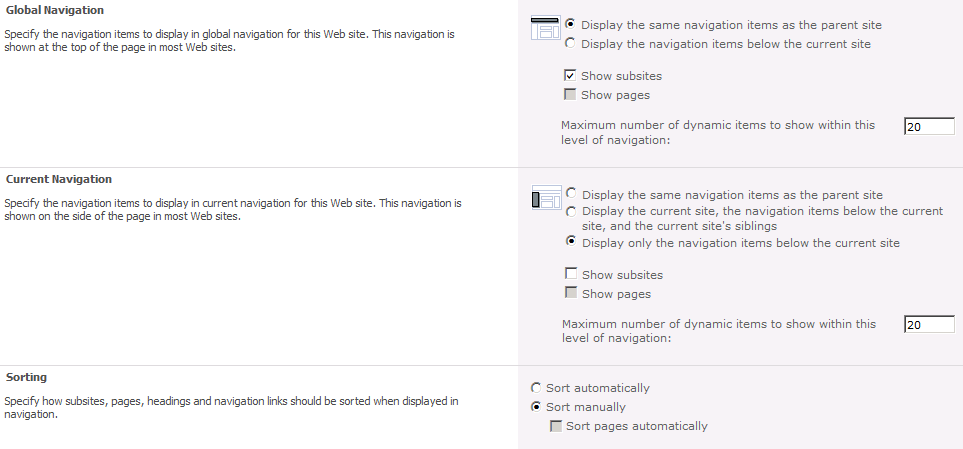
First off, we need an object to work with. In this case we need a Publishing Web object, so first we create a spweb object, then a publishing web object:
$SPWeb = Get-SPSPWeb http://server/sitecoll/spweb/spweb
$SPPubWeb = [Microsoft.SharePoint.Publishing.PublishingWeb]
::GetPublishingWeb($SPWeb)
Some changes, like unchecking the Show subsites, require that you first allow unsafe updates. You can set the show subsites to false, but it will never be reflected unless you first allow unsafe updates. This is done on the SPWeb object by:
$SPWeb.AllowUnsafeUpdates = $true
Using our Publishing Web object, we can now configure the different settings, from the top in the graphical user interface:
Global Navigation
Display the same navigation items as the parent site:
$SPPubWeb.Navigation.InheritGlobal = $true
Display the navigation items below the current site:
$SPPubWeb.Navigation.InheritGlobal = $false
Show subsites:
$SPPubWeb.Navigation.GlobalIncludeSubSites = $true
Show pages:
$SPPubWeb.Navigation.GlobalIncludePages = $true
Maximum number of dynamic items to show within this level of navigation:
$SPPubWeb.Navigation.GlobalDynamicChildLimit = 20 (int32)
Current Navigation
Display the same navigation items as the parent site: (both values in combination)
$SPPubWeb.Navigation.InheritCurrent = $true
$SPPubWeb.Navigation.ShowSiblings = $false
Display the current site, the navigation items below the current site, and the current site’s siblings: (both values in combination)
$SPPubWeb.Navigation.InheritCurrent = $false
$SPPubWeb.Navigation.ShowSiblings = $true
Display only the navigation items below the current site: (both values in combination)
$SPPubWeb.Navigation.InheritCurrent = $false
$SPPubWeb.Navigation.ShowSiblings = $false
Show subsites:
$SPPubWeb.Navigation.CurrentIncludeSubSites = $true
Show pages:
$SPPubWeb.Navigation.CurrentIncludePages = $true
Maximum number of dynamic items to show within this level of navigation:
$SPPubWeb.Navigation.CurrentDynamicChildLimit = 20 (int32)
Sorting
Sort automatically:
$SPPubWeb.Navigation.OrderingMethod = "Automatic"
Sort manually:
$SPPubWeb.Navigation.OrderingMethod = "Manual"
Sort sites manually and pages automatically: (This is option is only available with publishing pages)
$SPPubWeb.Navigation.OrderingMethod = "ManualWithAutomaticPageSorting”
When Sort automatically is selected

Sort by Title (shown left):
$SPPubWeb.Navigation.AutomaticSortingMethod = "Title"
Sort by Created Date:
$SPPubWeb.Navigation.AutomaticSortingMethod = "CreatedDate"
Sort by Last Modified Date:
$SPPubWeb.Navigation.AutomaticSortingMethod = "LastModifiedDate"
Sort in ascending order (shown left):
$SPPubWeb.Navigation.SortAscending = $true
Sort in descending order:
$SPPubWeb.Navigation.SortAscending = $false
That’s it, that covers all of the settings I meant to show and this will hopefully be useful to you when scripting the creation and configuration of your sites.
In order to help you get started, you can modify the script included below and that will allow you to configure all of the above settings the same way on all sites in a designated site collection.
Sample script
# get a sitecollection object(SPSite)
$SPSite = Get-SPSite -Identity “http://farm.company.local/sitecollection“
# loop through all the subwebs(SPWebs) in the site collection
foreach ($SPWeb in $SPSite.AllWebs)
{
  # check so that this is not the root web
  if (!$SPWeb.IsRootWeb)
  {

 # Save AllowUnsafeUpdates setting and set it to allow.
    $AllowUnsafeUpdatesStatus = SPWeb.AllowUnsafeUpdates
 SPWeb.AllowUnsafeUpdates = $true
 # Get a PublishingWeb object for the current web
    $SPPubWeb = [Microsoft.SharePoint.Publishing.PublishingWeb]
 ::GetPublishingWeb($SPWeb)

    # UnComment the setting you will use:
    # Global settings
    # $SPPubWeb.Navigation.InheritGlobal = $true
    # $SPPubWeb.Navigation.InheritGlobal = $false
    # $SPPubWeb.Navigation.GlobalIncludeSubSites = $true
    # $SPPubWeb.Navigation.GlobalIncludeSubSites = $false
    # $SPPubWeb.Navigation.GlobalIncludePages = $true
    # $SPPubWeb.Navigation.GlobalIncludePages = $false
    # $SPPubWeb.Navigation.GlobalDynamicChildLimit = 20
    # Current settings
    # See combination of the two below
    # $SPPubWeb.Navigation.InheritCurrent = $true
    # $SPPubWeb.Navigation.ShowSiblings = $false
    # $SPPubWeb.Navigation.CurrentIncludeSubSites = $true
    # $SPPubWeb.Navigation.CurrentIncludePages = $true
    # $SPPubWeb.Navigation.CurrentDynamicChildLimit = 20
    # Sorting
    # $SPPubWeb.Navigation.OrderingMethod = "Automatic"
    # $SPPubWeb.Navigation.OrderingMethod = "Manual"
    # $SPPubWeb.Navigation.OrderingMethod = "ManualWithAutomaticPageSorting”
    # $SPPubWeb.Navigation.AutomaticSortingMethod = "Title"
    # $SPPubWeb.Navigation.AutomaticSortingMethod = "CreatedDate"
    # $SPPubWeb.Navigation.AutomaticSortingMethod = "LastModifiedDate"
    # $SPPubWeb.Navigation.SortAscending = $true
    # $SPPubWeb.Navigation.SortAscending = $false
    $SPPubWeb.Update()
  }
  # cleanup
 # Set AllowUnsafeUpdates back to original value
 $SPWeb.AllowUnsafeUpdates = $AllowUnsafeUpdatesStatus
  $SPWeb.Dispose() }
# cleanup
$SPSite.Dispose()
Please allow some time for the changes to take affect, it can take a couple of minutes until the changes are reflected in your navgation.
Reference:
PortalNavigation Members
http://msdn.microsoft.com/en-us/library/microsoft.sharepoint.publishing.navigation.portalnavigation_members.aspx
2012-02-16 Updates: Added $SPWeb.AllowUnsafeUpdates section to script.


 blksthl