Site Settings by Powershell part 1 – Navigation


Configuring your site settings is really something that you want to do using PowerShell, this is for many reasons but the most obvious ones are that you get more control. You can test your script with settings in a test environment and see the effect, when it is perfected you simply run the script against a different URL and the result is moved to the proper target environment.
One more benefit is repeatability, you can do one configuration and repeat it for every site or web in your farm. Doing the same thing manually would take time and would increase the risk of making mistakes.
(See more Site settings by Powershell in my Whitepaper that can be downloaded from here: SharePoint 2010 Site Settings explained. I have tried to cover most every site setting and how it can be done using Powershell only. )

All of these settings can also be configured during site creation, in order to do that, get your publishingweb object of the websites you are creating, set the values and same as always, finish off with an update().

In this post I will try to cover most of the settings you can do in the Navigation part of your site settings. The Navigation settings are available only in sites in a site collection that has the SharePoint Server Publishing Infrastructure Site Collection Feature activated.

Activating this feature gives you among many other things, control over the global and current navigations. These settings are available in Site Settings under Look and Feel.

The settings that I will show how to configure using PowerShell are as shown in the below image. There are also ways to add and remove items from the navigations in the same dialog, but these will not be covered here.
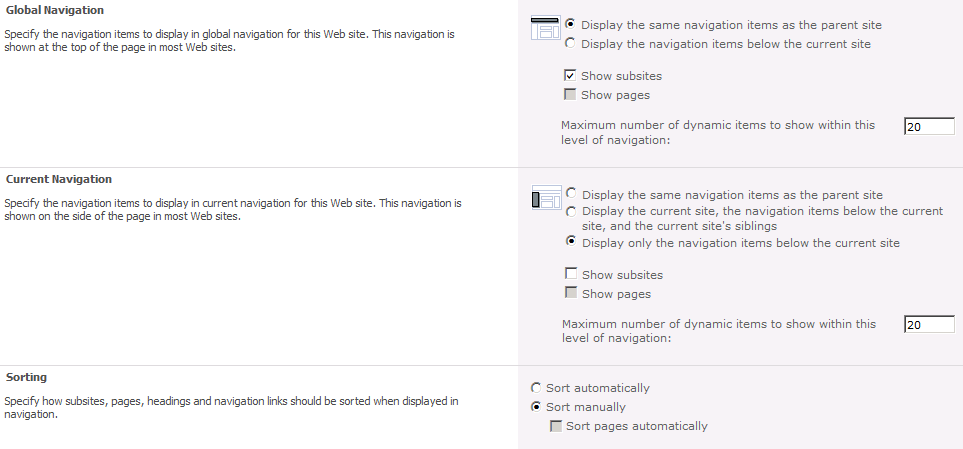
First off, we need an object to work with. In this case we need a Publishing Web object, so first we create a spweb object, then a publishing web object:

$SPWeb = Get-SPSPWeb http://server/sitecoll/spweb/spweb
$SPPubWeb = [Microsoft.SharePoint.Publishing.PublishingWeb] 
::GetPublishingWeb($SPWeb)

Some changes, like unchecking the Show subsites, require that you first allow unsafe updates. You can set the show subsites to false, but it will never be reflected unless you first allow unsafe updates. This is done on the SPWeb object by:

$SPWeb.AllowUnsafeUpdates = $true

Using our Publishing Web object, we can now configure the different settings, from the top in the graphical user interface:

Global Navigation

Display the same navigation items as the parent site:

$SPPubWeb.Navigation.InheritGlobal = $true

Display the navigation items below the current site:

$SPPubWeb.Navigation.InheritGlobal = $false

Show subsites:

$SPPubWeb.Navigation.GlobalIncludeSubSites = $true

Show pages:

$SPPubWeb.Navigation.GlobalIncludePages = $true

Maximum number of dynamic items to show within this level of navigation:

$SPPubWeb.Navigation.GlobalDynamicChildLimit = 20 (int32)

Current Navigation

Display the same navigation items as the parent site: (both values in combination)

$SPPubWeb.Navigation.InheritCurrent = $true
$SPPubWeb.Navigation.ShowSiblings = $false

Display the current site, the navigation items below the current site, and the current site’s siblings: (both values in combination)

$SPPubWeb.Navigation.InheritCurrent = $false
$SPPubWeb.Navigation.ShowSiblings = $true

Display only the navigation items below the current site: (both values in combination)

$SPPubWeb.Navigation.InheritCurrent = $false
$SPPubWeb.Navigation.ShowSiblings = $false

Show subsites:

$SPPubWeb.Navigation.CurrentIncludeSubSites = $true

Show pages:

$SPPubWeb.Navigation.CurrentIncludePages = $true

Maximum number of dynamic items to show within this level of navigation:

$SPPubWeb.Navigation.CurrentDynamicChildLimit = 20 (int32)

Sorting

Sort automatically:

$SPPubWeb.Navigation.OrderingMethod = "Automatic"

Sort manually:

$SPPubWeb.Navigation.OrderingMethod = "Manual"

Sort sites manually and pages automatically: (This is option is only available with publishing pages)

$SPPubWeb.Navigation.OrderingMethod = "ManualWithAutomaticPageSorting”

When Sort automatically is selected

Sort by Title (shown left):

$SPPubWeb.Navigation.AutomaticSortingMethod = "Title"

Sort by Created Date:

$SPPubWeb.Navigation.AutomaticSortingMethod = "CreatedDate"

Sort by Last Modified Date:

$SPPubWeb.Navigation.AutomaticSortingMethod = "LastModifiedDate"

Sort in ascending order (shown left):

$SPPubWeb.Navigation.SortAscending = $true

Sort in descending order:

$SPPubWeb.Navigation.SortAscending = $false


That’s it, that covers all of the settings I meant to show and this will hopefully be useful to you when scripting the creation and configuration of your sites.
In order to help you get started, you can modify the script included below and that will allow you to configure all of the above settings the same way on all sites in a designated site collection.

Sample script

# get a sitecollection object(SPSite)
$SPSite = Get-SPSite -Identity “http://farm.company.local/sitecollection“
# loop through all the subwebs(SPWebs) in the site collection
foreach ($SPWeb in $SPSite.AllWebs)
{
  # check so that this is not the root web
  if (!$SPWeb.IsRootWeb)
  {

 # Save AllowUnsafeUpdates setting and set it to allow.
    $AllowUnsafeUpdatesStatus = SPWeb.AllowUnsafeUpdates
 SPWeb.AllowUnsafeUpdates = $true
 # Get a PublishingWeb object for the current web
    $SPPubWeb = [Microsoft.SharePoint.Publishing.PublishingWeb]
 ::GetPublishingWeb($SPWeb)

    # UnComment the setting you will use:
    # Global settings
    # $SPPubWeb.Navigation.InheritGlobal = $true
    # $SPPubWeb.Navigation.InheritGlobal = $false
    # $SPPubWeb.Navigation.GlobalIncludeSubSites = $true
    # $SPPubWeb.Navigation.GlobalIncludeSubSites = $false
    # $SPPubWeb.Navigation.GlobalIncludePages = $true
    # $SPPubWeb.Navigation.GlobalIncludePages = $false
    # $SPPubWeb.Navigation.GlobalDynamicChildLimit = 20
    # Current settings
    # See combination of the two below
    # $SPPubWeb.Navigation.InheritCurrent = $true
    # $SPPubWeb.Navigation.ShowSiblings = $false
    # $SPPubWeb.Navigation.CurrentIncludeSubSites = $true
    # $SPPubWeb.Navigation.CurrentIncludePages = $true
    # $SPPubWeb.Navigation.CurrentDynamicChildLimit = 20
    # Sorting
    # $SPPubWeb.Navigation.OrderingMethod = "Automatic"
    # $SPPubWeb.Navigation.OrderingMethod = "Manual"
    # $SPPubWeb.Navigation.OrderingMethod = "ManualWithAutomaticPageSorting”
    # $SPPubWeb.Navigation.AutomaticSortingMethod = "Title"
    # $SPPubWeb.Navigation.AutomaticSortingMethod = "CreatedDate"
    # $SPPubWeb.Navigation.AutomaticSortingMethod = "LastModifiedDate"
    # $SPPubWeb.Navigation.SortAscending = $true
    # $SPPubWeb.Navigation.SortAscending = $false
    $SPPubWeb.Update()
  }
  # cleanup 
 # Set AllowUnsafeUpdates back to original value
 $SPWeb.AllowUnsafeUpdates = $AllowUnsafeUpdatesStatus
  $SPWeb.Dispose() }
# cleanup
$SPSite.Dispose()

Please allow some time for the changes to take affect, it can take a couple of minutes until the changes are reflected in your navgation.

Reference:

PortalNavigation Members

http://msdn.microsoft.com/en-us/library/microsoft.sharepoint.publishing.navigation.portalnavigation_members.aspx

2012-02-16 Updates: Added $SPWeb.AllowUnsafeUpdates section to script.

First official word on SharePoint 15!


News the other day about SharePoint 15 from the Microsoft Office Division:

“Office 15” Begins Technical Preview

This morning, we reached an important development milestone:  the beginning of the “Office 15” Technical Preview Program. Office 15 is the codename for the next generation of the Microsoft Office products and services, and the Technical Preview is the first time we share our work with a select group of customers under non-disclosure agreements. These customers play a key role in our development process by testing early builds and providing feedback, which we incorporate into the final release.

At this early point in our development cycle, I’m not able to share too much about Office 15, but I can tell you Office 15 is the most ambitious undertaking yet for the Office Division. With Office 15, for the first time ever, we will simultaneously update our cloud services, servers, and mobile and PC clients for Office, Office 365, Exchange, SharePoint, Lync, Project, and Visio. Quite simply, Office 15 will help people work, collaborate, and communicate smarter and faster than ever before.

While the Technical Preview program is already full, everyone will have the opportunity to try the Office 15 public beta later this summer, and we’ll have more to share about the release then. In the meantime, I do want to thank everyone who is participating in the Technical Preview for their contributions and all our customers for their continued support.

PJ Hough CVP of Development, Microsoft Office Division

Link to the Office blog here

Looks like we will see some new SHarePoint at SPC in Las Vegas after all!

Installing Cumulative updates – current best practice


This is not brand new info, but I think it is important enough to mention again. Huge improvement!

Just a repeat on the current(August 31, 2011) best practice:

Updates for SharePoint 2010 Products
http://technet.microsoft.com/en-us/sharepoint/ff800847

Best practice

The packaging of cumulative updates changed as of August 31, 2011. The following packages are provided for cumulative updates:

  • SharePoint Foundation 2010
  • SharePoint Foundation 2010 + SharePoint Server 2010
  • SharePoint Foundation 2010 + SharePoint Server 2010 + Project Server 2010

As a result of the new packaging, it is no longer necessary to install the SharePoint Foundation cumulative update and then install the SharePoint Server cumulative update.

Previously, the recommendation was to install first foundation, then server, then project if you had project server installed. What this means is that you no longer have to do all of them, just the package that contains all of your updates. If you are running server, install the server package only. (these packages have before been called Überpackages, they are now ‘reinstated’)

Happy patching

I have a site called SITE_2 in IIS, whats this…?


This is just a really short instruction and explaination on the SITE_2 phenomenon.

This site is created for some reason in IIS after you have uninstalled SharePoint from a server.

Delete it by selecting the ‘Sites’ container and then right-clicking in the right pane on SITE_2, Remove.

If you click on it in the leftpane you will get an error…’The application / does not exist’

‘Til next time.

_________________________________________________________

Enjoy!

Regards

Twitter | Technet Profile | LinkedIn

SharePoint prerequisites, this is how you do it!


This post will cover most of what you need to know about the prerequisites of SharePoint Server 2010.
There are a few tricks to it that can help you out, there are a few things never before documented…and there are links that need to be collected into one place.
That, is what will show up in this post eventually…

Adding the obvious starting point for now, this is an absolute must before starting to fiddle with alternate ways of installing the prerequisites:
Install prerequisites from a network share (SharePoint Server 2010)
http://technet.microsoft.com/en-us/library/ff686793.aspx

Finding them and Collecting them:
All of the requirements needed for a successful installation of SharePoint Server 2010 or SharePoint Foundation 2010 are listed in the technet article:
Hardware and software requirements (SharePoint Server 2010)
http://technet.microsoft.com/en-us/library/cc262485.aspx

There is a full set of prerequisites that have to be on the servers before installing the SharePoint binaries.
IIS:
Server (IIS) role
Application Server role
Add-ons:
Microsoft .NET Framework version 3.5 SP1
SQL Server 2008 Express with SP1
Microsoft Sync Framework Runtime v1.0 (x64)
Microsoft Filter Pack 2.0
Microsoft Chart Controls for the Microsoft .NET Framework 3.5
Windows PowerShell 2.0
SQL Server 2008 Native Client
Microsoft SQL Server 2008 Analysis Services ADOMD.NET
ADO.NET Data Services Update for .NET Framework 3.5 SP1
Windows Identity Foundation (WIF) (If the Geneva framework is previouisly installed, it needs to be uninstalled before WIF is installed)
(A hotfix for the .NET Framework 3.5 SP1 that provides a method to support
token authentication without transport security or message encryption in WCF.)
For Windows Server 2008 SP2, download the Windows6.0-KB979917-x64.msu (Vista) file.
For Windows Server 2008 R2, download the Windows6.1-KB979917-x64.msu (Win7) file.
The prerequisites installer will take care of it for you in most cases, but in a controlled environment you do not want everyserver to download every package from the internet.
Either you have full access to internet when setting up your server nd don’t care about downloading them over and obver, then there is no real need to download the files separately or even know here to find them. But, if you are looking for a way to install from local files, then this is the way, use the script download.ps1 at the end of this post to down load all of the prereqs to a specified subfolder, name it PrerequisiteInstallerFiles and you can use the installer script as well.

If you don’t want to run the script, collect the prerequisites one by one:

http://download.microsoft.com/download/C/9/F/C9F6B386-824B-4F9E-BD5D-F95BB254EC61/Redist/amd64/Microsoft%20Sync%20Framework/Synchronization.msi
http://go.microsoft.com/fwlink/?LinkID=141237&clcid=0x409
Microsoft Sync Framework Runtime v1.0 (x64)

http://download.microsoft.com/download/c/c/4/cc4dcac6-ea60-4868-a8e0-62a8510aa747/MSChart.exe
http://go.microsoft.com/fwlink/?LinkID=141512
Microsoft Chart Controls for the Microsoft .NET Framework 3.5

http://download.microsoft.com/download/2/0/e/20e90413-712f-438c-988e-fdaa79a8ac3d/dotnetfx35.exe
http://go.microsoft.com/fwlink/?LinkId=131037
Microsoft .NET Framework 3.5 Service Pack 1

http://download.microsoft.com/download/2/8/6/28686477-3242-4E96-9009-30B16BED89AF/Windows6.0-KB968930-x64.msu
Windows PowerShell 2.0

http://download.microsoft.com/download/D/7/2/D72FD747-69B6-40B7-875B-C2B40A6B2BDD/Windows6.1-KB974405-x64.msu
http://go.microsoft.com/fwlink/?LinkID=166363
Windows Identity Framework (Win2008 R2)

http://download.microsoft.com/download/6/8/1/681F5144-4092-489B-87E4-63F05E95079C/Windows6.0-KB976394-x64.msu
http://go.microsoft.com/fwlink/?linkID=160770
WCF fix for Win2008 SP2

http://download.microsoft.com/download/E/C/7/EC785FAB-DA49-4417-ACC3-A76D26440FC2/Windows6.1-KB976462-v2-x64.msu
http://go.microsoft.com/fwlink/?LinkID=166231
WCF fix for Win2008 R2

http://download.microsoft.com/download/D/7/2/D72FD747-69B6-40B7-875B-C2B40A6B2BDD/Windows6.0-KB974405-x64.msu
http://go.microsoft.com/fwlink/?LinkID=160381
Windows Identity Framework (Win2008 SP2)

http://download.microsoft.com/download/3/5/5/35522a0d-9743-4b8c-a5b3-f10529178b8a/sqlncli.msi
http://go.microsoft.com/fwlink/?LinkId=123718&clcid=0x409
SQL Server 2008 Native Client

http://download.microsoft.com/download/b/9/a/b9a78047-d269-4a25-88a1-9c4321d90677/SQLSERVER2008_ASADOMD10.msi
http://go.microsoft.com/fwlink/?LinkId=130651&clcid=0x409
Microsoft SQL Server 2008 Analysis Services ADOMD.NET

http://download.microsoft.com/download/1/7/1/171CCDD6-420D-4635-867E-6799E99AB93F/ADONETDataServices_v15_CTP2_RuntimeOnly.exe
http://go.microsoft.com/fwlink/?LinkId=158354
ADO.NET Data Services v1.5 CTP2 (Win2008 SP2)

http://download.microsoft.com/download/B/8/6/B8617908-B777-4A86-A629-FFD1094990BD/iis7psprov_x64.msi“,
http://go.microsoft.com/?linkid=9655704
IIS management cmdlets

http://download.microsoft.com/download/1/0/F/10F1C44B-6607-41ED-9E82-DF7003BFBC40/1033/x64/rsSharePoint.msi
http://go.microsoft.com/fwlink/?LinkID=166379
SQL 2008 R2 Reporting Services SharePoint 2010 Add-in

http://download.microsoft.com/download/8/D/F/8DFE3CE7-6424-4801-90C3-85879DE2B3DE/Platform/x64/SpeechPlatformRuntime.msi
http://go.microsoft.com/fwlink/?LinkID=166378
Microsoft Server Speech Platform Runtime

http://download.microsoft.com/download/E/0/3/E033A120-73D0-4629-8AED-A1D728CB6E34/SR/MSSpeech_SR_en-US_TELE.msi
http://go.microsoft.com/fwlink/?LinkID=166371
Microsoft Server Speech Recognition Language – TELE(en-US)

Or you can create and run the script download.ps1 mentioned at the bottom of this post. This will put all of the requirement add-on’s into one folder to be used during intall.
For the server roles to be added and configured no extra software is needed.

Applying them:

Ok, to install and apply all of the prerequisites you can choose one out of several options.

Online.
Online will be the simplest way to install the prerequisites, perhaps in a lab or test environemnt, on a single server, but in a real scenario, perhaps not.

Online 1.
Install manually…I guess this is an option but I can’t think of why you would want to…pick the roles you need manually and install them, install all of the add-ons one by one…
This is not a good or safe way to do it, but possible.

Online 2.
The absolutely simplest way, no major braining needed, execute the PrerequisitesInstaller.exe. Done!
It can be that simple…and it usually is. The prerequisites installer is one of the best little helpers you have ever seen, thank you Microsoft for this. It collects all the software and installs them all into the right place. This works…if you are only installing one server, and you have a fast internet connection, and your server is connected to Internet, and you enjoy not having full control…
Normally, if you are installing a single server environment and the server is fully connected to the Internet and all is swell, run the PrerequisitesInstaller and let it fix up the server for you. (For all other scenarios, I would have a look at the Offline section below.)
But, what if you were…offline…

Offline.
Offline is a completely different matter. The PrerequisitesInstaller.exe is still a great tool and you will want to use it, but you need to do some thinking first. How will the Installer get the files it needs to install if it can’t download them from the internet?

Offline 1.
Run the prerequisitesinstaller with an Arguments file in order to use the add-on files you have downloaded.
Create a textfile, name it PrerequisitesInstaller.Arguments.txt (Important! this has to be exactly right) and paste the second scripttext located at the end of this post.

Offline 2.
Create and run a script that will do it all for you, add the roles, use the local files….
This is a pretty good solution, it will be the same every time and you will only download the files once. The indiciduals installing SharePoint can only be told to run a script that does it all.
In order to do this, you can create a textfile, name it installPrerequisitesFromShare.ps1 and paste the code under InstallPrerequisitesFromFileshare.ps1 at the bottom of the post. This script assumes that you have all of the requirements in one folder located in a subfolder named PrerequisiteInstallerFiles. This method works very well and will install it all for you, you will only have to execute one powershellscript and it will install it all, roles, add-ons and all.

What if:

You uninstall SharePoint from the server, what then?

I will try to ad dmore value here later, but I can say one thing for certain now, uninstall SharePoint and the RSservice will be broken. The Resporting services add on for SharePoint, installs before SHarePoint, during SharePoint install(or before?) it adds a lot of folders and files under the 14 Hive. If you uninstall SHarePoint and delete the 14 hive to get the server clean, you will have to first uninstall the rsservice, then install it again, then reinstall SharePoint.

You uninstall a prereq, what then?

This will hopefully be covered later. Time did not permit it at this point in time.

* * * * SCRIPTS * * * *

Paste into a textfile, rename to: ‘download.ps1′.

Start copy ‘download.ps1′ here:

Import-Module
BitsTransfer
## Prompt
for the destination path
$DestPath =
Read-Host -Prompt "- Enter the destination path for downloaded files"
## Check
that the path entered is valid
If
(Test-Path "$DestPath" -Verbose)
{
    ##
If destination path is valid, create folder if it doesn't already exist
    $DestFolder
= "$DestPath\PrerequisiteInstallerFiles"
    New-Item
-ItemType Directory $DestFolder -ErrorAction SilentlyContinue
}
Else
{
    Write-Warning
" - Destination path appears to be invalid."
    ##
Pause
    Write-Host
" - Please check the path, and try running the script again."
    Write-Host
"- Press any key to exit..."
    $null
= $host.UI.RawUI.ReadKey("NoEcho,IncludeKeyDown")
    break
}
## We use
the hard-coded URL below, so that we can extract the filename (and use it to
get destination filename $DestFileName)
## Note:
These URLs are subject to change at Microsoft's discretion - check the
permalink next to each if you have trouble downloading.
$UrlList =
("http://download.microsoft.com/download/C/9/F/C9F6B386-824B-4F9E-BD5D-F95BB254EC61/Redist/amd64/Microsoft%20Sync%20Framework/Synchronization.msi",
# http://go.microsoft.com/fwlink/?LinkID=141237&clcid=0x409
- Microsoft Sync Framework Runtime v1.0 (x64) 
            "http://download.microsoft.com/download/c/c/4/cc4dcac6-ea60-4868-a8e0-62a8510aa747/MSChart.exe",
# "http://go.microsoft.com/fwlink/?LinkID=141512"
- Microsoft Chart Controls for the Microsoft .NET Framework 3.5
            "http://download.microsoft.com/download/2/0/e/20e90413-712f-438c-988e-fdaa79a8ac3d/dotnetfx35.exe",
# http://go.microsoft.com/fwlink/?LinkId=131037
- Microsoft .NET Framework 3.5 Service Pack 1
            "http://download.microsoft.com/download/2/8/6/28686477-3242-4E96-9009-30B16BED89AF/Windows6.0-KB968930-x64.msu",
# "http://download.microsoft.com/download/2/8/6/28686477-3242-4E96-9009-30B16BED89AF/Windows6.0-KB968930-x64.msu"
- Windows PowerShell 2.0    
            "http://download.microsoft.com/download/D/7/2/D72FD747-69B6-40B7-875B-C2B40A6B2BDD/Windows6.1-KB974405-x64.msu",
# "http://go.microsoft.com/fwlink/?LinkID=166363"
- Windows Identity Framework (Win2008 R2)
            "http://download.microsoft.com/download/6/8/1/681F5144-4092-489B-87E4-63F05E95079C/Windows6.0-KB976394-x64.msu",
# http://go.microsoft.com/fwlink/?linkID=160770
- WCF fix for Win2008 SP2
            "http://download.microsoft.com/download/E/C/7/EC785FAB-DA49-4417-ACC3-A76D26440FC2/Windows6.1-KB976462-v2-x64.msu",
# http://go.microsoft.com/fwlink/?LinkID=166231
- WCF fix for Win2008 R2
            "http://download.microsoft.com/download/D/7/2/D72FD747-69B6-40B7-875B-C2B40A6B2BDD/Windows6.0-KB974405-x64.msu",
# "http://go.microsoft.com/fwlink/?LinkID=160381"
- Windows Identity Framework (Win2008 SP2)
            "http://download.microsoft.com/download/3/5/5/35522a0d-9743-4b8c-a5b3-f10529178b8a/sqlncli.msi",
# "http://go.microsoft.com/fwlink/?LinkId=123718&clcid=0x409"
- SQL Server 2008 Native Client
            "http://download.microsoft.com/download/b/9/a/b9a78047-d269-4a25-88a1-9c4321d90677/SQLSERVER2008_ASADOMD10.msi",
# "http://go.microsoft.com/fwlink/?LinkId=130651&clcid=0x409"
- Microsoft SQL Server 2008 Analysis Services ADOMD.NET
            "http://download.microsoft.com/download/1/7/1/171CCDD6-420D-4635-867E-6799E99AB93F/ADONETDataServices_v15_CTP2_RuntimeOnly.exe",
# "http://go.microsoft.com/fwlink/?LinkId=158354"
- ADO.NET Data Services v1.5 CTP2 (Win2008 SP2)
            "http://download.microsoft.com/download/B/8/6/B8617908-B777-4A86-A629-FFD1094990BD/iis7psprov_x64.msi",
# http://go.microsoft.com/?linkid=9655704
- IIS management cmdlets
            "http://download.microsoft.com/download/1/0/F/10F1C44B-6607-41ED-9E82-DF7003BFBC40/1033/x64/rsSharePoint.msi",
# http://go.microsoft.com/fwlink/?LinkID=166379
- SQL 2008 R2 Reporting Services SharePoint 2010 Add-in
            "http://download.microsoft.com/download/8/D/F/8DFE3CE7-6424-4801-90C3-85879DE2B3DE/Platform/x64/SpeechPlatformRuntime.msi",
# http://go.microsoft.com/fwlink/?LinkID=166378
- Microsoft Server Speech Platform Runtime
            "http://download.microsoft.com/download/E/0/3/E033A120-73D0-4629-8AED-A1D728CB6E34/SR/MSSpeech_SR_en-US_TELE.msi"
# http://go.microsoft.com/fwlink/?LinkID=166371
- Microsoft Server Speech Recognition Language - TELE(en-US)
            )
ForEach
($Url in $UrlList)
{
    ##
Get the file name based on the portion of the URL after the last slash
    $DestFileName
= $Url.Split('/')[-1]
    Try
    {
        ##
Check if destination file already exists
        If
(!(Test-Path "$DestFolder\$DestFileName"))
        {
            ##
Begin download
            Start-BitsTransfer
-Source $Url -Destination $DestFolder\$DestFileName -DisplayName
"Downloading `'$DestFileName`' to $DestFolder" -Priority High
-Description "From $Url..." -ErrorVariable err
            If
($err) {Throw ""}
        }
        Else
        {
            Write-Host
" - File $DestFileName already exists, skipping..."
        }
    }
    Catch
    {
        Write-Warning
" - An error occurred downloading `'$DestFileName`'"
        break
    }
}
## View the
downloaded files in Windows Explorer
Invoke-Item
$DestFolder
## Pause
Write-Host
"- Downloads completed, press any key to exit..."
$null =
$host.UI.RawUI.ReadKey("NoEcho,IncludeKeyDown")

:End copy ‘download.ps1‘ here.

Paste below into a textfile, name it ‘PrerequisitesInstaller.Arguments.txt‘ and put it in your SharePoint media folder, same folder as the PrerequisitesInstaller.exe. The string has to be formatted exactly like it is here, with a single newline and a space between each argument and nothing else.

Start copy ‘PrerequisitesInstaller.Arguments.txt‘ here:

/SQLNCli:Prerequisites\sqlncli.msi /ChartControl:Prerequisites\MSChart.exe /Sync:Prerequisites\Synchronization.msi /KB976462:Prerequisites\Windows6.1-KB976462-v2-x64.msu /IDFXR2:Prerequisites\Windows6.1-KB974405-x64.msu /FilterPack:Prerequisites\FilterPack\FilterPack.msi /ADOMD:Prerequisites\SQLSERVER2008_ASADOMD10.msi /ReportingServices:Prerequisites\rsSharePoint.msi /Speech:Prerequisites\SpeechPlatformRuntime.msi /SpeechLPK:Prerequisites\MSSpeech_SR_en-US_TELE.msi /NETFX35SP1:Prerequisites\dotnetfx35.exe

:End copy ‘PrerequisitesInstaller.Arguments.txthere.

Paste below into a textfile, name it ‘InstallPrerequisitesFromFileshare.ps1′

Start copy ‘InstallPrerequisitesFromFileshare.ps1′ here:

# get current folder $folder = Get-Location # install requirements Start-Process "$folder\PrerequisiteInstaller.exe" -Wait -ArgumentList "/unattended ` /SQLNCli:`"$folder\PrerequisiteInstallerFiles\sqlncli.msi`" ` /ChartControl:`"$folder\PrerequisiteInstallerFiles\MSChart.exe`" ` /NETFX35SP1:`"$folder\PrerequisiteInstallerFiles\dotnetfx35.exe`" ` /PowerShell:`"$folder\PrerequisiteInstallerFiles\Windows6.0-KB968930-x64.msu`" ` /KB976394:`"$folder\PrerequisiteInstallerFiles\Windows6.0-KB976394-x64.msu`" ` /KB976462:`"$folder\PrerequisiteInstallerFiles\Windows6.1-KB976462-v2-x64.msu`" `
/IDFX:`"$folder\PrerequisiteInstallerFiles\Windows6.0-KB974405-x64.msu`" ` /IDFXR2:`"$folder\PrerequisiteInstallerFiles\Windows6.1-KB974405-x64.msu`" ` /Sync:`"$folder\PrerequisiteInstallerFiles\Synchronization.msi`" ` /FilterPack:`"$folder\PrerequisiteInstallerFiles\FilterPack\FilterPack.msi`" ` /ADOMD:`"$folder\PrerequisiteInstallerFiles\SQLSERVER2008_ASADOMD10.msi`" ` /ReportingServices:`"$folder\PrerequisiteInstallerFiles\rsSharePoint.msi`" ` /Speech:`"$folder\PrerequisiteInstallerFiles\SpeechPlatformRuntime.msi`" ` /SpeechLPK:`"$folder\PrerequisiteInstallerFiles\MSSpeech_SR_en-US_TELE.msi`""

:End copy ‘InstallPrerequisitesFromFileshare.ps1′ here.

* * * * END SCRIPTS * * * *

SharePoint 2010 Language packs, finding them, collecting them and deploying them


A few thousand years ago, humans were a race of hunter/gatherers. We also lived in caves and were a very simple and crude race. At times when working with SharePoint, you can find that the old mindset is coming back…if only for a few seconds.

Language Packs.

I have been in the situation myself where I find myself lost regarding language packs, so I was forced to find all these things out and here are my findings for you to reuse at will.

This post will not cover what language to use when and when you need to do some more work to get a site completely localized, that is for another post. This is about deploying them, getting the correct bits onto the servers and getting them to work.

What do I need to install:

First: Technet states that: SharePoint Foundation 2010 language packs are not required for SharePoint Server 2010.(Deploy language packs (SharePoint Server 2010))
Perhaps there are different opinions as there are about what to install regarding CU’s, but I have followed this advise without any issues or missing language bits.

Now, you have a series of different LP’s and namings are different in different places, I’ll focus on the clean SharePoint 2010 Foundation and Server. No Project or other unrelated stuff touched here…

At the very end of this post you will find the complate list of Languages available. (Updated 11-11-04)

1. Foundation:

You need the Language Pack files for the language you need to have present in your sites. English, German, French, Arabic…at this point in time, I would recommend that you install the LP and its SP1.

2. Server

The same goes for Foundation as well as for server.

Find the binaries:

Correct me if you think that I’m wrong, but it was never easy to find the files you need. I have simply collected the links you need in one place.

1. Foundation

Language Packs for SharePoint Foundation 2010

http://www.microsoft.com/download/en/details.aspx?id=4731

Service Pack 1 for Microsoft SharePoint Foundation 2010 Language Pack (KB2460059) (Naming is brilliantly describing, thank you Microsoft)
http://www.microsoft.com/download/en/details.aspx?id=26629

Description from Microsoft, judging by the english LPSP1 at 9MB there has not been many updates which is a good thing:
Service Pack 1 (SP1) for Microsoft SharePoint Foundation 2010 Language Pack contains new updates which improve security, performance, and stability.
Additionally, the SP is a roll-up of all previously released updates.
The KB: http://support.microsoft.com/kb/2460059

See Server for details on the actual downloads. Difference here is that the name of the complate package for foundation is ‘SharePointLanguagePack.exe’ instead of  ‘ServerLanguagePack.exe’ for Server. I would rename the  ‘SharePointLanguagePack.exe’ to ‘SPFoundationLanguagePack_en-us.exe’ . The LPSP1 for foundation has a nice spf in front of it (spflanguagepack2010sp1-kb2460059-x64-fullfile-en-us.exe), placing it on your foundation servers. Although, maybe ‘FoundationLanguagePackSP1_en-us.exe’ would be easier and more explaining…

2. Server

2010 Server Language Packs for SharePoint Server 2010, Project Server 2010, Search Server 2010, and Office Web Apps 2010 (is the ‘short’ name of this LP)

http://www.microsoft.com/download/en/details.aspx?displaylang=en&id=3411

Service Pack 1 for Server Language Pack 2010 (KB2460056) (again, naming is a bit off…no mentioning of SharePoint which can throw you off a bit…)

http://www.microsoft.com/download/en/details.aspx?id=26621

The KB: http://support.microsoft.com/kb/2460056

The design of the downloadpage will change based on what language you select, and in a few languages you must press ‘Change’ or the button that corresponds in that language. After you have pressed change, or as in for example the english page, that will redirect on the dropdown-select and a click on the page, you can start the download (you will get it). The file you will get is named ‘ServerLanguagePack.exe’ no matter what language it is for. A nice best practise is to rename it during or after it is downloaded to something like SPServerLanguagePack_en-us.exe or similar, so that you can separate your different language pack files later on.

For the Language Pack Service Pack 1, you obviously have something completely different. The site will look a little different but generally the same, it will just like the LP page look different in different languages, so that needs no further description.
What is really different is the files you get. They are here named as: serverlanguagepack2010sp1-kb2460056-x64-fullfile-en-us.exe, Obviously…I rename them simply ServerLanguagePackSP1_en-us.exe as they will most likely end up together in one folder.

All download pages and packages are localized in itself, so if you need to install for example an arabic LP and don’t speak arabic, make sure to memorize the location and meaning of the buttons, but also remember that they will be mirrored.

Install the binaries:

1. Foundation

This is the official technet version: http://technet.microsoft.com/en-us/library/cc288518.aspx

Use any method you prefer, clicking on them one by one and wait for it to finish, then click the next, and so on. Or…you do as I usually do, create a script. In a multitier farm this is essential so that you can save time to do other great things.

My simple script looks like this for the Swedish and German LP’s + LPSP1: (saved in a text file as Install_LP.cmd)

“C:\Updates Binaries\SPFoundationLanguagePack_sv-se.exe” /quiet
“C:\Updates Binaries\SPFoundationLanguagePack_de-de” /quiet
“C:\Updates Binaries\SPFoundationLanguagePackSP1_sv_se.exe” /quiet
“C:\Updates Binaries\SPFoundationLanguagePackSP1_de-de.exe” /quiet

Install the binaries on every Application and Web server in your farm!
This is the only approach that will be accepted when you want to run the PSConfig/Config Wizard to finalize the update in the farm. The technet instruction above is a bit shaky on this particular subject but this is a fact, you need the exact same Language Packs’s on all of your servers, except off course the Database servers and the email servers…

In order to run PSConfig, I also use a script to do it, save a text file in the same folder as the updates and name it Install_PSConfig.cmd (or something you like better). It needs a single line:

“C:\Program Files\Common Files\Microsoft Shared\Web Server Extensions\14\BIN\psconfig” -cmd upgrade -inplace b2b -wait

Direct it to where your 14 Hive is located. This way, you don’t have to look up the exact functions of the PSConfig tool every time…
(if you have a multitier farm with many servers, store the scriptfiles on a fileshare and the path will be the same on all servers, you will also only have to update it in one place.)

2. Server

This is the official technet version: http://technet.microsoft.com/en-us/library/cc262108.aspx

Same store as for FOundation, the files are different but the method needs to be the same. The script would now look something like:

“C:\Updates Binaries\SPServerLanguagePack_sv-se.exe” /quiet
“C:\Updates Binaries\SPServerLanguagePack_de-de” /quiet
“C:\Updates Binaries\SPServerLanguagePackSP1_sv_se.exe” /quiet
“C:\Updates Binaries\SPServerLanguagePackSP1_de-de.exe” /quiet
(The SP1’s takes very long time to apply…if memory serves me right)

Slipstreaming the SharePoint Language Packs, do or not to do?

During the SharePoint installation, the answer is NO! Not supported, can’t do it! The /Updates folder is only for SharePoint updates and SharePoint updates alone, ServicePacks and Cumulative updates and the likes, functional add-ons like LP’s not included. Try it if you will, but it will simply not work.
During the Language Pack installation…given the way I do it with a silent script, I would say Do NOT. Slipstreaming the LP updates is possible but it does not really save you a lot of time and I know that there have been issues. You will easily loose more than you win.

Verify:

After you have found, downloaded and installed your Languages, how do you see that they are installed at all…? There are a few places to look.
Control panel on one of your SharePoint Web or Application servers:

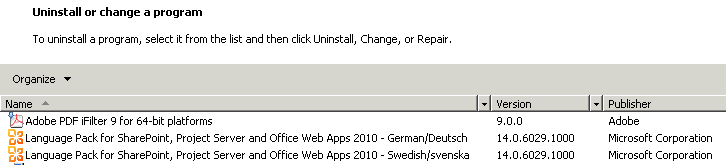
The Language Pack.

View in Control Panel, Uninstall or change a program

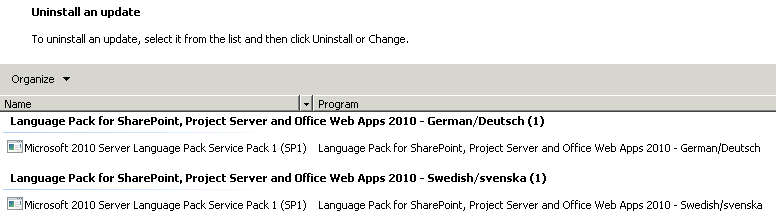
The Language Pack Service Pack 1

View in Control Panel, Uninstall an Update

In CA you will find information on upgrades in 3 places, Servers in farm, Check Product And Patch Istallation Status and Check Upgrade Status. If your Check Upgrade statyus looks like this you can relax, for this time…

All Done!
All Done!

I almost forgot! Powershell. Check out installed and missing updates by running:
Get-SPProduct | select *
and
Get-SPProduct | select -ExpandProperty PatchableUnitDisplayNames
(Requires that you first run add-pssnapin Microsoft.SharePoint.powershell)

Summary

There are probably things that should be here that I have missed, or that you think is incorrect or that should be included. Please let me know so that I can correct this and make this a better place of information on Language pack finding, collection and deployment.

1 down, at least 3500 steps left to get your ultimate SharePoint 2010 farm in order…

List of available languages (list updated September 16, 2010 at http://technet.microsoft.com/en-us/library/ff463597.aspx)

Arabic 1025

Basque 1069

Bulgarian 1026

Catalan 1027

Chinese (Simplified) 2052
Chinese (Traditional) 1028

Croatian 1050

Czech 1029

Danish 1030

Dutch 1043

English 1033

Estonian 1061

Finnish 1035

French 1036

Galician 1110

German 1031

Greek 1032

Hebrew 1037

Hindi 1081

Hungarian 1038

Italian 1040

Japanese 1041

Kazakh 1087

Korean 1042

Latvian 1062

Lithuanian 1063

Norwegian (Bokmål) 1044

Polish 1045

Portuguese (Brazil) 1046

Portuguese (Portugal) 2070

Romanian 1048

Russian 1049

Serbian (Latin) 2074

Slovak 1051

Slovenian 1060

Spanish 3082

Swedish 1053

Thai 1054

Turkish 1055

Ukrainian 1058