SPB usage guide – 2 Configuration and Modification
This is the guide on how to install and use the SharePoint Branding Project.
Download: Visual Studio gallery
The guide is devided into three parts:
1 Download and Installation
2 Configuration and Modification
3 Deployment and verification (soon to be released)
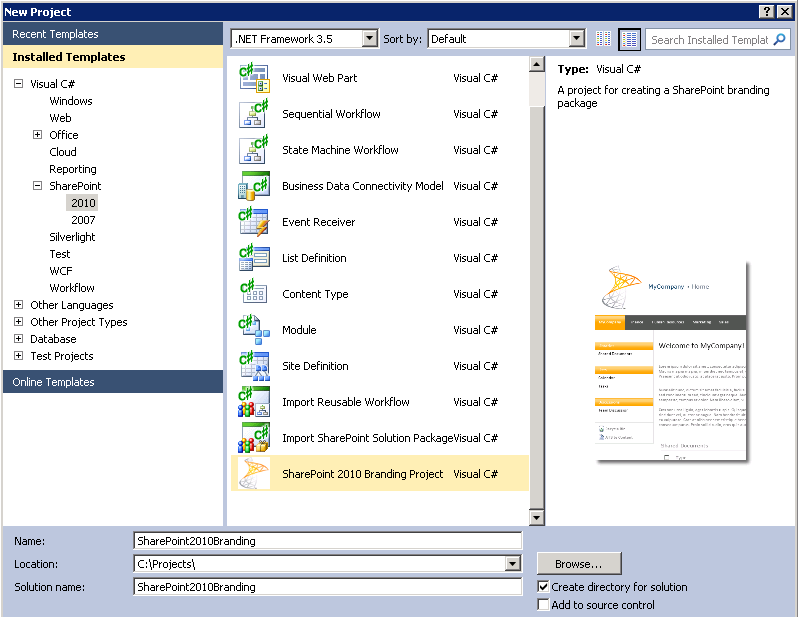
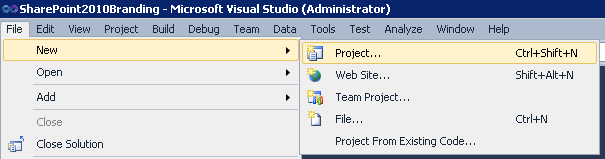
In part 1 of this guide, we left off at the new project dialog:

In the categories, select C#, SharePoint, 2010 and SharePoint 2010 Branding Project.
Name the project(This name will also be the name of the SharePoint Feature), select its file location and Click OK.
Clicking on OK will create a new project for you in Visual Studio, the project will be a complete branding solution ready to deploy or package and install to a SharePoint 2010 farm or even an Office 365/SharePoint online tenant.
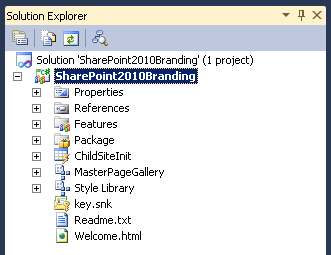
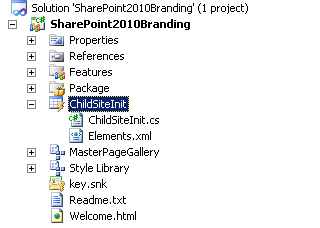
The first thing that you will see is the SharePointBrandingProject in the solution explorer:

The solution will by default have a number of components and functionalities.
Custom SPB Masterpages for:
Team sites MyBranding.master, equivalent to the general V4.master.
Meeting Workspaces MyBrandingMWS.master, equivalent to the general MWSDefaultV4.master.
Team sites MyBrandingMinimal.master, equivalent to the minimal.master.

Custom SPB StyleSheets:
MyStyles.css, Contains styles for basic look and feel for most sites and is used in all masterpages.
MyStylesMinimal.css, This is an additional stylesheet loaded and used when the MyBrandingMinimal.master is loaded.
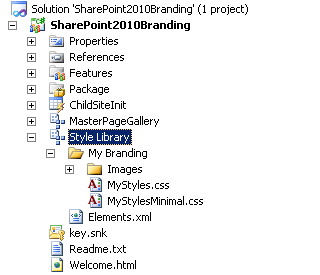
Custom logo:
logo.png
Custom Favicon:
favicon.ico

Custom Eventreciever:
ChildSiteInit, This handles the web provisioned event to apply branding on new subsites.

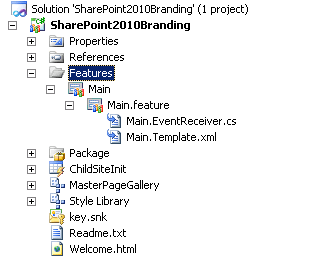
Custom Feature:
Main, This feature applies the branding to the rootsite and all subsites.
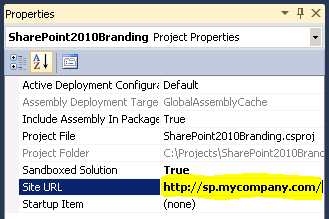
In order to deploy this solution directly from Visual Studio to your test site, enter the url of you site collection in the project properties:
Now you are ready to deploy the solution to SharePoint with the default branding. The default branding is good looking and all that, but perhaps you want to make a few changes first? I would however recommend that you try the deployment so that you can verify that everything really works and that you have the permissions needed and so on. After successful trial deploy and complete awe for the good looking SHarePoint you made for yourself, it is time to start changing the branding.
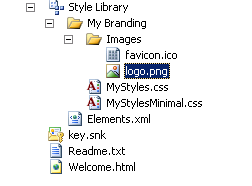
First thing you will want to do, is replace the logo and favicon(if you did not know this, the favicon is the small tiny image that is located to very left in the address field in your Internet Explorer browser(I guess FF and others too). The favicon is loacated in Solution Explorer in the Images folder under the Style Library/My Branding/Images/
You can replace this file with a new favicon using the same name, but it must have the same properties: 32×32, a 24bit bmp .ico file. There are applications that are made just for the purpose of creating icons available. Or there is a plugin to PhotoShop available if you have access to PhotoShop (ICO (Windows icon) plugin). You can also edit the icon right here in Visual Studio but that is probably not for the thorrow artists…

Same story with the logo, it does not have the same rigorous restrictions on the size and type, but it should be close to what is the default size, use a too big or small image and you will have to make adjustments to the master/Stylesheets to compensate.
The logo can be edited in Visual Studio but that is not something that you do, use a proper image editing application, or simply adjust you current company/Organization/Customer logo to fit. I will now show you how you replace the default logo file with your own custom logo:
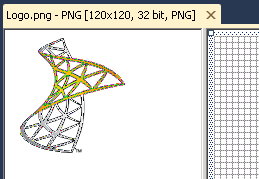
The current logo, logo.png – 120×120.
Delete the default logo by right clicking on the imagefile in the solution explorer and Click Delete:

Click OK in the confirmation dialog:

Now the logo file is deleted and we have to replace it with our new custom logo file. For simplicity, use a PNG file if you have one (if you don’t, use another file but then you will HAVE to edit the feature that adds the logo to the site).
To add the image, Right Click on the Images flder in solution explorer, then select Existing Item and Add:

Browse to your logo file in the explorer window, it can be located locally, or on a fileshare somewhere. Select the file and Click Add:

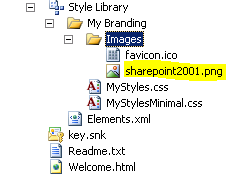
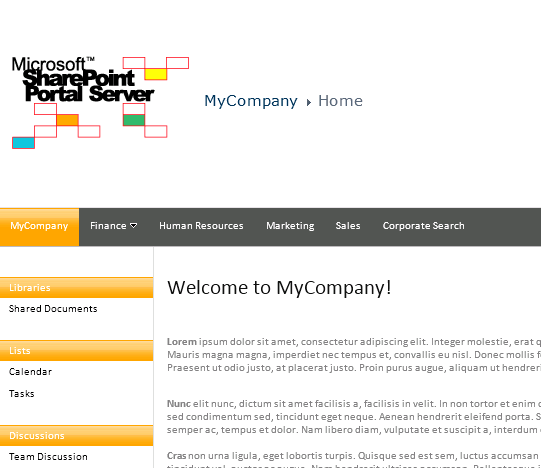
Now the imagefile is added, in my case I have found a wonderful logo from back in the days, when SharePoint 2001 was the talk of the town. SharePoint Portal Server 2001 had a pretty mean logo, this is what I’ll be using in my demo. See this guide part 3 for a presentation of that logo in action.

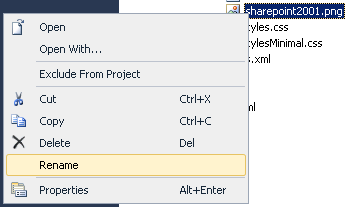
For the branding project to recognize the image as the logo, it will have to be renamed to logo.png (unless you used another fileformat or if you want to edit the feature to fit anyway).
Right Click on the Image in the Solution explorer window and select Rename.

Beautiful! The solution is again ready to be deployed:

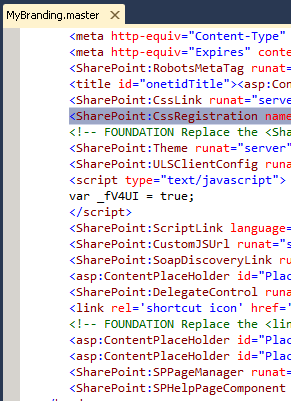
Before we deploy the solution, I want to just quickly show you the basics of how you edit the real source of the branding solution, the master pages and the stylesheets. What you do is that you in Solution explorer, Double Click on the master or stylesheet you want to edit or look at. Try that and you will see something like this for the master:

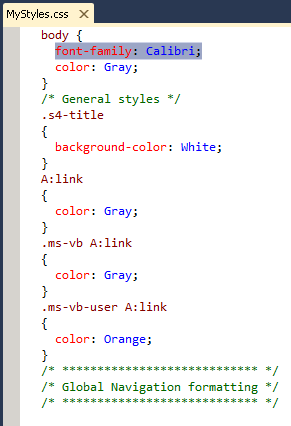
And this if you Double Click on a StyleSheet(css)…
Did you know that CSS actually stands for Cascading Style Sheets, Cascading comes from the order in which they are applied, the classes in the last css to be applied overruns the previous even if they contain the same classes.
Now we are ready to deploy. So, how do we do that? From Visual Studio, you simply do it in a few Clicks, or really, its just two Clicks away.
Right Click on the Project in Solution explorer, Click Deploy.

Verify that the deployment went ok:

In my case, it did! Happy happy! Over to the browser and verify the new look and feel, go to the site, if allready there, refresh the page.
This is what my site looks like with that beautiful replaced retro logo, don’t you just love it?

In the next section of this guide, I will show you what the branding does and what you will see in the browser ‘onsite’.
The next part is called:
3 Configuration and Modification (soon to be released)
See also the previous part:
1 Download and Installation
Stay tuned!
Enjoy!
Regards
 Twitter | Technet Profile | LinkedIn













 blksthl