Have you seen this? Or similar in SharePoint 2010?

This is just a quick guide to disabling the setting that makes Internet Explorer unbarable in a labb or test environment. Often, you do use the browser on the lab, dev or test server to quickly verify functionality or in SharePoint, to access Central Administration web site and make the first initial configurations. When IE ESC is eneabled, you get popups all the time and you are asked to add every new url to the IE trusted sites zone.
So, on a dev, test or lab server, it is ok to disable it, at least if you ask me. As long as you are aware of what you are doing and that it after all does provide an extra layer of security.
At the end of this post, I have added what all the settings in IE ESC really does, one by one.
| Updated 2013-02-06 – Added link menu |
–
–
–
–
GUI – Graphical User Interface
The steps:
1. On the Windows Server 2012 server desktop, locate and start the Server Manager.

–
–
2. Select Local Server (The server you are currently on and the one that needs IE ESC turned off)

–
–
3. On the right side of the Server Manager, you will by default find the IE Enhanced Security Configuration Setting. (The default is On)

–
–
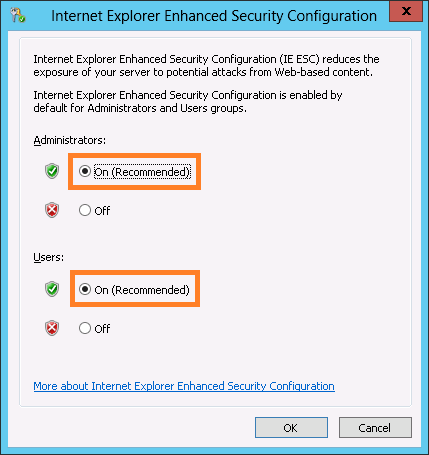
4. You have two settings that can be disabled, one only affects the Administrators and the other all users. The preferred method when testing (if for example SharePoint) is to use a non-admin account and if that is the case, disable the IEESC only for users. Using a local administrator account would cause an additional threat to security and it will also often not give you the required result in tests, since the administrator has permissions where a normal user do not.
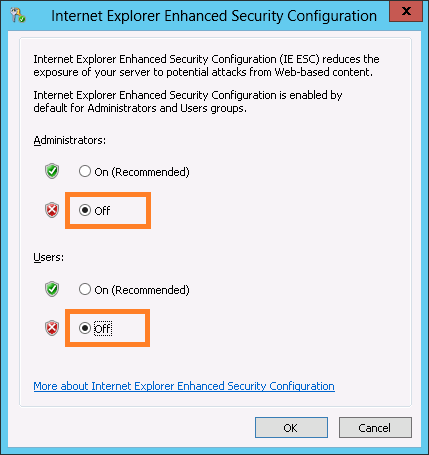
Make your selection to Off for Administrators, Users or both.

–
–
5. In this example, I have selected to completely disable Internet Explorer Enhanced Security. When your seelction is made, click OK.

–
–
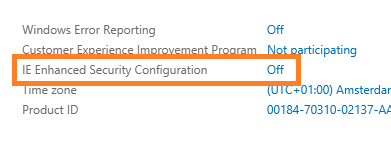
6. Back in the Server Manager, you will see that the setting has not changed at all. Press F5 to refresh the Server Manager and you wil see that it is changed to Off.

–
–
Done, open up a IE browser windows and try to access any internal site to test the setting, you will notice that you no longer are prompted in the same way.
Back to top
–
–
PowerShell
(Best I can do, if you know of any OOB CMDlets that does the trick, please drop a comment and let me know:
Put the code below in a textfile and save it with a ps1 extension i.e. Disable-IEESC.ps1
(This will disable both Administrator and User IE ESC)
function Disable-IEESC
{
$AdminKey = “HKLM:\SOFTWARE\Microsoft\Active Setup\Installed Components\{A509B1A7-37EF-4b3f-8CFC-4F3A74704073}”
$UserKey = “HKLM:\SOFTWARE\Microsoft\Active Setup\Installed Components\{A509B1A8-37EF-4b3f-8CFC-4F3A74704073}”
Set-ItemProperty -Path $AdminKey -Name “IsInstalled” -Value 0
Set-ItemProperty -Path $UserKey -Name “IsInstalled” -Value 0
Stop-Process -Name Explorer
Write-Host “IE Enhanced Security Configuration (ESC) has been disabled.” -ForegroundColor Green
}
Disable-IEESC
(You have to hit enter twice after pasting the script if you paste it directly into a PS prompt)

Done!
Back to top
–
–
IEESC General Information
IMPORTANT! Do NOT disable IE ESC on any production servers or servers with live data on them, to disable IE ESC is to reduce the security and can potentially expose the server to attacks. By the way, on a production server: IE shall not be used at all!
More on IE ESC from Microsoft help:
(From Windows Server 2008R2 helkp, 2012 help leads to an empty web page!)
Internet Explorer Enhanced Security Configuration Overview
Windows Internet Explorer Enhanced Security Configuration (IE ESC) configures your server and Internet Explorer in a way that decreases the exposure of your server to potential attacks through Web content and application scripts. This is done by raising the default security levels on Internet Explorer security zones and changing the default settings.
Enabling or disabling IE ESC
IE ESC can be enabled or disabled by using Server Manager for members of the local Administrators group only or for all users that log on to the computer.
Membership in the local Administrators group, or equivalent, is the minimum required to complete this procedure.
| Note: If Internet Explorer is open when IE ESC is enabled or disabled, you must restart Internet Explorer for the IE ESC changes to become active. |
| Note: IE ESC will automatically be disabled if Terminal Services or Remote Desktop Services is installed on a computer that has IE ESC enabled, but it can be enabled again by using Server Manager. |
Default settings for IE ESC
When IE ESC is enabled on Windows Server 2008 R2, the security levels for several built-in security zones are changed. The following describes these changes.
Internet
High
All Web sites are assigned to this zone by default. Web pages might not display as expected, and applications that require the Web browser might not work correctly because scripts, ActiveX controls, and file downloads have been disabled. If you trust an Internet Web site, you can add that site to the Trusted sites zone.
Trusted sites
Medium
This zone is for the Internet sites whose content you trust.
Local intranet
Medium-Low
When visiting Web sites on your organization’s intranet, you might be repeatedly prompted for credentials because IE ESC disables the automatic detection of intranet Web sites. To automatically send credentials to selected intranet sites, add those sites to the Local intranet zone. Additionally, access to scripts, executable files, and other files in a shared folder are restricted unless the shared folder is added to this zone.
Restricted sites
High
This zone contains sites that are not trusted, such as malicious Web sites.
Internet Explorer maintains two different lists of sites for the Trusted sites zone: one list when IE ESC is enabled and a separate list when it is disabled. When you add a Web site to the Trusted sites zone, you are adding it only to the list that is currently being used.
If you attempt to browse a Web site that uses scripting or ActiveX controls, Internet Explorer with IE ESC enabled will prompt you to consider adding the site to the Trusted sites zone. You should add the Web site to the Trusted sites zone only if you are sure that the Web site is trustworthy. If this prompt is disabled, it can be enabled again by selecting the Display enhanced security configuration dialog check box in the Advanced tab of the Internet Options dialog box. For more information about adding Web sites to Internet Explorer security zones, see Security zones: adding and removing websites (http://go.microsoft.com/fwlink/?LinkId=81287).
In addition to raising the default security level of each zone, IE ESC also adjusts Internet options to further reduce exposure to possible future security threats. These settings can be found on the Advanced tab of the Internet Options dialog box. The following describes the options that are changed when IE ESC is enabled.
Enable third-party browser extensions
Off
Disables Internet Explorer add-ons that might have been created by companies other than Microsoft.
Play sounds in Web pages
Off
Disables music and other sounds.
Play animations in Web pages
Off
Disables animations.
Check for server certificate revocation
On
Automatically checks a Web site’s certificate to determine if the certificate has been revoked.
Do not save encrypted pages to disk
On
Disables saving encrypted information in the Temporary Internet Files folder.
Empty Temporary Internet Files folder when browser is closed
On
Automatically clears the Temporary Internet Files folder when Internet Explorer is closed.
Warn if changing between secure and not secure mode
On
Displays a warning when a Web site is redirecting the browser from a Web site with security features implemented (HTTPS) to a Web site without security features implemented (HTTP).
The Internet Explorer home page location is changed when IE ESC is enabled or disabled. This change ensures that the home page will open without prompting the user to add it to the Trusted sites zone. This is done by changing the home page to an HTML file stored locally on the computer. If you want to change the home page when IE ESC is enabled, add this home page to the Trusted sites zone before making the change. The following lists the home page associated with each scenario.
IE ESC is enabled, and the user account is a member of the local Administrators group.
res://iesetup.dll/HardAdmin.htm
IE ESC is disabled, and the user account is a member of the local Administrators group.
res://iesetup.dll/SoftAdmin.htm
IE ESC is enabled, and the user account is not a member of the local Administrators group.
res://iesetup.dll/HardUser.htm
| Note: If Internet Explorer is customized by using the Internet Explorer Administration Kit, the home page is not changed to one of the IE ESC home pages listed in the table when IE ESC is enabled or disabled. |
Caution
These changes reduce the functionality in Web pages, Web-based applications, local network resources, and applications that use a browser to display Help, support, and general user assistance.
When IE ESC is enabled, the following Web sites are added to the appropriate security zones:
The Windows Update and Windows Error Reporting Web sites are added to the Trusted sites zone.
Http://localhost
https://localhost
hcp://system
are added to the Local intranet zone.

_________________________________________________________
Enjoy!
Regards

Twitter | Technet Profile | LinkedIn

















 blksthl